
Your Mac opens Word, Excel or PowerPoint, and a Visual Basic box says Run-time error 53, File not found, with a path that ends in MacPDFM. One owner had to dismiss it "up to four times in a row every time I open a document".
The missing file belongs to Adobe Acrobat, not to Office, so I would not reinstall Office over it.
Since 2020 one Ask Different thread on it has drawn 212,053 views. On Microsoft Q&A, 10+ people marked the same question.
What Office is trying to load
Acrobat puts small add-ins into Office's Startup folders: linkCreation.dotm for Word, SaveAsAdobePDF.ppam for PowerPoint and SaveAsAdobePDF.xlam for Excel. Each one reaches for Adobe's MacPDFM file as the app opens.
On Apple silicon, that load fails. An Adobe employee called it a known error with Acrobat 2020 on M1, M2 and M3 Macs.
Adobe's community manager went further in September 2026: Acrobat 2020 "was never able to run natively on Apple Silicon Macs (M1 and later)". Owners click End, sometimes several times, and the document still opens.
Ours: none. With no Mac running Office and Acrobat here, I built this from Adobe's staff replies, Apple's Rosetta page and owners who got rid of the box.
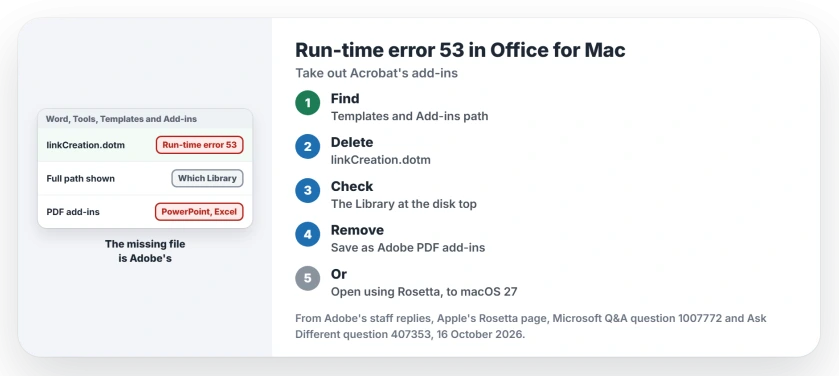
Status: Adobe staff named Acrobat 2020 as the cause in September 2026; owners confirm the add-in removal from Big Sur to Sequoia 15.3.1.
Let Word show you where the add-in lives
Open Word, then choose Tools, Templates and Add-ins. Select linkCreation.dotm in the list.
Look under the list. One owner noticed that selecting the file shows its full path there, which tells you which folder to open. Note it down. Your copy can sit in either of two Startup folders.
Delete linkCreation.dotm from that folder
Quit Word. In the Finder, hold Option, open the Go menu and choose Library. Open Group Containers, then UBF8T346G9.Office, User Content, Startup and Word, and drag linkCreation.dotm to the Trash.
Typing the path in Terminal instead? One owner found those names end in .localized there, such as User Content.localized. Restart, then open Word again.
Owners report the same result. One confirmed it on macOS 13.2.1, and another wrote, "This still works on Sequoia 15.3.1". If your Word still shows the box, try the next folder.
Folder empty? Check the main Library
Some installs put the add-ins in the Library at the top of your disk instead of your home Library. One owner whose folder was empty put it bluntly. In their words, "Use the Library folder and NOT the User/Library/".
Open Macintosh HD, then Library, Application Support, Microsoft, Office365, User Content and Startup. Delete linkCreation.dotm from your Word folder and SaveAsAdobePDF.ppam from PowerPoint, then restart.
PowerPoint and Excel carry their own copies
PowerPoint loads SaveAsAdobePDF.ppam and Excel loads SaveAsAdobePDF.xlam, from the Startup folders next to Word. Delete those as well if you use either app.
You may need one more step. The 2020 asker found it. In PowerPoint, choose Tools, PowerPoint Add-ins, select Save as Adobe PDF and click the minus button. Do the same in Excel under Tools, Excel Add-ins.
Skip it and each app may complain at launch about the add-in it lost. That asker had to repeat the PowerPoint removal several times before it held.
Back after an update?
It can come back on you. One Adobe community member wrote that "Later Microsoft and Adobe updates sometimes reenable this annoying" error, and another saw it come back after macOS Sequoia 15.
In 2024 an owner reported that "every time I remove linkcreation.dotm from the folder in my library, then re-start Word, I get the error again". A second copy in the main Library fits that pattern, so check both folders on your Mac.
Neither folder has it? One owner found the leftover copy with Find Any File, a search app that sees hidden folders, after another member suggested it.
Keeping Acrobat's PDF button?
Then you need to fix Acrobat itself. Adobe says Acrobat 2020 reached end of support on November 30, 2025, and that Acrobat DC and Acrobat Pro 2024 "are both built to run natively on Apple Silicon".
Adobe's stopgap for Acrobat 2020 is Rosetta. Quit the Office app, find it in Applications, open its Get Info window and select Open using Rosetta.
Apple's Rosetta page explains what your tick does: "It forces the app to open as an Intel-based app instead of an app for Apple silicon, which allows it to use Intel-only plug-ins, extensions, and other add-ons."
It has an end date, though. Apple's page gives you Rosetta until macOS 27, and our printer page for macOS 27 explains what Apple keeps after that.
Does reinstalling Office fix it?
Usually not. A Microsoft Q&A moderator was plain about it: "The error is caused by an Acrobat installation gone awry, so re-installing Acrobat is a good move if you intend to keep using it."
The same moderator added, "Reinstalling Office will not help the issue." One owner did clear it by removing both apps and installing Acrobat first, then Office, though they were not sure it would last.
Word refusing to save your files is another fault entirely. The 0x0 save error page walks through it.
The Short Version
- Run-time error 53 naming MacPDFM comes from Acrobat's Office add-ins.
- In Word, Tools, Templates and Add-ins shows the add-in's full path.
- Delete linkCreation.dotm, SaveAsAdobePDF.ppam and SaveAsAdobePDF.xlam.
- Folder empty? Look in the Library at the top of your disk.
- Staying on Acrobat 2020? Open using Rosetta works until macOS 28.
Where to Next
Home Library or the Library at the top of the disk: where did your copy hide? Leave me a comment so I can keep the folder section accurate.

Isaac Smith is the founder and editor of PC Glance, a website that covers computers, laptops, and technology. He is a tech enthusiast and a computer geek who loves to share his insights and help his readers make smart choices when buying tech gadgets or laptops. He is always curious and updated about the latest tech trends.