

The Samsung One UI 9 update installs through your Galaxy's Software update settings when the release is available for that model, region and carrier. Open Settings, choose Software update, then use Check for updates or Download and install.
An up-to-date message means the phone isn't offering another update through that route right now.
One UI 9 isn't a Play Store app. Before downloading anything elsewhere, check your phone's software version and complete model code so you're looking for the right release.
Read the version already installed
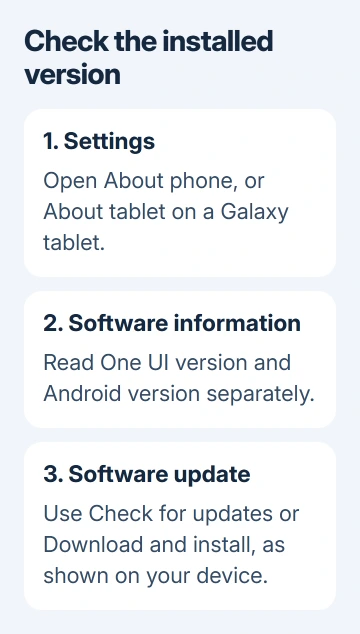
Open Settings > About phone > Software information on a Galaxy phone. On a tablet, start with About tablet. Read One UI version and Android version as separate entries instead of judging by the home screen's appearance.
If One UI version already reads 9, the major upgrade is installed. A later software update may still be available for that version, so a security patch appearing later doesn't mean the upgrade failed.
Note the model number on the About page as well. A marketing name alone can cover variants sold in different regions. The Samsung model identification steps help when the name and model code are easy to confuse.
Keep the current build number with that information if you're asking about availability. It gives support something more useful than a description like the update with the new icons.
Check the release for your Galaxy variant
Samsung says on its One UI 9 upgrade page that you can check for updates in Settings; available features can vary by device, carrier and network. Install through the update your phone offers.
Another Galaxy receiving the release doesn't mean yours has it. Models, regions and carriers can differ within one Galaxy family. For an imported phone, check which version was sold in its original market.
Check announcements for your own country and carrier rather than expecting a list for another market to apply to your phone. If a release notice names your exact variant, compare its instructions with what your phone currently offers.
A phone's launch date alone won't tell you which updates it gets. Don't assume a Galaxy qualifies simply because it can run the current apps, or that an older model must receive every new One UI release.
I'd keep the model code beside any rollout notice you're reading. It prevents a lot of wasted checks on a phone that isn't the variant the notice describes.
Prepare the phone before installing
Make a current backup of the data that matters and check that it completed. Installing an update normally keeps your personal files, but a backup lets you recover them if the phone develops a separate problem during the update.
Connect to reliable Wi-Fi and charge the device. Make sure it has enough battery to install and restart; don't start when it's about to shut down. Follow the battery requirement displayed by the update screen.
Check storage if the update reports insufficient space. Remove or transfer files you recognize, then empty their trash only after checking the copies. An update package needs space to unpack and install, beyond the package's download size.
Keep the phone's current unlocking code ready. After a restart, biometrics alone may not be enough to unlock it. If you can't remember the code, sort that out before starting an update that will restart the phone.
Choose a time when a restart won't interrupt a call or travel check-in. You'll need the phone to finish installing before you can use it normally again.
Install through the Software update screen
Open Settings > Software update. Select Check for updates or Download and install, as shown on your model. Wait for the check to finish instead of leaving while the phone is still checking for an update.
Read the update information before accepting it. Check which version it offers and whether it needs an earlier update first. A phone several releases behind may need to install the offered package before it can check for a newer one.
Start the download and follow the installation prompts. Keep the connection available during downloading. Once installation begins, let the phone restart and finish its progress screen without trying to force it off.
After unlocking, return to Software information and check One UI version again. That's the useful confirmation of a completed major upgrade, rather than a changed wallpaper or a notification that the package downloaded.
If the version is still older, check Software update again and read the result. A completed download and a completed installation aren't the same thing; the package can still be waiting for your approval to restart.
Handle an up-to-date message or a failed download
When the phone says it's up to date, check the model and region details against the release information first. Repeatedly restarting or clearing app data won't change which update your phone is offered.
If a download starts but fails, read the error. A storage warning calls for more free space; a network failure calls for a stable connection. Deal with that message, then return to Software update and try the download again.
A Wi-Fi connection that needs a hotel or café sign-in can appear connected without letting the update download properly. Finish that network's sign-in, or use a trusted home connection before retrying.
If an announced update for your variant stays missing, check with Smart Switch on a compatible PC or Mac. Connect the phone by USB, open Smart Switch, and install an update only if it offers one.
Smart Switch also checks availability; it doesn't promise an earlier release. Keep the cable connected and follow its prompts. No Update option means that route isn't offering the package.
Verify the result and get model-specific help
After the upgrade, update your apps and check the features you use daily, such as calls, messages and account sign-ins. Treat a specific app failure as its own problem rather than reinstalling the entire operating system immediately.
Read the device's Tips and user manual, Tips and help or similarly named Settings entry for the features actually supplied with your model. The menu title can differ even between supported Galaxy devices.
For a phone showing remaining unlock attempts, read the One UI 9 lock-screen guidance before guessing another code. That situation needs different advice from a download that won't start.
For a missing or repeatedly failed update, contact Samsung Support or the carrier in your notice. Ask about availability using your model code, purchase country, carrier, build and error.
The Short Version
Check the installed One UI version and model first. Back up, charge the phone, then install the release offered in Software update. Use the error and model details to check why the update is missing or failing. Avoid unofficial installers.
Checked November 9, 2026.

Isaac Smith is the founder and editor of PC Glance, a website that covers computers, laptops, and technology. He is a tech enthusiast and a computer geek who loves to share his insights and help his readers make smart choices when buying tech gadgets or laptops. He is always curious and updated about the latest tech trends.