

Saving a picture in Chrome takes a right-click on a computer or a long press on a phone. Choose Save image as on Windows, Mac, or Chromebook, Download image on Android, or Save Image on iPhone and iPad.
Open the picture on its original page first, especially after an image search, to avoid saving a small preview. Then check where the file went. Copying an image or saving the whole page isn't the same as downloading the picture.
In this guide
Save the image file on a computer
Open the page containing the picture and point directly at the image. On Windows or Chromebook, right-click it. On a Mac, use a two-finger trackpad click or hold Control while clicking if secondary click isn't set up.
Choose Save image as, select a folder, check the filename, then click Save. Google's Chrome download instructions list this as the image-saving action.
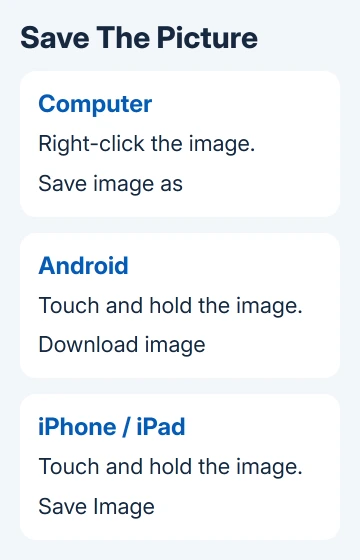
Save image as opens a window where you choose a filename and folder. On Windows and Mac, Downloads is a convenient place to keep it. On a Chromebook, check Files > Downloads afterward.
Don't choose Save page as when you only want the picture. That saves the web page, which can include an HTML file and supporting files. Copy image puts the image on the clipboard for pasting; it doesn't create a permanent file in Downloads.
For an image-search result, click through to the website and open the image at the size you need before saving it. A preview can be much smaller than the original. Zooming the page makes the preview look bigger without adding image detail.
Download a picture on Android
Open Chrome, visit the page with the image, then press and hold the image itself. When the menu appears, tap Download image. If a permission or download confirmation appears, read it and approve the save you requested.
Let Chrome complete the download. Open Chrome's menu and tap Downloads to check the file. When Chrome has a bottom address bar, swipe up on the bar to find Downloads if it isn't in the menu position you expected.
The Files app also shows downloads. On a Galaxy, look in My Files > Downloads. Your gallery app may show the picture too. To check whether Chrome finished saving it, look in its Downloads list.
Tapping a picture once often opens it or follows a link instead of saving it. Use the long press for the image menu. If the menu only offers actions for a link, open that link and try holding the actual picture on the destination page.
Keep an image on iPhone or iPad
In Chrome, open the image's page, touch and hold the picture, then choose Save Image. Check the Photos library for the saved picture. If iOS asks whether Chrome can add photos, allow that access to complete the save.
Some current Chrome versions also offer Save Image in… > Save in Google Photos. That route saves to the Google Account you select. Check the account before tapping Save, especially if the phone has both personal and work accounts.
Saving an image isn't the same as downloading a file to Files. For a file link, Chrome can show SAVE…, followed by a Save in… screen. Choose Files, or use Share > Save to Files if that option appears instead.
Choose the destination folder and finish with Save. Opening something in another app isn't always a permanent save: Chrome can use temporary storage for files opened that way. Put the file in Files for a lasting copy.
If Photos didn't receive the image, check the permission request and the destination you selected. If you saved the picture to a different Google Photos account, switch to that account to look for it.
Practice with an image that has a clear save target
On a public file page, it's easier to tell which picture you can save and which parts belong to the page. Open the Apollo 17 Earth image, select the image or its original-file link, then use your device's image-saving action.
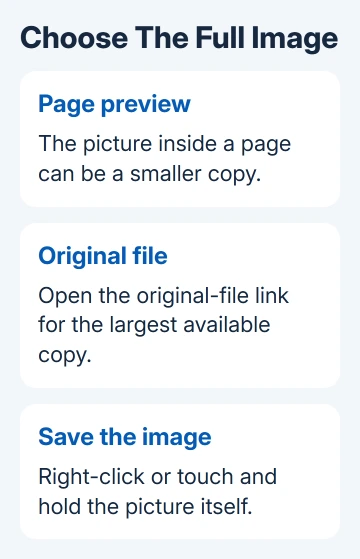
Use the original-file link for the largest available copy. Saving the picture shown inside a page can save that smaller version instead. For your own image, use the publisher's download or original-image control when offered.
Find the picture after the save finishes
On a computer, open Chrome menu > Downloads and locate the filename. Use Show in folder for the file's actual location, then open it. Once you can find it in the folder and open it, you know you've saved a usable image file.
If every download opens an unwanted location prompt, change Chrome's ask-where-to-save setting. That's a download preference, so it doesn't require saving each picture by a different method.
Check the file's format before renaming it. A WebP image doesn't become a JPEG just because you replace its filename ending. When another app needs a different format, open the downloaded image in an editor that can export that format.
For an image with a transparent background, keep the original file when moving it into another app. The separate guide to transparent pictures turning black explains why pasting can behave differently from inserting the saved image.
When the image menu or download doesn't work
Check where you press or right-click. An image inside a slideshow, a canvas, or a page background may not offer the same menu as an ordinary image file. Use the page's download control if it has one, or open the image separately if offered.
If another ordinary image saves correctly, the first page needs a different method. Ask the image owner for a downloadable copy when the page doesn't provide one. Don't install an extension just to get around an unfamiliar page's controls.
If all image downloads fail, read the error in Downloads, check free storage, and retry a normal image from a trusted page. With work- or school-managed Chrome, send your administrator the blocked-download message for review.
The Short Version
Right-click and choose Save image as on a computer. Hold and choose Download image on Android or Save Image on iPhone. Check the destination and open the saved file before assuming the download worked.
Checked November 12, 2026.
 If you have any business, I can build it online






