
To scan on a Brother printer, load the document, open Brother iPrint&Scan on your computer, select the machine, and choose Scan. After checking the preview, choose Save to PC and set the filename, folder, and file type.
The desktop app handles the scan and its saved file. To use the printer's Scan button, you'll also need to set up where it sends the file.
The printer must include a scanner. Models and software differ, so use the downloads for your exact machine rather than assuming every Brother printer has the same scan controls.
Get the right scanning software for your model
Check the machine's model label, then open Brother's Downloads search.
Search that model and select your computer's operating system before downloading its scanning software.
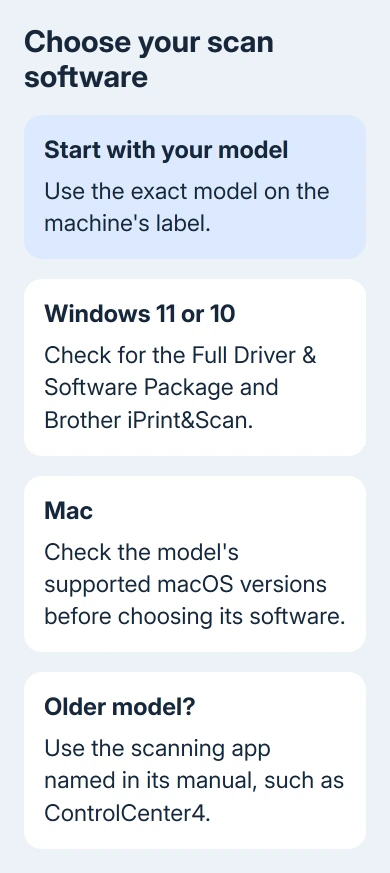
For Windows 11 or Windows 10, install the model's supported Full Driver & Software Package and Brother iPrint&Scan where offered. A computer that can print may still be missing its scanner software.
On supported Macs running macOS 11 or later, the desktop iPrint&Scan app comes from the Mac App Store. For older macOS 10.14 or 10.15 setups, the model-specific instructions may also require the Full Software Package.
Choose the operating system listed for your model. If iPrint&Scan isn't supported, use the scanning application named in its manual, such as ControlCenter4 on an older Windows setup.
Don't force an unrelated model's package onto the computer.
Connect through the printer's supported USB connection or put the machine and computer on the same home network.
Our Brother connection guide covers installation and discovery if the machine hasn't been connected yet.
Load one page and choose the machine
For a flatbed scan, lift the scanner lid, place the document against the glass using its alignment mark, and close the lid. The printed side faces the glass. Keep a book on the flatbed rather than trying to feed it through rollers.
For several loose sheets, use the automatic document feeder (ADF) if your model has one. Follow its printed loading symbol for which way the pages face, and bring the paper guides against the stack without bending it.
I'd start with one ordinary sheet. That lets you check orientation, cropping, and the save folder before scanning a whole packet. A blank preview often needs the paper turned over or moved to the correct scanning surface.
Open Brother iPrint&Scan. On Windows, use its Start menu entry or desktop shortcut. On a Mac, open Applications > Brother iPrint&Scan. Choose Select your Machine if the correct model isn't already selected.
Select the machine you've connected and confirm your choice. If the app can't find it, fix that connection problem first. Clicking Scan repeatedly won't create a preview from a printer the app hasn't selected.
Scan, inspect, and save the first file
Click Scan in the desktop app. Set the Document Size, color choice, and resolution to match the document, then click Scan again to capture it. The choices you'll see depend on the selected machine.
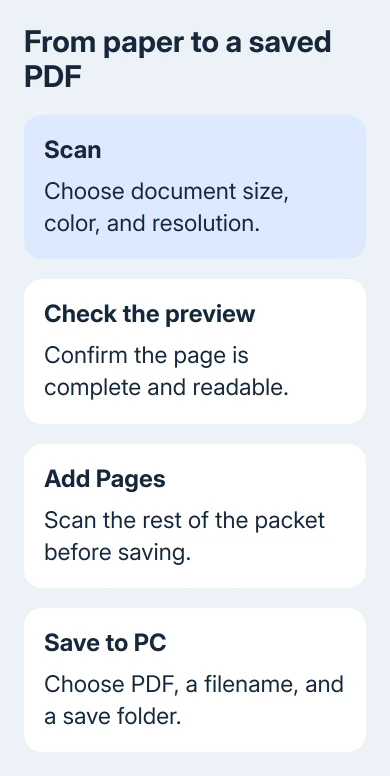
Check that the preview shows every edge and readable text. If part of the page is missing, correct the document size or its position and scan again before saving. Increasing resolution won't recover content outside the scanned area.
Choose Save to PC. Enter a recognizable File Name, choose the Save Folder, and select the File Type. Pick PDF for a document or a multipage packet; use an image type when you need an individual picture.
Click Save, then open that folder in File Explorer or Finder. Open the file itself to confirm the result. You'll catch a file saved in the wrong folder, or text that looked clear in the preview but isn't readable in the saved scan.
Higher resolution produces larger files and can take longer. Use the resolution your destination requires, especially for an upload form with a size limit, rather than choosing the largest number automatically.
Combine several pages into one PDF
After the first scan, choose Add Pages to capture another page from the glass. Load the next sheet and scan it. Continue until every page appears in the app's preview list.
For a model with an ADF, load the supported stack and scan it through the feeder. Check the page count afterward.
An automatic feeder doesn't automatically mean two-sided scanning; that feature needs support in the model and scan settings.
When the packet is complete, choose Save to PC, select PDF, and save. Open the resulting file and review page order, orientation, and any blank pages before sending it elsewhere.
Don't save every page as a separate image if the recipient asked for one PDF. Keep adding pages within the scan job, then save the finished document.
Brother explains this in its multipage PDF instructions for Windows and Mac.
Make the printer's Scan button save to your computer
Even if scanning from the app works, you still need to set up the machine's own Scan button. In iPrint&Scan, open Machine Scan Settings, complete any setup prompt, and choose File.
Set the scan settings, filename, save folder, and PDF file type, then save the configuration. On a supported Mac setup, install the model's Brother iPrint&Scan Push Scan Tool when its instructions require it.
Load the document at the printer. On supported control panels, choose Scan > to PC > to File. Select the destination computer on network models, then press Start and follow the display.
Use your model's manual if that route doesn't match its buttons. A scan started from the computer and one started at the printer need different setup, so test the desktop Scan command if only the panel button fails.
Handle older software or a scanner that won't appear
An older Windows setup may use ControlCenter4. Its basic sequence is Scan, choose Document Type and Scan Size, then Scan again.
Review the image and use its file-saving option instead of expecting iPrint&Scan's exact layout.
On a supported Mac, Apple's scanning instructions offer another route through the scanner controls.
For a scanner lost after a Mac update, the Mac scanning troubleshooting guide covers finding the scanner and checking app permissions.
If it still fails, contact Brother support for the exact model. Tell them your operating system, connection type, app name, and whether scanning fails from the computer, the machine's panel, or both.
Include the displayed error and whether a preview ever appears.
The Short Version
Select the machine in its supported scanning app, scan the loaded document, and inspect the preview. Add more pages before saving a multipage PDF. Choose Save to PC, set the destination, and check the resulting file itself.
Checked November 8, 2026.

Isaac Smith is the founder and editor of PC Glance, a website that covers computers, laptops, and technology. He is a tech enthusiast and a computer geek who loves to share his insights and help his readers make smart choices when buying tech gadgets or laptops. He is always curious and updated about the latest tech trends.