

The Microsoft Store version of Sticky Notes keeps local data in its LocalState folder, usually in plum.sqlite. Notes that you've signed in and synced also live with your Microsoft account in Outlook or Exchange.
For a backup, keep a copy of the local folder and check your synced account before resetting the app.
That folder belongs to a particular Windows user and app version. Don't assume the newer Sticky Notes experience connected to OneNote keeps every note in that same local database.
In this guide
Find the local folder for the Store app
Sign in to the Windows account that created the notes. Press Windows + R, paste the following path, and press Enter. The percent signs are part of the path; Windows uses them to find your own user folder.
%LocalAppData%\Packages\Microsoft.MicrosoftStickyNotes_8wekyb3d8bbwe\LocalStateLook for plum.sqlite in the folder that opens. It stores the app's data in a database, so your notes aren't separate text documents. A file with that name won't open as a normal sticky note when you double-click it.
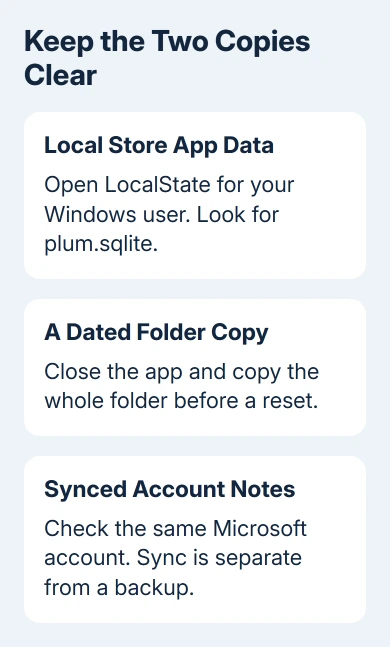
Each Windows account has its own folder at this path. Another Windows account shows its own app data, not the notes from your original profile. Keep that in mind after moving to a new account or signing into a repaired computer.
A missing folder doesn't mean the notes have been deleted. Check which Windows account you're using and which Sticky Notes app you opened. The Store app's historical storage path isn't a universal location for OneNote's newer experience.
Avoid changing permissions on the protected WindowsApps installation folder to look for notes. That folder holds the program, while your notes belong in your user data. The LocalState path opens the Store app's data folder.
Copy the data before changing or resetting the app
If the notes still open, first copy any essential text into a separate document. That's the easiest way to preserve the information you need immediately without relying on a database file being readable elsewhere.
Close Sticky Notes before copying its local data. Copy the complete LocalState folder into your chosen backup directory and put the date in the backup folder's name.
Copy it rather than moving the original out of the app's folder.
Files ending in -wal or -shm can appear beside the database. SQLite, the software that manages the database, uses these files too. Keep the folder together rather than deleting files because they don't look like notes.
I'd keep that untouched copy before trying an app reset. A reset clears app data; your folder copy keeps what was there before you started. The two actions have very different effects.
The copy keeps your local data, but don't replace a working database with a backup as your first recovery step. Check the account and visible notes first so an older copy doesn't overwrite something newer.
Before assuming the built-in backup covers this folder, check what Windows Backup includes. Keep the date and original Windows account name with the copy so you can identify it later.
Check the account copy of your notes
In the Store Sticky Notes app, open the notes list and select Settings near the upper-right corner. Check the signed-in account. If you haven't signed in, notes can still exist locally without an account copy.
Microsoft's Sticky Notes troubleshooting page explains that synced notes use Outlook or Exchange storage and count toward the mailbox's limit.
Syncing isn't the same as exporting an independent backup.
For a reminder that keeps disappearing behind other apps, pin the Sticky Notes window with PowerToys without changing its stored data.
Use the same account when looking for notes on another supported device. If your notes appear there, you have a synced copy to work with even when the Windows app isn't showing them correctly.
When a business or education account won't sync, ask IT whether your account has an enabled Exchange Online mailbox and whether the organization allows Sticky Notes to sync.
App sign-in can fail because of organization settings rather than because the local folder is wrong.
Check the version in Settings > About when an update notification blocks syncing. Follow the app's update prompt through Microsoft Store, after preserving local notes that matter.
Don't remove its data just to clear an update notification.
Preserve note text when the export instructions don't match
The Sticky Notes export help describes exporting synced notes with other Outlook.com items. It applies to version 3.0 or later after sign-in and sync.
However, its linked Outlook instructions now describe exporting search history to a CSV file. That CSV isn't a backup of your notes. Don't delete local data because you've downloaded a search-history file.
For notes you can still open, copy each important passage into a saved document, then save that document outside the app's data folder. Check the saved text before making changes to Sticky Notes.
If you need an account-wide export and the current options don't offer one, ask Microsoft support how to export notes from your account type.
Keep the local folder copy in the meantime rather than treating a changed help link as a completed backup.
For account access problems, the Microsoft account recovery guide covers the sign-in route.
The PC's Windows PIN unlocks that device; online access requires the Microsoft account's sign-in method.
Distinguish an old migration from a current missing folder
Very old Sticky Notes versions used StickyNotes.snt under %AppData%\Microsoft\Sticky Notes. That is a legacy location from older Windows releases, not the usual Windows 11 Store-app database.
If you're recovering files from an old drive, keep the original user profile intact while checking its app-data folders. The old file's existence doesn't mean copying it into the modern LocalState folder will import the notes.
When neither the local app nor the synced account shows the notes, stop resetting the app and ask Microsoft support about the version you're using. Provide the app name, version, account type and whether a dated local backup exists.
For business notes, involve IT before replacing data files or changing the account. Mention any other device that can still display the latest notes.
Knowing which copies still exist helps IT choose account recovery, app repair or backup recovery without overwriting your best copy.
The Short Version
For the Store Sticky Notes app, check LocalState and plum.sqlite under your Windows user profile. Preserve the folder before resetting.
Synced notes also use Outlook or Exchange storage, but its export help currently leads to search-history instructions. Copy essential note text into a separate document.
Checked November 13, 2026.
 If you have any business, I can build it online






