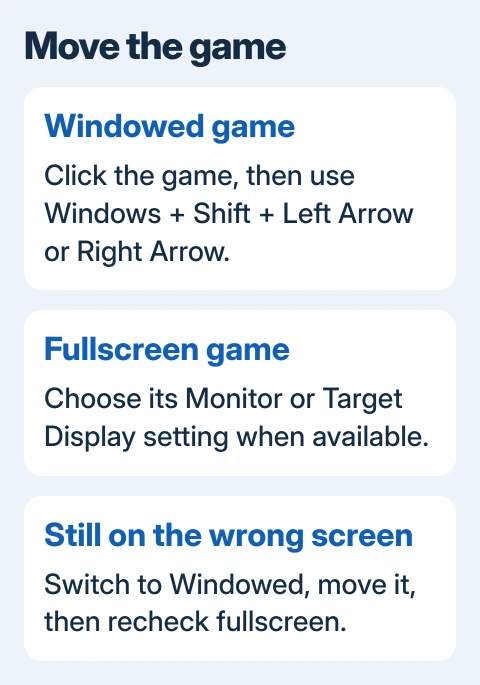
A windowed game can usually move to another monitor with Windows + Shift + Left Arrow or Right Arrow. Fullscreen may need a monitor choice in the game's settings. Try the shortcut first, then change its display mode if it stays put.
Both screens need to be available to Windows. Duplicate mode shows the same picture on each screen; Extend gives the game a separate desktop to move onto.
In this guide
Move the game with the Windows shortcut
Pause the game or return to its menu, then click its window. Hold Windows + Shift and press Left Arrow or Right Arrow toward the other display. Release the keys and check which screen now contains the game.
Microsoft lists the move command in its Windows keyboard shortcuts. The active window matters: clicking Discord or the launcher first can move that window instead.
If the game moves and stays there, you can leave it on that screen. Check the resolution in its video settings before playing, especially when the two monitors have different resolutions.
If nothing moves, try the opposite direction once. Windows follows the Display settings arrangement, which might differ from your desk. If it still won't move, the game may be using fullscreen and choosing its own display.
I'd try the shortcut before changing the main display. It takes seconds and leaves your other apps where they are. Changing the desktop's default screen is more useful when the game keeps starting on the wrong one.
Choose a monitor inside the game when it offers one
Open the game's settings and look in Video, Graphics or Display. Each game has its own menus, so there isn't one Windows command that opens the monitor setting in all of them.
Look for Monitor, Display or Target Display. Choose the intended screen and apply the change. Some games list a model name, while others use a number. Check which screen the game moves to; its numbers might not match Windows.
For example, the Overwatch video-settings guide lists Target Display as the choice for a setup with several monitors. That setting belongs to that game; another game's Graphics menu may offer no monitor choice at all.
After the move, select a resolution suited to the destination display. A game can keep a previous screen's resolution, making the new picture look stretched or unusually soft even though the monitor change worked.
Return to the game menu and exit normally after applying the change. Launch it again to see whether it remembers your choice. If it moves correctly but starts on the wrong screen next time, you'll need to change its startup choice too.
Use windowed mode when fullscreen won't move
In the game's video settings, change Fullscreen to Windowed and apply it. A window with a title bar is easiest to move because you can drag that bar onto the other monitor.
Move it with the Windows shortcut or drag the title bar across the desktop. Once it is on the intended screen, try the game's Borderless Windowed option if you'd prefer to fill the screen without the window frame.
Some games also switch between fullscreen and windowed with Alt + Enter. Try it only as a shortcut the game supports; if nothing happens, use its menu. This key combination isn't a universal monitor-selection command.
Watch what happens when you restore fullscreen. If the game jumps back to the original display, it is still choosing that display for fullscreen. Use its monitor selector, or change the Windows main display before starting it again.
A borderless game can fill the screen while still behaving like a desktop window. Exclusive fullscreen can behave differently, so a method that works in one mode may fail in another. Keep the mode that leaves it on your chosen screen.
Set the preferred monitor as your main display
Close the game first. On Windows 11, open Settings > System > Display, then select Identify to put a number on each screen. Select the rectangle for your gaming monitor.
Expand Multiple displays and select Make this my main display. On Windows 10, use Settings > System > Display, select the screen, then find the same checkbox in the Multiple displays section.
If the checkbox is already selected, that screen is already the main display. Changing it can also move desktop elements and affect where other apps open. The number 1 isn't a promise that a screen is the current main display.
Start the game again and check its position. This helps games that follow the Windows main display. A game with a saved monitor choice can still use that setting, so return to its Video menu if only that game ignores the change.
For ordinary apps that also choose the wrong screen, the window-position fixes cover saved positions and taskbar launching. A game's fullscreen display choice needs the checks in its own menu too.
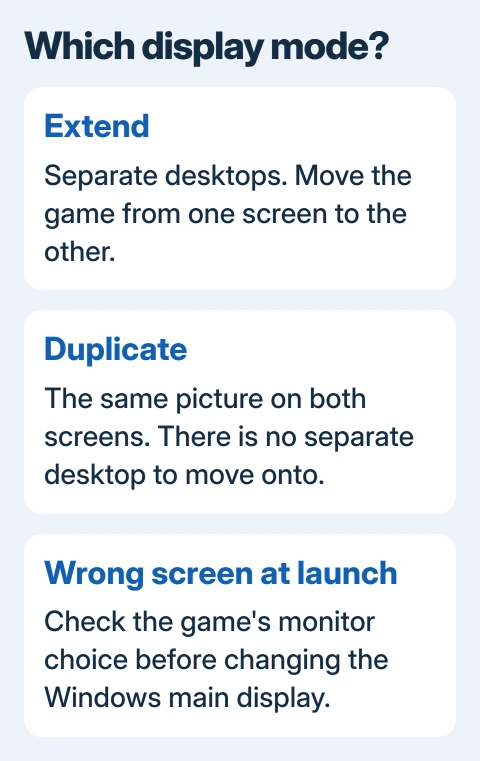
Confirm Windows is extending both screens
Press Windows + P and select Extend if you want a game on one screen and separate apps on the other. Select Duplicate only when both displays should show the same desktop.
Open Settings > System > Display and confirm both displays appear. Drag their rectangles to match your desk, then apply the layout. The pointer should cross the same edge that separates the physical screens.
If the destination screen isn't listed, the second-monitor detection checks come first. The game can't move to a display Windows hasn't detected.
When Windows can move other windows but one game always snaps back, contact that game's support with its name, display mode and both monitor models. Ask how to change its saved output display without deleting saved games.
The Short Version
Try Windows + Shift + Left Arrow or Right Arrow with the game active. If fullscreen resists, use its monitor setting, or switch to Windowed before moving it. Change your main display if the game keeps launching on another screen.
Checked November 13, 2026.
 If you have any business, I can build it online