Windows 11 22H2 error 0x8007001F can appear when a duplicate user profile blocks the upgrade. Try updating Store apps first, which helped some owners. If it still fails, check the SetupDiag result before trying the installation again.
That error code doesn't name the failed component. A duplicate-profile result calls for an account repair; a different result needs a different fix. Another download of the upgrade won't remove a profile conflict.
In this guide
1. Update Store apps before another upgrade attempt
Open Microsoft Store and find its Library or Downloads update area. Check for updates and install those offered, including an update to the Store itself. Let them finish, then restart the PC.
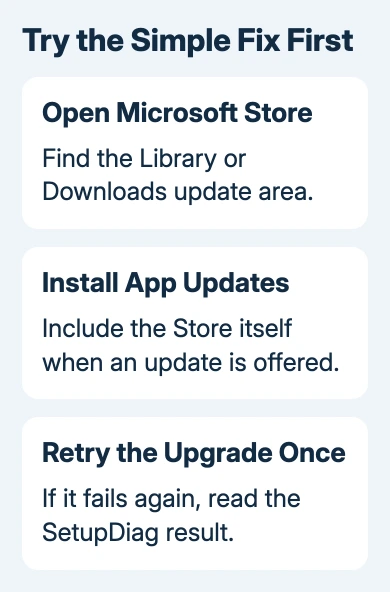
Two participants in the original discussion said updating Store apps let the Windows upgrade finish. Another tried the same step and still failed. It's a reasonable quick attempt, but it doesn't explain every instance of this code.
Retry the upgrade once through Settings > Windows Update. If it rolls back or displays the same error, record the complete message and check the setup result in the next section. Repeating this Store step won't correct a duplicate profile.
The original target was Windows 11 22H2. That version has ended servicing, so install the current supported version that Windows Update offers your PC. Don't download an old 22H2 image simply to recreate a historical repair attempt.
2. Open the SetupDiag result Windows already created
Press Windows+R, enter %windir%\Logs\SetupDiag, and look for SetupDiagResults.xml. Open the file with Notepad. Windows Setup can run this diagnostic automatically after an unsuccessful upgrade.
SetupDiag checks the installation logs for errors it recognizes. Microsoft's SetupDiag reference includes a rule named DuplicateUserProfileFailure, which identifies a user-profile migration error.
Search the result for that rule name, the affected username and its SID. A SID is the long identifier Windows uses for an account. Copy it exactly so you don't confuse two similarly named accounts.
Ask support to run current SetupDiag against the upgrade logs if the automatic result is missing. Keep those logs. Cleaning temporary installation files first can erase details needed to explain the failure.
The original owner found the duplicate-profile message in setupact.log inside the collected logs. Other participants posted related messages in setuperr.log. These files can contain more detail than the short error on the update screen.
If the result file is missing, you still need to find out why the upgrade failed. Send support the error and the available logs instead of choosing a registry entry based only on 0x8007001F.
3. Check whether the profile failure matches your accounts
If SetupDiag reports DuplicateUserProfileFailure, check the username in Settings > Accounts > Other users. Early Windows 11 builds may label the section Family & other users. Record which accounts are active and which are no longer used.
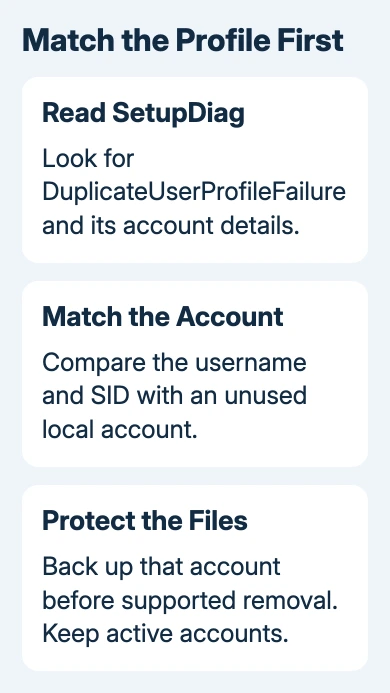
A duplicate-profile failure can happen when multiple account identifiers point at one user profile. SetupDiag's rule describes software-created local accounts that were never used or signed into as one possible cause.
One owner fixed a duplicate profile. Their linked repair found two registry entries pointing to one profile folder, with different capitalization. That difference alone doesn't identify an entry to remove on your PC.
Don't edit the registry unless the log names a confirmed unused account. Deleting an active profile's registry entry can stop that person signing in. A technician should compare the SID, account and profile path together.
If the affected person already has a User Profile Service sign-in error, resolve that access problem with their files protected before retrying the feature upgrade.
4. Remove only an identified unused account, with its files saved
Before fixing DuplicateUserProfileFailure, back up the affected account's files. Check its Desktop, Documents and other local folders, and confirm the saved copies open before removing anything.
Sign in with a different administrator account. In Settings > Accounts > Other users, expand the confirmed unused account and choose Remove beside Account and data. Confirm removal only after matching it to the diagnostic result.
Removing the account removes its local sign-in information and data from this PC. It doesn't close that person's online Microsoft account. Don't remove the account you're currently using or another person's working account to test a theory.
Restart Windows, then try the supported feature upgrade again. A successful result reaches the desktop on the new version; winver shows the new version and build. Check that the remaining users can still sign in and access their files.
If SetupDiag names a profile that doesn't appear under Other users, stop at that point and give the details to support. Don't delete its folder in C:\Users or a random ProfileList registry entry instead.
5. Follow a different result when the duplicate rule is absent
If SetupDiag names an incompatible application or a driver, give the exact name to the application's publisher or PC manufacturer. Update or remove that identified component using its supported instructions before trying the upgrade again.
If several errors appear, the final failure is usually the fatal one. An early warning in a long log might be unrelated to the rollback. Keep the complete result so support can read the surrounding events.
Owners also failed through the Upgrade Assistant and an ISO after Windows Update failed. A different installation method didn't fix their cause. Let the logged failure guide your next repair instead of trying another download.
For other update codes, the Windows Update error guide helps keep the next repair tied to the message actually displayed. A new code after account repair needs its own check.
Open Get Help and request help with a feature-upgrade rollback. Provide the target release, current Windows build, complete error and SetupDiag result. For a work PC, ask IT to review profile migration before trying the upgrade again.
The Short Version
Update Store apps once, then read SetupDiag if the upgrade still fails. Remove an unused account only when the duplicate-profile result identifies it and its files are backed up. A different result needs a different repair.
Checked November 26, 2026.
 If you have any business, I can build it online