

Windows 11 24H2 can fail because of a compatibility block, a download problem, or a driver that makes setup undo the upgrade. Check the update name: a version upgrade and a monthly patch for an existing 24H2 PC need different fixes.
As of November 12, 2026, 24H2 Home and Pro have also reached end of updates. For those editions, use the supported newer Windows version offered to your PC rather than trying to force the old feature update.
In this guide
1. Separate the version upgrade from a monthly update
Press Windows+R, enter winver, and press Enter. Record the version and complete OS Build. If it already says Version 24H2, the computer doesn't need another installation of that feature release.
Open Settings > Windows Update > Update history. Write down the failed update's complete name, its KB number if it has one, and the error code. A cumulative update keeps the current Windows version while changing its build.
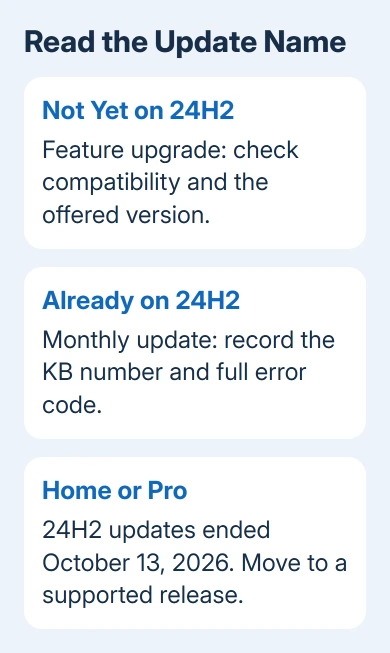
If the PC is on an older version and setup was trying to move it to 24H2, follow the compatibility checks here. If it's already on 24H2 and a KB failed, start with the restart and update-error checks instead.
This distinction matters when following older advice. A fix for a particular 2025 KB isn't automatically a fix for a different 2026 security update, even when both pages mention 24H2.
2. Check whether 24H2 is still the right destination
Microsoft's 24H2 release-health page confirms that Home and Pro updates ended October 13, 2026. It recommends moving to 25H2 or 26H2 for continued updates.
The same page says Enterprise and Education still receive monthly security updates until October 12, 2027. Their final non-security preview was released September 22, 2026. Your edition determines which updates you should still receive.
Check Settings > System > About > Windows specifications > Edition. For Home or Pro, check which supported version Windows Update offers your PC. Follow that offer instead of hunting for an old 24H2 installer.
For the version dates and their effect on an existing installation, use the 24H2 support guide. End of updates doesn't itself explain a download error, but it changes which release you should aim for now.
On a managed Enterprise or Education device, ask IT which version is approved. A feature-update policy can hold a computer to a specific release, so that policy may explain why an upgrade isn't offered, even when Windows Update works.
3. Follow a compatibility message instead of bypassing it
A What needs your attention screen can name an incompatible app or driver. Record that name and the requested action. Update or remove the named item using its maker's instructions, then retry once you've dealt with that block.
A safeguard hold temporarily blocks an upgrade on PCs with a known compatibility problem. Find that issue in the release-health list; don't disable the hold simply to make the version appear.
One documented example names an Nvidia display driver that isn't ready for this Windows version. That message applies to affected display adapters and driver versions, not every PC with Nvidia graphics.
For that specific message, follow the display-driver upgrade guidance. It provides Windows Update and Device Manager routes, plus steps to install the driver manually if neither offers the fix.
In Device Manager, expand Display adapters, right-click the affected adapter, and select Update driver > Search automatically for drivers. Check Windows Update again after a successful driver update.
The guidance says to wait for the newer Windows version to be offered after installing the corrected driver. Don't use the Update now button or Media Creation Tool to push past that specific block before the driver is fixed.
4. Finish pending restarts before retrying
If Windows Update shows Restart required, save your work and restart through Start's power menu. Then open Windows Update again and see whether the failed item is still offered before attempting another download.
Check Settings > System > Storage for available space. Follow any space requirement shown by setup. Installation can run out of working space after a successful download.
Use Settings > System > Troubleshoot > Other troubleshooters > Windows Update > Run if that option is present. On systems that route troubleshooting through Get Help, follow the Windows Update flow there.
Check the result after the repair and retry once. Success should appear in Update history; for a feature upgrade, winver should show the new version. A completed download alone isn't the final result.
If it stops again, keep the new error message. Repeating the same download without checking whether the error changed can hide a second problem behind the first one.
5. Use the error code when setup rolls back
If setup starts but then returns you to your old desktop, the upgrade has failed, even if the progress indicator reached a high percentage. Save the entire code, including the second part if one appears.
Codes starting 0xC1900101 usually involve drivers. Disconnect nonessential external devices and check the PC maker's drivers before retrying. Keep the keyboard, mouse, and display you need to operate the computer.
A second code of 0x20017 needs the SAFE_OS startup checks, including software that loads with the disk.
The Windows upgrade failure guide covers the deeper error-code and SetupDiag checks. SetupDiag reads setup logs to identify the stage that failed; it can explain what the progress percentage can't.
I'd read those logs before another full installation attempt. A driver problem, an incompatible app, or too little space can all send you back to the old desktop. Each needs a different fix.
For a failed monthly KB, use its own support article and matching known-issue entry. A reported fix for a different KB or Windows version isn't a reason to remove drivers or security software from this PC.
6. Send support the failed stage and exact update
If installation still fails, open Get Help and describe a Windows Update or Windows upgrade failure. Include the PC model, Windows edition, winver result, failed update name, error code, and whether setup rolled back.
For a named driver block, include the device and driver version from Device Manager > device Properties > Driver. Ask your organization's IT team to review those details before changing update policies on a managed PC.
Keep a backup of important files before a further feature upgrade or any repair that could reinstall Windows. A clean installation isn't the first response to a single failed KB or an unresolved compatibility hold.
The Short Version
Match the failed item to a version upgrade or a KB patch for an existing 24H2 PC. Act on its specific error. Home and Pro should move to a supported release. Resolve named driver blocks before forcing another upgrade attempt.
Checked November 12, 2026.
 If you have any business, I can build it online






