Windows 11 25H2 problems with USB audio or a Remote Desktop token error have update fixes. Install the current cumulative security update first: the audio correction shipped November 10, and the Remote Desktop fix arrived October 28.
The open SQL Server linked-connection notice concerns business databases. It doesn't explain an ordinary laptop running slowly or an update that won't install. Match your symptom to the relevant repair instead of rolling back immediately.
In this guide
1. Check the version and the update already installed
Press Windows key + R, type winver, and press Enter. Check the version and OS build in the window. Version 25H2 is the release these fixes apply to; a PC already on 26H2 needs that version's release-health information instead.
Next, open Settings > Windows Update > Update history. Look under Quality Updates for the latest cumulative update. Its date and KB number matter more than remembering that the computer updated sometime recently.
Microsoft explains which issues remain open and which have fixes on its 25H2 release-health page. A notice can remain visible after a fix has shipped, so read its status and resolution together.
In Windows Update, select Check for updates and install the current cumulative security update offered for the PC. Finish any required restart, then try the exact action that failed.
Monthly cumulative updates include earlier fixes for that release.
If updates are controlled by work or school, send the problem and installed KB number to IT. Your work or school may still need to approve and send out an update, even after the fix is available.
If the problem is the update process itself, use the Windows Update repair steps for a stuck installation. Get the installation working before attempting an audio-specific repair.
2. Update USB audio devices that stopped producing sound
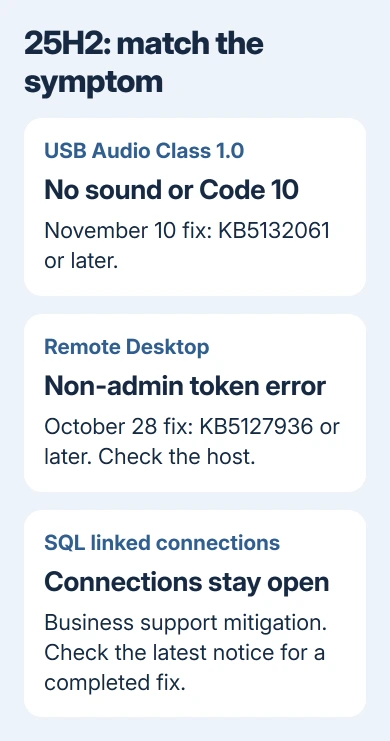
The documented USB audio issue followed the September 8, 2026 security update, KB5124008. It affects some USB Audio Class 1.0 devices, an older standard used by certain USB audio products.
Other sound failures can have different causes.
Reported symptoms include no sound, volume controls staying at zero, unavailable sound settings, or Code 10 in Device Manager. Some affected devices worked in stereo but failed with multichannel audio, including eight-channel or 3D modes.
For this issue, the September 14 out-of-band update fixed the multichannel symptoms. An out-of-band update is one released outside the normal monthly schedule.
The remaining symptoms were fixed in KB5132061, released November 10, 2026, and later updates.
Install the latest offered security update, restart and try the same USB audio device again. Check Settings > System > Sound and select that device as the output before playing audio.
Check the USB device itself, even if your built-in speakers work.
To read the error, right-click Start and choose Device Manager. Find the affected audio device and open Properties. Read Device status on the General tab.
Code 10 can have other causes, so check which device is affected and when the trouble started.
If sound still fails after installing the fix, use the Windows sound troubleshooting steps to check your output selection and drivers. Keep the device model and the current status message for support.
I'd install the update with the fix before spending time on the temporary stereo workaround. That workaround addressed only part of the original fault, while the November notice lists a resolution for its remaining symptoms.
3. Match the Remote Desktop error before changing policy
The relevant Remote Desktop notice concerns non-admin users connecting to remote devices with Administrator protection enabled. It followed the September 22, 2026 preview update, KB5124010, or later updates.
A failed connection shows 0xC000000D and an invalid-token message referring to a function. This primarily affects enterprise-managed remote hosts. A failed home Wi-Fi connection or an incorrect remote address is a different problem.
The documented fix is KB5127936, released October 28, 2026, or a later update. Ask IT to check which updates that remote device has installed, since changing the connecting laptop alone doesn't address an outdated host.
After the remote device gets the fix and restarts, retry with the same ordinary user account. If it connects, keep the normal account and security policy rather than granting administrator access as a substitute.
An earlier workaround temporarily disabled Administrator protection through management policy. The current resolution says that workaround isn't needed after installing the update with the fix.
Don't change a company's protection policy yourself to try an old repair.
If the error remains, send IT its exact code, the host's version and KB number, and whether other non-admin users are affected. Ask them to compare the host against this specific release-health notice.
4. Route the open SQL problem to the database team
The open SQL notice was added in November after updates released October 13, 2026, KB5127648, or later. It concerns linked-server queries whose external connections can remain open after the queries finish.
The affected queries use OLE DB providers, software that lets SQL Server connect to other databases. Connections to Oracle and PostgreSQL are among those named.
Over time, the accumulating connections can slow the server down.
This isn't a general explanation for slow Windows startup, browser lag or high memory use on a personal laptop. It matters when an administrator sees the matching connection buildup in the database environment.
The notice lists a mitigation through Microsoft Support for business and says an out-of-band update is planned. It doesn't yet list a completed update for this issue.
Check the current notice before scheduling a repair, since that status can change.
Database administrators can temporarily ease the load by closing identified idle connections or restarting the SQL service. Either action can interrupt active queries or transactions, and the problem can return.
Let the database team decide when to do this through its normal maintenance process.
For an affected organization, ask the database administrator to request the mitigation for the SQL linked-server connection issue. Include update dates, providers, connection counts and when the server starts slowing down.
5. Get help for a fault that doesn't match these notices
Choose the fix using the symptom as well as the release version. Record the failing app or device, exact error, Windows build, latest KB number and the last successful date.
Note whether the same action works with another device or account when you can compare safely.
Open Get Help from Start for a home PC problem. Describe exactly what fails, such as a USB headset showing Code 10, rather than entering only 25H2 problems. Follow the support route for that device or Windows component.
For a new failure that began immediately after an update, report it through Feedback Hub too. Include the steps that reproduce it and the update number. Work-managed PCs should go through IT before update removal or security-policy changes.
Keep rollback for a repair that actually calls for it. Removing a cumulative update can also remove security corrections and other repairs. Start with the available fix when it matches your symptom.
The Short Version
Check winver and Update history first. Current cumulative updates correct the USB audio issue and that specific Remote Desktop error.
The open SQL linked-server problem needs the business support mitigation and a fresh status check, not a general laptop reset.
Checked November 15, 2026.