

Windows 11 can show battery percentage without the hours remaining in its taskbar popup. Check Settings > System > Power & battery: if a time estimate appears there, you can use it even when the taskbar doesn't show it.
Neither screen showing an estimate is a separate issue from a missing percentage beside the icon. Start with the screen that still works, then check updates before changing battery settings or installing another utility.
In this guide
1. Look for the estimate in Power & battery
Press Windows + I, select System, then open Power & battery. Look at the battery information at the start of this Settings page. If your installation provides a time estimate, it appears with the current charge information.
Check while the laptop is running on its battery. The charging status doesn't tell you how long you can keep working unplugged. Save your work before disconnecting power if the charge is already low.
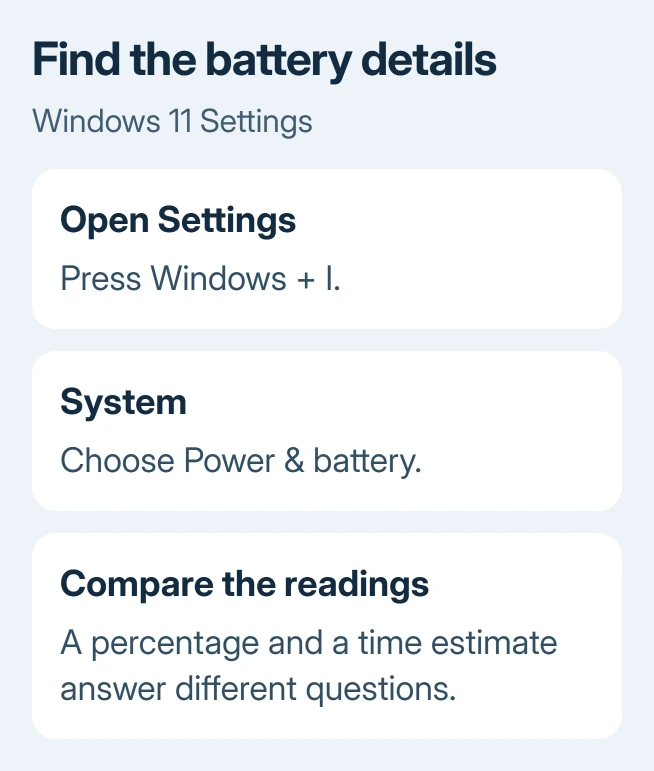
Use the Settings estimate if the taskbar popup shows only a percentage. Reinstalling a battery driver isn't a sensible first response when another Windows screen already supplies the information.
An owner confirmed in the original discussion that the estimate was available in Power & battery even when it wasn't available on hover. You can use that built-in reading without adding software.
If Settings also lacks the time, continue with the version and update checks. Be specific about what's missing: a missing taskbar detail isn't the same as a battery that Windows can't detect.
2. Update Windows before following old taskbar advice
Press Windows + R, enter winver, and record both its version and build. Then open Settings > Windows Update > Check for updates. Install any available updates for your supported Windows version and restart if asked.
The original complaint dates from October 2021, soon after Windows 11 launched. Its replies discuss features arriving in test builds during 2022. An early Windows 11 limitation doesn't tell you what to expect from later versions.
Microsoft's battery-icon update notes describe detailed battery information through hover or Power & battery, alongside a separate percentage option.
That update doesn't promise an hours-and-minutes reading on every laptop. After updating, check the hover popup and Settings page again before trying an old registry tweak.
Use Windows Update for current packages instead of downloading the historical preview named in those notes. Finish a requested restart, then examine the display again.
3. Separate the percentage switch from the time estimate
On versions with the newer battery controls, open Settings > System > Power & battery and look for Battery Percentage. Enable it to display the charge percentage alongside the taskbar icon.
The result is a charge percentage, not a countdown in hours. A laptop can correctly show its percentage while providing no runtime estimate. Moving that number beside the icon won't create a time reading that the system isn't supplying.
If that switch is absent, record the build and recheck Windows Update. Your Windows version and installed features determine whether it appears. Searching unrelated taskbar menus won't reveal it.
Identify the missing detail: the number beside the icon, its popup information, or the Settings estimate. That tells support exactly what's missing, without changing three different controls.
I'd keep the built-in Settings page handy before installing a battery monitor. If it already provides the information you need, another background app adds little to this particular problem.
4. Check battery health only if runtime is also poor
A missing time label tells you nothing about battery wear. If the laptop also lasts much less time than it used to, generate a battery report to check its capacity and usage history.
Open Start, type Command Prompt, choose Run as administrator, and accept the prompt. Enter this command:
powercfg /batteryreportThe command prints the location of an HTML report. Open File Explorer, go to that location, and double-click the report. It opens locally in your browser; it doesn't require an online account.
Start with Installed batteries, Recent usage, and Battery usage. The battery-health guide explains the capacity figures if you need to judge whether reduced runtime deserves a replacement battery.
The report explains battery usage and capacity. Generating it won't enable a taskbar feature, so use it to check poor runtime, not to try to restore a missing label.
If charge falls mainly while the laptop is asleep, compare sleep, hibernation and shutdown behavior. Overnight loss needs its own power check even when daytime estimates look normal.
5. Give support the missing reading, not just the icon
Open Get Help from Start if a current installation still gives unexpected battery information. Include your laptop model, the build from winver, and whether the estimate is missing from hover, Settings, or both.
Also report whether the percentage updates normally and whether the laptop runs normally after unplugging it. If the percentage freezes or the laptop suddenly shuts down, support needs to check power reporting or the battery itself.
For those power symptoms, ask your laptop maker about model-specific battery diagnostics and firmware updates. The maker can check the battery and the hardware that reports its status. Changing the taskbar won't repair those parts.
If only the hover detail is missing while Settings works, use Windows + F to submit that specific taskbar feedback. Include the build and a description of the two different displays so the report shows what needs attention.
The Short Version
Look in Power & battery, update Windows, then compare the taskbar. Battery Percentage enables a percentage, not a time estimate. For poor runtime, use a battery report; for missing details, tell support which screen is affected.
Checked November 16, 2026.
 If you have any business, I can build it online






