Check for Windows 11 critical updates in Settings > Windows Update to see download progress and restart requests. A browser calling an update critical isn't a reason to run its installer. Open Settings yourself to check what this PC needs.
The words can mean a security update, a pending restart, or an alarming web message. Each needs a different response. Start in Windows Update instead of searching for a download matching the warning.
In this guide
Check the message against Windows Update
Save your open work, open Start > Settings > Windows Update, and read the status. Select Check for updates. Leave the PC on power with a working internet connection during the check and download.
If updates were paused, use Resume updates before checking again. A paused update screen explains why a pending fix hasn't moved forward. It doesn't mean a download site has a newer version that Windows can't find.
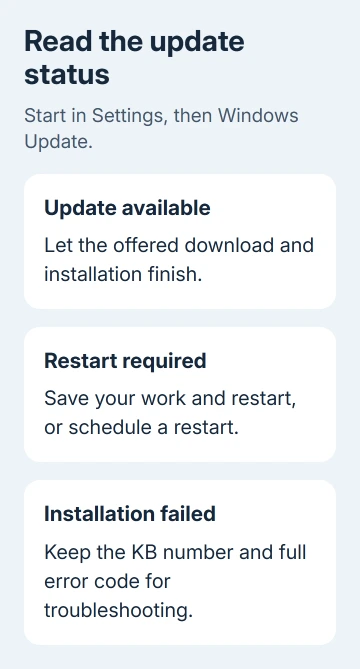
The status determines what to do next:
- Downloading or installing: let that operation continue and watch for a restart request.
- Restart required: finish the installation with a planned restart.
- An error code appears: keep the code and update name for the failure checks.
- You're up to date: Windows isn't offering another applicable update at this check.
An up-to-date result applies to this PC and its current Windows version. Other PCs won't all show the same update name. The updates offered can differ with the Windows version, hardware, and your organization's settings.
The Windows Update guidance uses Settings as the normal route. A search result for a different PC's KB number isn't a reason to override that route.
Finish a security update that needs a restart
When Windows Update says Restart required, choose Restart now when you can stop working. If you need to finish a task first, select Schedule the restart and choose an available time instead.
The downloaded files aren't the end of the process when Windows still asks to restart. Leave the PC on power while it applies the update. The screen can show installation progress before returning to sign-in.
After signing in, reopen Windows Update to check its current status. Open Update history to see the installed update entries. Compare the update name and installation date with the one you intended to apply.
If another restart is requested, read the current entry. Separate updates can each need a restart to finish. For the same update failing repeatedly, read its error details rather than restarting without a plan.
For a laptop needed for a meeting or trip, I'd leave enough time to finish the update and check that the PC restarts properly. Starting a pending installation just before disconnecting power makes it harder to deal with an error calmly.
Separate security fixes from optional early changes
The Get the latest updates as soon as they're available switch controls earlier delivery of additional non-security updates and improvements. Regular security updates still arrive whether that switch is on or off.
Microsoft explains that distinction in its early-update setting instructions. Normal security fixes arrive with this switch off too.
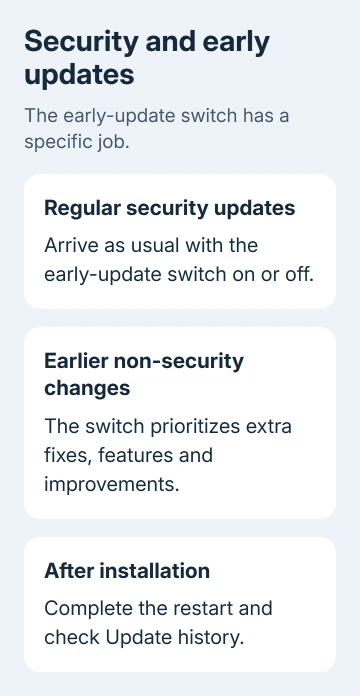
Likewise, an optional preview isn't automatically the security update a warning is asking about. Read the package description and KB number. Install it for a fix you need, rather than treating every optional item as an emergency repair.
Optional driver updates are also different from the Windows security package. A display or network driver is software for that component. Installing every optional driver isn't required to clear the ordinary Windows Update check.
Monthly updates need a supported Windows version. If Settings reports that your version has reached the end of service, install the offered version upgrade rather than hunting for a missing monthly file.
Verify the version and the exact update
Press Windows + R, type winver, and press Enter. Write down both the version and the OS build from that window. The update needs to support that version and build of Windows.
To check the hardware's system type, open Settings > System > About. An x64 update and an ARM64 update are for different processor types; you can't swap one for the other. The installed version matters too, not just the Windows 11 name.
In Windows Update, open Update history, find the relevant entry, and use its information link when you need details about that KB. Read the update's supported version and known issues before trying a manual installation.
The Microsoft Update Catalog procedure is for a specific applicable package when manual installation is appropriate. It isn't a shortcut to install a random file carrying the word critical.
A message about settings managed by your organization can explain a missing control or delayed update on a company or school PC. Give IT the update name, error code, version, and build. Ask whether the update is approved for that device.
Handle a failed installation or a suspicious alert
For a failure in Settings, record the KB number and full error code. Restart once if Windows requests it, check available storage, and confirm the internet connection is working. Then try the offered update again.
If it still fails, open Settings > System > Troubleshoot > Other troubleshooters > Windows Update > Run when that control is available. Follow the prompts; current Windows can route troubleshooting through the Get Help app.
Use the Windows update installation checks for a persistent failure. Keep the exact code handy so you don't apply advice for a different update error.
For a warning inside a browser, close the page and check Settings independently. Don't call a number or install software offered by an alarming update pop-up. A page can copy Windows branding without being part of Windows Update.
If the warning's installer already ran, scan through Windows Security > Virus & threat protection > Scan options. End any remote access session you allowed and report the incident through Get Help or your IT department.
If you still need support, open Get Help on the PC and provide the failed KB, error code, Windows version, and result of the troubleshooter. Ask for help with that installation, rather than reporting only a critical-update message.
The Short Version
Check Settings, install your PC's offered update, and complete its restart. Security updates don't require the early-update switch. Keep the KB number with its error code for troubleshooting, and check browser warnings independently.
Checked November 12, 2026.