

A Windows 11 gray screen with a readable desktop usually needs Color filters turned off. For a solid gray field with no desktop, try the graphics reset shortcut, then check whether Task Manager opens.
The first case is a display setting. The second can involve Windows Explorer, the graphics driver, or the display connection, so changing a color filter won't bring back missing windows.
In this guide
1. Turn off Color filters for a black-and-white picture
Look at the taskbar, a familiar photo, and several app windows. If they all have normal shapes and readable text but no color, start with the filter setting. A solid gray screen that hides these items belongs in the next section.
Press Windows + U to open Accessibility settings. Choose Color filters, then turn Color filters off. A colored photo should regain its colors immediately if this setting caused the change.
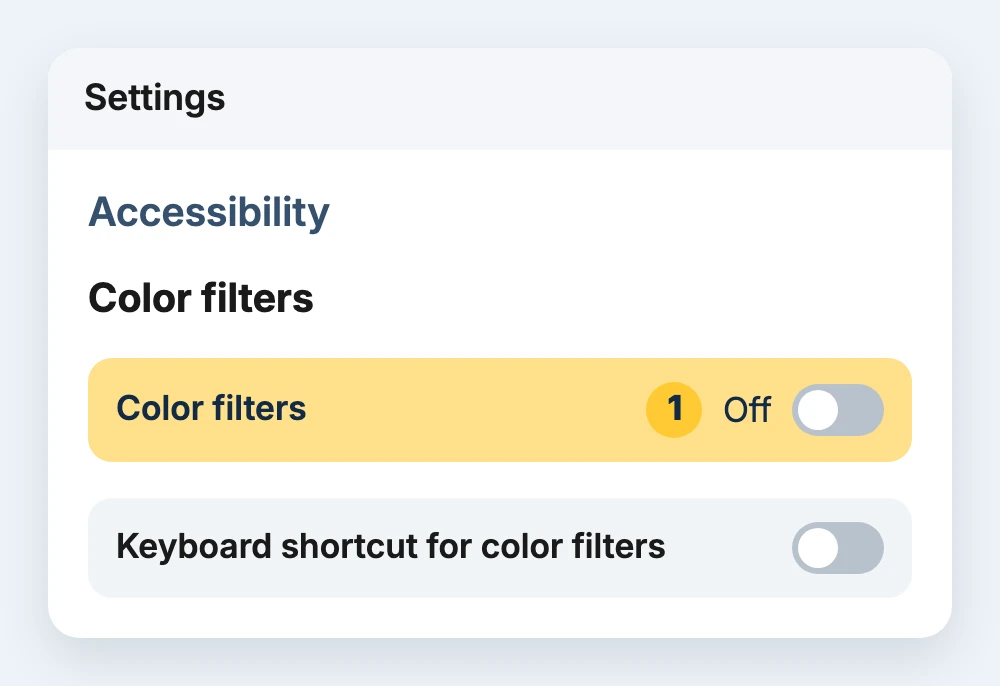
The page also has Keyboard shortcut for color filters. Turn that shortcut off if accidental key presses keep bringing the effect back. Leave it enabled if you use a filter intentionally and want quick access.
Windows + Ctrl + C toggles the filter only when that shortcut is enabled. If pressing it does nothing, use Settings instead. Repeatedly trying the keys won't enable a shortcut that was switched off.
Microsoft explains its screen-wide color-filter controls. If just one photo or application is gray, check another file or app before changing Windows settings again.
For a warm yellow tint rather than missing colors, check Windows Night light. Its color-temperature setting changes a different part of the picture.
2. Reset the graphics driver when the desktop is missing
Press Windows + Ctrl + Shift + B once. Windows should beep or the screen should flicker as it resets the graphics driver. Let the display recover before pressing another shortcut.
This is useful when the computer is running but its display has stopped updating. It doesn't change your documents or remove the installed driver. If the desktop returns, save your work before restarting the computer normally.
Note when the screen turns gray: in a particular app, after sleep, or when you connect a monitor. This helps you pick the relevant check; a failure during one game needs different attention from one before sign-in.
If the shortcut makes no visible change, press Ctrl + Alt + Delete. If the security screen appears, Windows can still display it. Task Manager may then let you recover the desktop without forcing the power off.
3. Restart Windows Explorer if Task Manager opens
Select Task Manager on the security screen. Find Windows Explorer in the Processes list, then use its Restart task control. The taskbar can disappear briefly while the desktop reloads.
If Windows Explorer isn't listed, select Run new task, type explorer.exe, and press Enter. This launches the Windows component responsible for the desktop, taskbar, and File Explorer windows.
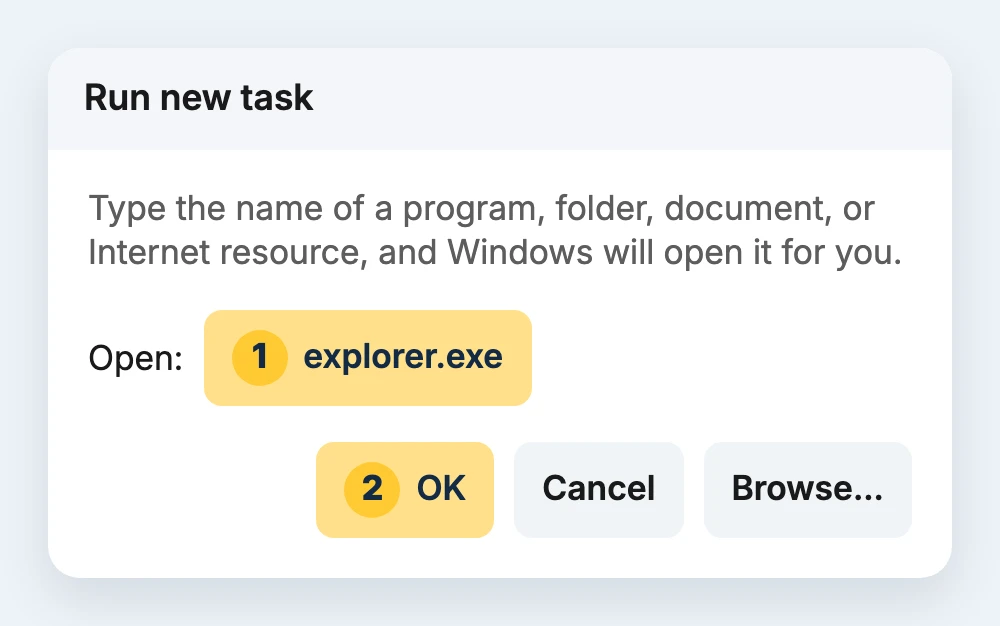
If the taskbar returns and the desktop works, restarting Explorer helped. Open a folder and switch between two apps to check that normal use works again. If the gray field comes straight back, continue with the display and driver checks.
Task Manager's exact arrangement varies with the Windows build. Current Windows 11 puts Run new task near the top. Older layouts put it under File. Follow the command names even if the layout looks different.
I'd try this before a forced shutdown when unsaved documents are open. It gives the Windows session a chance to recover while leaving those apps running.
4. Check the cable and the screen that should receive the picture
For an external monitor, check that its power light is on and its selected input matches the cable. A monitor's own menu appearing normally tells you the panel can display its controls, even if Windows isn't reaching it.
Unplug the video cable, then reconnect each end firmly. If a dock or adapter sits between the devices, try a direct connection with matching ports. This takes the dock out of the path for comparison.
Try another available cable or monitor if you have one. Note whether the gray field follows the computer or stays with one display. Don't buy a replacement panel just because one Windows session failed.
Compare the laptop's built-in screen with an external display. Tell the technician if the external desktop works while the laptop screen stays gray. That helps them decide what hardware to check without guessing which part failed.
A monitor that appears to be disconnected needs the second-display detection checks, rather than changes to Color filters.
5. Check the display driver if the failure keeps returning
Once the desktop is usable, install pending updates through Settings > Windows Update. Get the model-specific graphics package through your PC manufacturer's support page when Windows Update doesn't resolve the repeated failure.
If a graphics-driver update immediately preceded the trouble, open Device Manager > Display adapters. Open that adapter's Properties, select the Driver tab, then select Roll Back Driver if enabled.
The button can be unavailable when the PC hasn't kept the earlier driver. Don't download a random older package instead. Ask the PC maker which driver matches your model and Windows version.
When normal Windows won't stay usable, the blank-screen recovery instructions explain Safe Mode through Troubleshoot > Advanced options > Startup Settings > Restart. Safe Mode with Networking is entry 5. Choose it with 5 or F5.
Find your BitLocker key before opening recovery tools. An encrypted PC may ask for it, and a support session is much easier when that key is already accessible.
When the screen stays gray before Windows appears
If the startup logo never appears, or the monitor's own controls look gray, have the hardware checked. Windows accessibility settings can't cause a failure before Windows starts.
Contact the PC or monitor maker with the model, when the gray field appears, and what happened with an alternative cable or screen. Ask for display and graphics diagnostics, and discuss the warranty before accepting a reset or replacement.
The Short Version
Turn off Color filters for a black-and-white desktop. For solid gray, reset the graphics driver, restart Explorer, then check the display connection and driver. Report failure before startup to the hardware maker.
Checked November 29, 2026.
 If you have any business, I can build it online





