

Yes, Windows 11 installs many new devices' drivers automatically, using drivers built into Windows and recommended packages from Windows Update. Optional drivers need your approval, and some devices need their manufacturer's software.
Connect the device, let Windows recognize it, then check Windows Update. A working mouse can need no more setup; a graphics card, scanner, or specialized controller can need extra software for its full controls.
In this guide
Connect the hardware and check what already works
Use the connection specified by the maker. For USB hardware, start with a direct PC connection when practical. An unpowered hub can cause a connection or power problem before Windows reaches the driver.
Wait for any device-setup notification to finish, then try the device. Move the mouse, type on the keyboard, or check that the device produces the result you expect. A setup notification doesn't tell you whether every feature works.
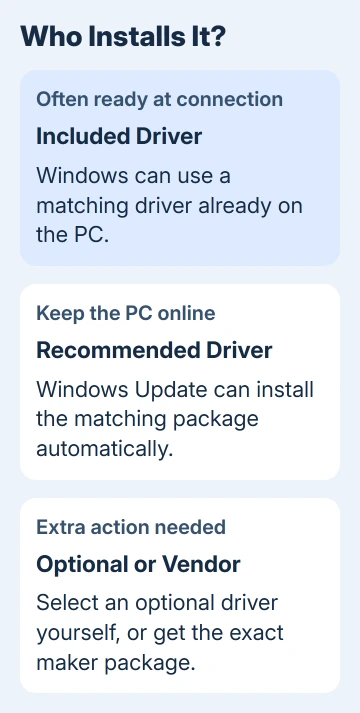
Drivers let Windows communicate with connected hardware. Some devices work with a driver included in Windows. Others use a matching driver package that Windows downloads while the PC is online.
Automatic setup doesn't install every app that goes with the device. A printer might print while its scanning tools are still absent. Check the feature you need rather than expecting the entire product bundle to appear.
I'd try the basic function before searching for another package. If it already works correctly, check your model's instructions for any extra app needed for settings, calibration, or another feature.
Check Windows Update for the recommended driver
Open Start > Settings > Windows Update and select Check for updates. Let the offered updates finish installing. Complete any requested restart, then reconnect or retry the new hardware as its instructions require.
Microsoft says optional drivers aren't installed automatically. Windows can install recommended packages itself, but you need to select an optional driver update.
Keep the PC online during the check. Hardware can be recognized with a basic driver before Windows gets a newer matching package. If nothing downloads, your PC might already have a suitable driver.
Look at the device's behavior after updating. If the device's basic function now works, try the specific feature or app you need next. If the device is still missing or marked with an error, check its entry in Device Manager.
This isn't a reason to install every unrelated optional driver. Match the package to the hardware you're setting up. For a wireless adapter specifically, the Wi-Fi driver guide explains how to identify the adapter before changing it.
Install a relevant optional driver yourself
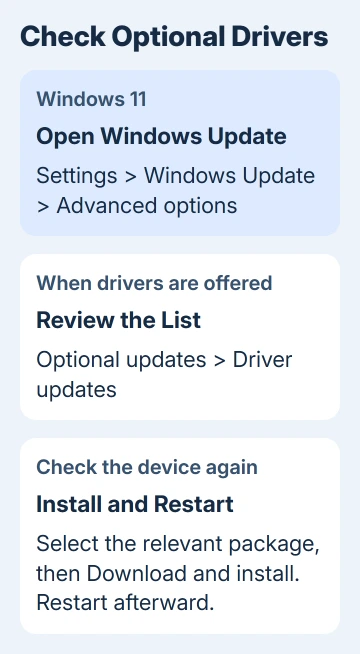
From Settings > Windows Update, open Advanced options. Under Additional options, select Optional updates. Expand Driver updates when that category is present and review the packages offered.
Select the relevant driver, then choose Download and install. Let installation complete and restart the PC. The support instructions recommend restarting after the updates finish, even if none of them asks you to.
Optional updates isn't a catalog of every driver ever released for your device. Its list depends on what Windows Update offers to that PC. An empty list doesn't rule out a manufacturer package for a missing feature.
Check the hardware's model name before selecting a package with an unfamiliar name. If several similar adapters appear in your PC, use Device Manager to identify the one involved rather than guessing from the brand name alone.
After restarting, try the same task that failed. A new version number is useful to note. Check whether your device now does what you need and whether the previous warning has cleared or the missing control has appeared.
Use Device Manager when hardware is missing or has an error
Right-click Start and choose Device Manager. Expand the category for the new device and look for its name. Hardware without a recognized driver can appear in another category or as an unknown device.
Open the device's Properties and read Device status on the General tab. Write down any error code. On the Driver tab, note the provider, date, and version so support can see what Windows installed.
Right-click the device and choose Update driver > Search automatically for drivers. Follow the result. A message saying the best driver is installed refers to this search. It doesn't cover every possible manufacturer download.
For a missing device, check its cable, power, and the maker's connection instructions. A driver search won't repair a disconnected device. Try another suitable port or cable before replacing Windows components.
An audio device needs its own model checks too. The Windows 11 audio-driver steps distinguish the installed sound device from a general missing-driver problem.
Get the manufacturer's package when Windows isn't enough
Open the hardware maker's support page and search the exact model. For a laptop's built-in hardware, start with the laptop model's support page. For a card you've added or an external device, search by that device's maker and model.
Choose the package for Windows 11 and your PC's system type. Check Settings > System > About > System type when you need to distinguish an x64 PC from an ARM-based one. A matching product name doesn't make every package compatible.
If the download is an installer, follow the maker's instructions. Some USB products require software installation before connection. Use that order when the manual specifies it instead of plugging the device in first.
If support supplies extracted driver files instead, use Device Manager > Update driver. Choose Browse my computer for drivers, then select the folder with the extracted files. The manual driver instructions explain this separate route.
Avoid driver-download sites and packages selected only by a broad category such as USB or audio. Match the device model, Windows version, and system type, such as x64 or ARM. Don't force a package intended for a different product.
If no package is offered, ask the maker whether your device supports Windows 11.
Tell support the model, how it's connected, your PC's system type, and the Device Manager status. Explain which feature isn't working. Ask for a compatible driver or supported alternative.
The Short Version
Windows 11 installs many devices automatically. Check Windows Update and relevant optional drivers, then get the exact maker's package if recognition or features remain incomplete. Try the hardware to check the result.
Checked November 16, 2026.
 If you have any business, I can build it online






