

Windows 11 removed the six personal folders from This PC in version 22H2. Open Home to find Desktop, Documents, Downloads, Pictures, Music, and Videos in Quick access instead. Their files weren't deleted by this change.
The timing can make it look like an update broke Explorer. The important difference is whether only the shortcuts disappeared or the actual folders are empty. Start with the shortcuts; a missing file needs a different response.
In this guide
1. Find the folders in Home
Press Windows+E, then select Home in Explorer's left pane. Look for the pinned folders in Quick access. On older Windows 11 layouts, the starting location may itself be called Quick access.
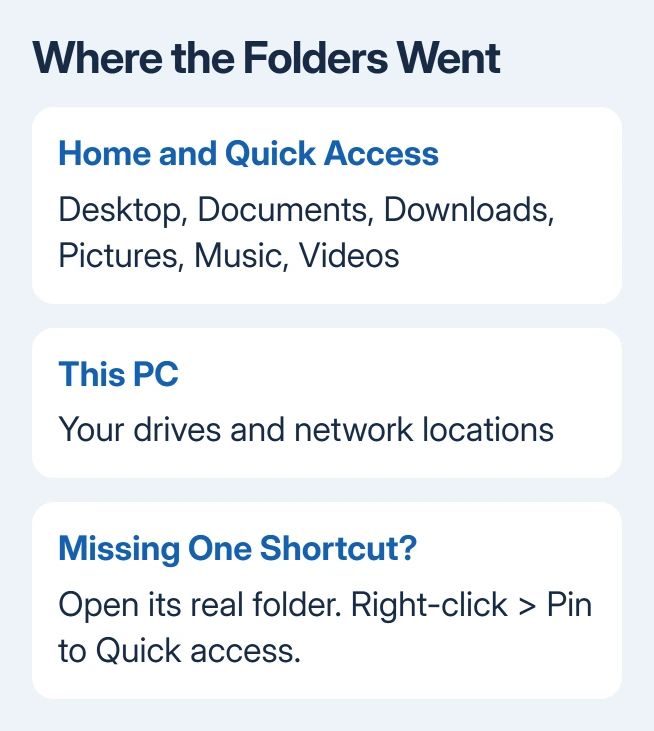
Microsoft's File Explorer instructions describe this change: Home and the navigation pane hold personal-folder pins, while This PC focuses on drives and network locations.
Open Documents from Home and check for a familiar file. Then do the same with Downloads or Pictures. If the files open normally, your folders' contents are still there. Explorer has changed where it shows the shortcuts.
A collapsed Quick access group can hide its contents. Expand the group if its heading is visible without the folder shortcuts. A window showing only drives is usually still on This PC; check the selected location in the left pane.
The original report followed the November 2022 KB5019980 update and the arrival of Explorer tabs. That fits the change to Explorer's layout. Uninstalling an old cumulative update isn't the right way to put everyday folders within reach.
2. Restore a missing Quick access shortcut
When one folder isn't pinned, open its real location first. For a normal local profile, click Explorer's address bar, enter %USERPROFILE%, and press Enter. This opens your Windows user folder without requiring your account name.
Find the folder you need, right-click it, and choose Pin to Quick access. Return to Home and open the new shortcut. A working pin should take you straight to the folder, with its files visible.
Choose the folder that holds the files you actually use. With OneDrive backup, Desktop, Documents, or Pictures can be inside OneDrive rather than the local user folder. Open a folder with your current files and check its address bar.
Pinning empty local Documents won't reveal files in OneDrive Documents. A pin opens only the location you chose. Open OneDrive from Explorer's left pane and pin the Documents folder containing your files instead.
Don't move or merge two Documents folders just to tidy this view. First compare their contents and locations. Shortcuts can be replaced without rearranging your files, and that's the simpler way to fix a missing shortcut.
3. Bring back the left navigation pane
A missing pane can make all your usual destinations seem gone at once. In Windows 11 File Explorer, choose View > Show > Navigation pane. The left side should return with locations such as Home and This PC.
This setting restores the pane itself. It doesn't restore the old Folders section in the main This PC window. Select Home afterward to reach the pinned personal folders, or expand the available groups in the pane.
Check the window width too. A narrow Explorer window leaves less room for folder names. Widen it before deciding a destination is missing; the complete label is useful when local and OneDrive locations have similar names.
If the pane returns but a specific folder is absent, use the pinning steps in section 2. If the pane is there and your folders open normally, you don't need to repair Explorer or Windows for this layout change.
4. Make Windows+E open the view you prefer
Open Explorer's three-dot menu > Options. On the General tab, find Open File Explorer to. Select Home if you want personal folders immediately, then select Apply and OK.
Close Explorer and press Windows+E again. Check that the new window starts in Home. Home puts those folders within reach when you open Explorer, even though the old six-folder block is gone from This PC.
Prefer to see your disks first? Choose This PC in the same list. Keep your personal folders pinned in the navigation pane so they're still close at hand. The Explorer starting-view guide covers that choice in more detail.
I'd choose Home when Documents and Downloads are where most of your work starts. This PC remains useful for checking connected disks, opening a USB drive, or comparing available storage before a large copy.
Changing the starting view doesn't move anything. It only changes where a new Explorer window opens. That makes it easy to try either arrangement and switch back if the other one suits you better.
5. Separate a removed shortcut from missing files
An empty folder needs more care than an absent shortcut. Open the previous location and read the address bar for its complete path. Compare the local folder with the OneDrive location before changing settings.
Try an Explorer search using a filename you remember. Select This PC, type the filename in Explorer's search box, and let the search finish. A result in another folder tells you where Windows can currently find that copy.
If files disappeared during a Windows upgrade, follow the missing-files recovery steps. They cover account differences and other cases that a Quick access pin can't solve.
An Explorer window that freezes before any location opens is also a separate fault. Use the File Explorer freezing fixes instead of confusing a freeze with the removal of the Folders group.
What about restoring the old Folders group?
One owner brought back the group using a registry customization linked in the discussion. They later reported a changed folder order after restarting; the reply connected that order to OneDrive folder redirection.
That changes the layout; it doesn't recover deleted files. Home and Quick access provide the supported route without registry changes. I'd use them before rebuilding a retired Explorer arrangement.
If folders won't open, save their paths and errors for Get Help. For work computers, have IT review OneDrive backup and redirected folders. State which location has the missing files and which opens empty.
The Short Version
The six personal folders moved out of This PC in Windows 11 22H2. Open Home, pin any missing shortcuts, and turn on the navigation pane when needed. Check actual folder paths if files themselves are missing.
Checked November 17, 2026.
 If you have any business, I can build it online






