

Windows 10 can reject your work or school account because your organization blocks device registration. Ask IT to check that permission if Windows couldn't register your device, even though the account opens email.
If you only need Outlook or another work app, the app-only sign-in choice may avoid registering your personal PC. That choice won't satisfy a company rule requiring a registered or managed device.
In this guide
1. Match the failure to device registration
Read the full error before resetting Outlook. This registration error appears after you enter your work or school account, as Windows tries to connect your PC to the organization.
The original case showed the same failure through Windows Settings, Office apps and the old Windows Mail app. Mail could report that the account was added while Windows still failed to register the device.
Adding a mailbox to one app isn't the same as registering your PC with work. Check Settings > Accounts > Access work or school to see whether the organization connection appears.
Record any error code and the time the attempt failed. Tell IT whether it affects this PC or several people. Your organization's administrator controls registration permission; Outlook's local mailbox settings don't.
A rejected password or verification prompt needs its own response. Use the work or school password reset route when credentials fail before Windows even reaches device registration.
2. Use app-only sign-in when that is all you need
On a personal PC, decide whether the goal is simply reading work email or connecting Windows itself to the organization. Those are different choices, and joining the device isn't required for every app sign-in.
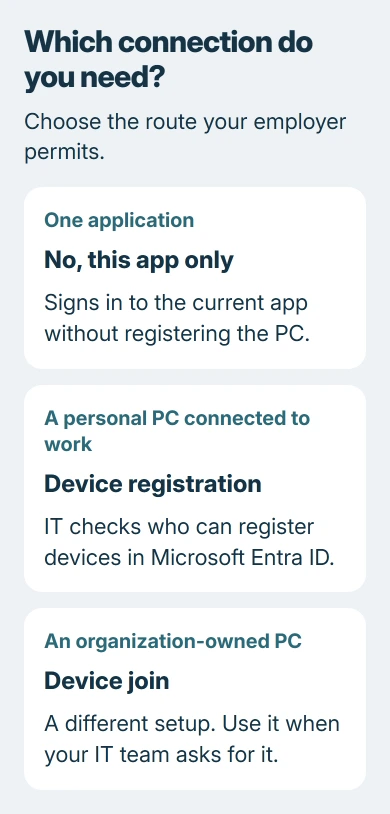
Start the work app and enter the account your organization supplied. When the account registration page appears, choose No, this app only if you don't want to add the account across Windows and your employer allows that setup.
The Windows work-account instructions explain that this choice signs you into the current app without registering the device.
If the app opens, check that your mailbox or the work resource you need loads. Signing into the app doesn't register your PC, so don't expect it to add a registered connection under Access work or school.
If the organization demands a compliant or managed device, app-only sign-in can still be blocked. Show IT that message instead of repeatedly choosing different accounts or trying to remove company management.
I'd choose app-only access on a personal computer when the employer permits it. It keeps the choice tied to what you actually need, instead of turning an email setup into a change to the whole device.
3. Ask IT to check who can register devices
One owner fixed this registration error by allowing users to register devices in their organization's directory. The old instructions used the Azure AD name and menus; the current service is called Microsoft Entra ID.
Ask a Cloud Device Administrator to inspect Entra ID > Devices > All devices > Device settings in the Microsoft Entra admin center. An ordinary work-account user can't change the organization's device registration policy.
The relevant device registration setting for a personal PC is Users may register their devices with Microsoft Entra ID. A value of None blocks registration. IT should check whether that matches your organization's policy.
If registration should be allowed, IT can enable it and ask you to retry. When Intune or Microsoft 365 mobile device management requires registration, the setting can already be locked at All, with None unavailable.
That means a grayed-out control isn't automatically the fault. If registration is already allowed, IT needs the error code and sign-in details to check the next restriction instead of toggling an unrelated setting.
4. Keep registration, joining and management separate
Users may join devices to Microsoft Entra ID is another setting on the same page. It controls joining a device to the organization, which is different from registering a personal device while keeping your existing Windows sign-in.
For this registration error, don't change the join setting simply because it also mentions devices. Tell IT which connection you intended and which prompt produced the error.
Windows Home can register a work account, but full Microsoft Entra join requires a supported business edition, such as Pro. A missing join option on Home doesn't mean the registration function should also be missing.
Device management adds another step to the process. If the organization uses it, registration may lead to enrollment, which sets up management on your PC and has extra requirements.
IT should check those requirements if registration is permitted but the next screen still fails.
Keep the PC's existing work connection while IT checks the problem. Disconnecting a managed work computer without a plan can affect access you still need. The work-account removal guide covers a separate removal task.
5. Retry the intended connection and verify the result
After IT fixes the restriction, open Settings > Accounts > Access work or school > Connect on Windows 10. Enter the work or school address and follow your organization's verification prompts.
Windows 11 uses the same Accounts section and Access work or school page. The layout differs, but the goal remains adding the organization account. Use a join or enrollment-only choice only when IT specifically asks for it.
When the process completes, check that the account appears on that page. Then reopen the work app and confirm that you can reach the mailbox or resource that originally failed.
Save any new registration error. IT can also check your Maximum number of devices setting. Reaching that limit blocks another registration until IT adjusts the limit or removes an existing device registration.
Give IT a specific escalation
Send the account address, Windows edition, exact error, attempt time and whether app-only sign-in works.
Ask them to check registration permission, your device count, enrollment requirements and any Conditional Access rules that control access to work resources.
If the settings already permit the connection, the administrator can open a Microsoft support case for device registration. Reinstalling Outlook won't change a directory policy that rejects the same account from several apps or PCs.
The Short Version
Separate an app sign-in from connecting Windows to work. Use app-only access when allowed, or have IT check the device registration policy and limits. Retry the intended connection and verify both the Windows account entry and the work app.
Checked November 16, 2026.
 If you have any business, I can build it online






