
Your disk scanner shows one file eating tens of gigabytes: Windows.edb, deep inside ProgramData. Disk Cleanup skips it, and Windows never warned you. It is the Windows Search index.
I would rebuild it before deleting anything, because a rebuild empties and refills it the supported way, and that is how owners got their space back.
On Microsoft Q&A, owners have posted 30 GB, 71 GB and 85 GB versions of this one file.
What the file is, and why it grows
Windows Search keeps its catalog of your files in C:\ProgramData\Microsoft\Search\Data\Applications\Windows. Normally that catalog is small.
Microsoft's search indexing page puts it this way: "A rule of thumb is that the index will be less than 10 percent of the size of the indexed files".
It grows faster "if you're indexing computer code", or masses of tiny files. Mail is the other big one.
Microsoft says Windows.edb "grows in proportion to the size of the PST file" when your Outlook data files are indexed.
One 2026 owner found 85 GB on a 118 GB drive. Only a scanner run as administrator showed it.
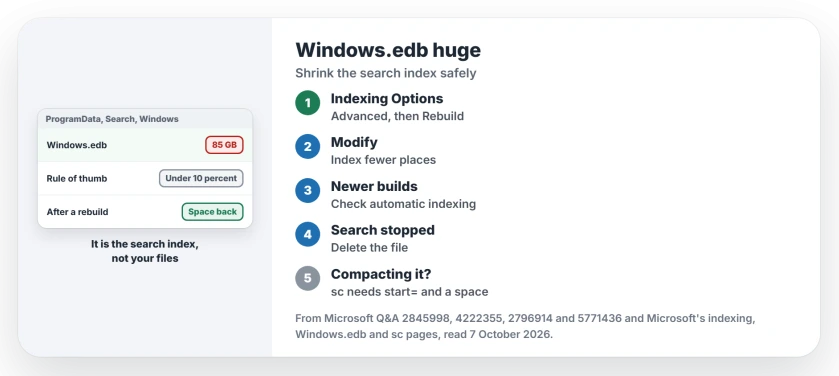
Status: checked 7 October 2026. A huge Windows.edb is the search index. A rebuild gave owners their space back, and indexing fewer places stops it refilling.
Ours: from a standard account, this laptop answers Permission denied on that folder. That is why an ordinary scan, like the one you may have run, can miss the file completely.
1. Rebuild the index
In the Start menu, type Indexing Options and open it. On Windows 11 you can also go through Settings, Privacy and security, Searching Windows, Advanced indexing options. Choose Advanced, then Rebuild.
The accepted answer on a 2018 thread says the file "can be safely deleted by rebuilding the Windows 10 Search Index". The owner, on their second bloat in months, agreed in their words: "simply rebuild the search index".
The first time, they deleted it by hand. This time they called the rebuild "A far more practical and easier solution".
Your search results stay incomplete until the rebuild finishes. If File Explorer freezes while it runs, our Explorer not responding page covers rebuilding with a crashing indexer.
2. Index fewer places
A rebuild empties the file, but it refills from the same locations. That 2026 owner's rebuild took off the whole 85 GB, "but it appears to be growing at some pace".
Another owner was back at 30 GB within about a week. Microsoft's article is blunt: "the only option to reduce disk usage is to index less content locally".
In Indexing Options, choose Modify and untick folders you never search, such as big code projects or archive drives.
For file types you only search by name, Microsoft notes that "Choosing not to index the contents of files can reduce the size of the index". Set it under Advanced, then File Types.
Automatic indexing on newer builds
Newer builds add one more source of growth. Microsoft's notes for build 26200.9267 say "Windows now automatically indexes your most used folders".
The control is Automatically find additional relevant locations, under Settings, Privacy and security, Search. It came as a gradual rollout, so your PC may not show the switch yet.
Ours: this laptop runs a later build, 26200.9457. If the switch is there and your index grew since an update, I would try it off first.
3. Delete the file with Windows Search stopped
An owner with a 71 GB file asked whether it could go. Deleting it, they reported, "actually solved my storage space issue".
Windows builds a fresh index once the service starts again. Open Command Prompt as administrator. The first line stops Windows from restarting the service midway.
sc config wsearch start= disabled
net stop wsearch
del "%ProgramData%\Microsoft\Search\Data\Applications\Windows\Windows.edb"
sc config wsearch start= delayed-auto
net start wsearch
Searches return little until the new index fills in. The 2018 owner saw a deleted file stay small "until it began to balloon again", which is why step 2 matters more.
Microsoft's compaction, with the space it needs
Microsoft's article also offers an offline defrag, which shrinks the file and keeps the index. Its commands print start=disabled with no space.
Microsoft's own sc page says that fails: "If the space is omitted, the operation fails". These are the same steps, written the way sc accepts them.
sc config wsearch start= disabled
net stop wsearch
esentutl.exe /d %AllUsersProfile%\Microsoft\Search\Data\Applications\Windows\Windows.edb
sc config wsearch start= delayed-auto
net start wsearch
Ours: esentutl only works on .edb databases. The search DLLs on this laptop also carry SQLite code and .db file names, so your folder may hold .db files too.
Steps 1 and 2 work through Indexing Options, whatever the files are called.
Moving the index does not shrink it
Indexing Options can put the index on another drive, under Advanced, then Index location. That frees space on C:, but the file stays the same size and fills the other drive instead.
If your C: drive is tight for other reasons too, our free up disk space page lists the other big space users.
Can I just delete Windows.edb?
Yes, with Windows Search stopped. Owners deleted it and Windows rebuilt it, so you lose only search speed until the new index catches up.
Why does Windows.edb keep growing back?
It refills from whatever you index. Trim the locations in step 2, and check the automatic indexing switch on newer builds.
The Short Version
- Windows.edb is the search index, normally under 10 percent of what it indexes.
- Rebuild it from Indexing Options first, which gave owners their space back.
- Index fewer places, or it refills.
- Deleting it works with Windows Search stopped and disabled.
- Microsoft's compaction commands need a space after start=.
Where to Next
Run the rebuild first, then check the file size an hour later. If it climbs again, go to step 2.
Still growing after you trimmed the locations? Leave the size and your indexed folders in a comment, and I'll see what is feeding it.

Isaac Smith is the founder and editor of PC Glance, a website that covers computers, laptops, and technology. He is a tech enthusiast and a computer geek who loves to share his insights and help his readers make smart choices when buying tech gadgets or laptops. He is always curious and updated about the latest tech trends.