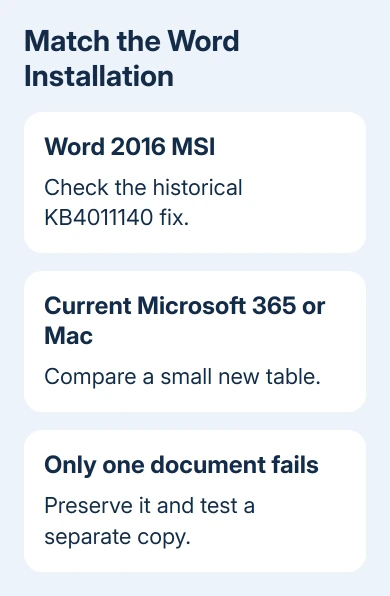
Merged Word cells that go blank and won't accept a cursor can match a known Word 2016 update bug. For an affected Windows Installer edition, install the later Word update KB4011140 to fix it.
The old advice to remove two updates was a temporary workaround before that fix existed.
That specific bug doesn't apply to Microsoft 365 Click-to-Run or Word for Mac. If those versions show similar trouble, compare a new table and the affected document before changing Office updates.
In this guide
1. Match the failure to the affected Word edition
Open File > Account in Word and note the product name. Select About Word for its version details. A Word 2016 label alone isn't enough: the historical fault affected editions installed using Windows Installer, also called MSI.
Microsoft's merged-cell issue notice identifies two triggers: merging cells vertically makes their contents disappear and prevents selection, or an existing document opens with merged cells appearing blank.
The affected updates were KB3213656, released August 8, 2017, and KB4011039, released September 5, 2017.
These dates matter because a table problem in your current Microsoft 365 installation doesn't mean either old update caused it.
An Office installation with Update Options on the Account screen normally uses Click-to-Run. If the installation type is unclear, have IT check the product details before choosing a standalone MSI update package.
If your edition doesn't match, continue with the fresh-document comparison. If it does match and the later fix hasn't been applied, have the person managing Office install the fix before rebuilding the table by hand.
2. Apply the later fix instead of repeating the workaround
The permanent fix for that old bug was KB4011140, released October 3, 2017. Exit all Office applications before the administrator applies the appropriate update.
Use the download and installation information linked from the official issue notice.
After installation, open the affected document's test copy. Try selecting the merged cell and entering a short test word, then undo that test. Also check a table whose existing merged-cell text appeared blank.
One owner confirmed on Microsoft's forum that uninstalling KB4011039 restored editing, but the problem returned when the update installed again. Removing it a second time restored editing again.
Removing the update worked for them, but only until it installed again.
Today's instructions shouldn't stop at that old workaround. Ask IT to check the later correction and the installed Office update history, rather than disabling automatic updates or removing packages from a different Office edition.
Office 2016 is also out of support. If that is still your working installation, plan the move to a supported Office version with your administrator. Fixing this old table fault won't bring back product support.
If the problem remains after the fix, keep your test results and move to the document checks. Installing the same old update repeatedly won't explain a failure that also occurs in a current, unaffected Word edition.
3. Compare a small table in a new document
Save the document under a second filename before editing the table. Keep the original available so a test doesn't replace the only copy of its text. Use a local test copy when the shared document is being edited by other people.
Choose File > New > Blank document. Insert a small table using Insert > Table, type a different short word into several cells in one column, and select those adjacent cells. Try the same vertical merge that fails in the original.
On Windows desktop Word, choose Table Layout > Merge Cells. On Mac, select Merge Cells from the table's Layout tab beside Table Design.
These are table tabs that appear when the table is selected, not the page-layout controls.
The merge and split instructions require adjacent cells. If Merge Cells isn't available, check that the selection contains multiple neighboring cells rather than only the text inside one cell.
Click the merged cell and try typing. If the new table works, keep the focus on the original document and its table.
If the same failure happens in a fresh file, check Word and its installation next rather than repeatedly recreating that one document.
For a table without visible cell edges, use Table Layout > View Gridlines on Windows, or Layout > View Gridlines on Mac. This makes the cell positions easier to select while testing; it doesn't repair a missing cursor by itself.
4. Keep text direction separate from merging
The original report involved merging three cells in the first column and trying to use vertical text.
Compare those actions separately in the test document: merge first with ordinary text, then try changing direction after confirming the merged cell can be edited.
This shows whether merging causes the failure or whether it starts only after another formatting action. Write down the exact sequence.
That gives support the steps to recreate the problem instead of having to guess from a picture.
Don't move the table into Excel just to restore Word editing. The Word-to-Excel table guide covers transfer problems, where paragraph breaks can split a cell into extra spreadsheet rows.
If only the original table fails, try copying a small affected portion to a new Word file for another comparison. Keep the working copy clearly named. Stop the comparison if content disappears, and return to the preserved original.
I'd keep the test table simple until merging works. Extra text boxes and nested tables can hide which action triggers the fault.
5. Compare Word startup
On Windows, close Word, press Win + R, enter winword /a, and press Enter. The /a switch starts Word without loading global templates and add-ins, which can affect every document. Open the test copy and repeat the same small merge.
If editing works in that session, report the difference to IT before changing templates or add-ins. If it still fails, include that result too. The Word startup troubleshooting instructions explain the purpose of this startup comparison.
When the table still cannot be edited
A blank page after a table is a separate layout problem. Use the Word blank-page checks when the table is editable and the only issue is an unwanted final page.
For persistent merged-cell editing trouble, ask workplace IT or Microsoft Support to compare the Office installation type, update status, and a small sample document.
Replace private table contents with harmless sample text before sharing the file.
Include whether it happens in a new document, whether ordinary merging works before changing text direction, and the Windows startup comparison if applicable.
Mac users should report their Word and macOS versions rather than attempt Windows KB installation steps.
The Short Version
Match the old bug to Word 2016 MSI before applying its KB4011140 fix. Other versions need a fresh-table comparison and a document-specific check.
Preserve the original, keep merging separate from text direction, and give support a small example they can use to repeat the problem.
Checked November 16, 2026.
 If you have any business, I can build it online