

You open Task Manager and find wsappx near the top, chewing through CPU, memory or the disk, though you never opened the Store.
It is annoying, but there is no need to switch it off in the registry, though many pages tell you to, and I would keep it running. wsappx runs the Store's install and license services, and disabling it breaks the apps they look after.
Microsoft Q&A's biggest wsappx question carries 100+ under Same question.
What wsappx is
wsappx is not a program of its own. It is the name of a service group inside svchost.exe, and that group name is what Task Manager shows you.
Two services live in it, and Microsoft says AppXSvc "Provides infrastructure support for deploying Store applications" while ClipSVC gives "infrastructure support for the Microsoft Store".
So a busy wsappx tends to mean apps being installed, updated or licensed. A Microsoft support specialist in the 100+ question said of the load: "It should settle down once these tasks are completed".
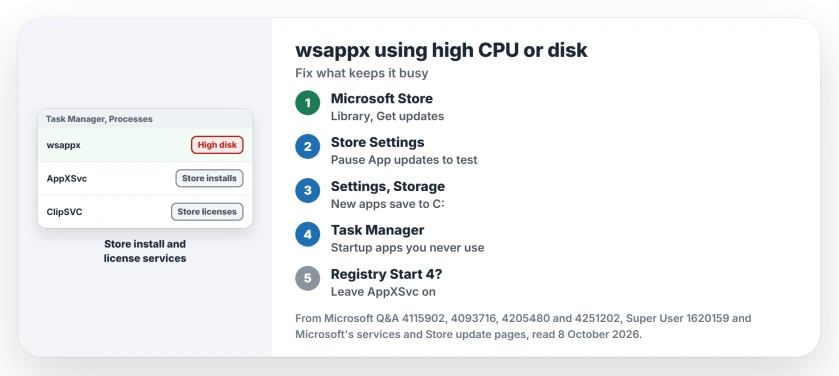
Status: checked 8 October 2026. wsappx runs the Store's install and license services. Let updates finish, save new apps to C:, and check startup apps. Disabling it breaks Store apps.
Ours: on build 26200 here, AppXSvc and ClipSVC both run from svchost.exe with the wsappx group. AppXSvc was set to Automatic and running, while ClipSVC was Manual and stopped. This account had 177 app packages installed.
1. Let the Store finish its updates
Open the Microsoft Store and go to Library. Choose Get updates. Let everything install, restart, and check wsappx again.
If it flares up each time the Store updates in the background, pause that for a while. Microsoft notes that "Microsoft Store on Windows can automatically install app updates".
Its Store update page shows the App updates switch, which sits in Store Settings under your profile picture.
With it off, you update apps yourself from Library, a trade that is fine for a week of testing because it tells you whether background updates were the cause.
2. Save new apps on the system drive
In a 20+ question, a Microsoft support specialist named a specific cause: "For some special cases (for example, "Where new content is saved" is configured in a non-system disk location), an abnormal resource usage may occur".
On Windows 11, open Settings, System, Storage, then Advanced storage settings. Choose Where new content is saved. On Windows 10 it is Change where new content is saved, under Storage.
If New apps will save to points at another drive on your PC, set it to C:. That is a two second change.
One owner's trouble started after moving their Users folder to a second drive, and they removed and re-registered the Store app from an elevated PowerShell. Then they wrote "Now wsappx is no longer hogging system resources".
3. Check your startup apps
Another owner watched wsappx reach "12gb of memory usage and 100% CPU usage". The fix reported by an owner there was one startup entry, the "Send to OneNote Tool", which they disabled.
They checked again two weeks later and wrote "the issue has not returned". Task Manager has a Startup apps page. Switch off what you never use, then restart.
On a hard drive, look at the disk itself
If your laptop still runs on a spinning hard drive, 100 percent disk with wsappx near the top is a familiar picture. In a 2026 question, an adviser pointed at the drive and called an SSD the lasting fix.
The Windows Update installer is the other usual disk hog, and our Windows Modules Installer Worker page covers it. For memory that fills up with no single process to blame, see our high memory usage page.
What disabling wsappx costs
Many pages tell you to set AppXSvc's Start value to 4. It does stop the load. A Super User commenter wrote that afterwards "this process stop use 30% of cpu".
Microsoft's service table spells out the cost. If AppXSvc is disabled, "Store applications don't deploy to the system and may not function properly".
An owner in a 2021 question found that out with Game Pass. Disabling the service let Windows start cleanly. Game Pass stopped working.
DavidPostill's accepted answer on Super User gives the same warning, and I would leave the service on and fix what keeps it busy.
Is wsappx a virus?
The genuine services run inside svchost.exe in C:\Windows\System32. Right-click wsappx in Task Manager, choose Go to details, and check the file location of that svchost.exe.
The Short Version
- wsappx is the service group behind Store installs, updates and licenses.
- Let the Store finish its updates, or pause App updates for a week to test.
- Set Where new content is saved back to C: for new apps.
- Check startup apps, and on a hard drive, look at the disk.
- Leave AppXSvc enabled. Disabled, Store apps stop deploying and working.
Where to Next
Give it one full round of Store updates and restart. Then keep Task Manager open for ten minutes and see whether it settles on its own.
If wsappx still sits on top while the Store is idle, tell me your Windows version and where new apps save, down in the comments. I will take a look.

Isaac Smith is the founder and editor of PC Glance, a website that covers computers, laptops, and technology. He is a tech enthusiast and a computer geek who loves to share his insights and help his readers make smart choices when buying tech gadgets or laptops. He is always curious and updated about the latest tech trends.