The Windows 10 error often typed as 0xc00001 in searches appears as 0xc0000001 on many recovery screens. Confirm its complete code, then try the recovery menu's Startup Repair option, before running repair commands or reinstalling Windows.
Damaged startup files or settings can cause this kind of failure, but this code can't identify the failed component by itself. Use the screen's wording and any recent system change to decide what to try after the automatic repair.
In this guide
1. Record the screen, then remove external storage
Photograph the complete message, including any named file and the options printed at the bottom. An error before sign-in needs different repairs from a program error on a working desktop.
For a working desktop with one failing app, use that application's exact code instead of boot repair. Similar-looking error numbers aren't interchangeable; replacing startup files won't repair an ordinary program.
Shut down the PC and unplug external drives, USB storage, and a dock if one is connected. Leave the keyboard, mouse, display, and power connected as needed. Start the computer again with the normal internal drive available.
If Windows opens, attach each removed device separately once the desktop appears. If one accessory brings the error back, check that device and which drive the PC tries to start from. Check those before considering an erase.
If that recovery message reappears, proceed to the repair menu. I'd take that built-in repair route before running a collection of commands, because the right command depends on how the drive is set up and why startup failed.
2. Enter the Windows recovery tools
Use the recovery option printed on your error screen if it works. The keys differ between PCs, so follow the instruction on your screen. If Automatic Repair opens, choose Advanced options.
Repeated startup failures can trigger Windows recovery automatically. Otherwise, you can interrupt two startup attempts, then let the next start continue into Automatic Repair.
Switch on the PC and watch for the Windows or maker's logo. Keep Power pressed until the machine shuts off. Repeat once, then let the third start continue. Choose Advanced options at the repair screen.
Don't use forced shutdowns while the computer is installing an update or writing a firmware update. This entry method is for a machine that is already failing to start normally.
If sign-in still works occasionally, a gentler route is available: hold Shift while selecting Power > Restart. In Windows 10 Settings, Update & Security > Recovery > Advanced startup > Restart now reaches the recovery environment too.
For an encrypted PC, get the matching BitLocker recovery key. Your IT team may hold a work computer's key. The key prompt protects access to the drive and isn't another symptom of the startup error.
3. Let Startup Repair attempt the automatic fix
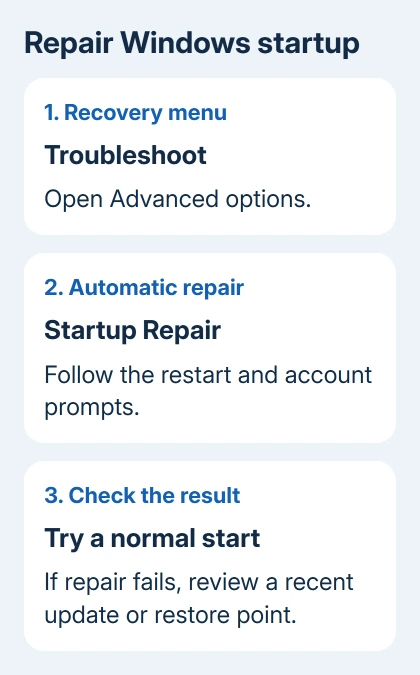
Choose Troubleshoot > Advanced options > Startup Repair and follow any restart or account prompts. Microsoft's Startup Repair guidance lists damaged system files and boot configuration among the problems it tries to fix.
Leave the machine connected to power while the repair runs. When it finishes, try a normal start. A successful result is the ordinary Windows sign-in screen followed by a usable desktop, rather than another trip through recovery.
If Windows opens, save a backup copy of your important files before another change. Then check whether the fault returns after a normal restart. Even one successful start gives you a chance to protect your files and check the recent change.
If the tool says the repair failed, record that result and return to Advanced options. If the same repair keeps failing, choose the next step based on when the problem started.
The separate 0xc0000185 recovery guide covers another startup code. Use the code actually on your screen rather than choosing a repair because its number looks close.
4. Reverse the update or system change that preceded it
If startup failed directly after a Windows update, open Troubleshoot > Advanced options > Uninstall Updates. For a normal cumulative update, select Uninstall latest quality update and follow its prompts.
Some updates can't be removed. If recovery refuses, save the message and try a restore point. Repeating the same removal won't change that restriction, and the refusal doesn't mean your personal files are lost.
For a new driver, application, or settings change, choose System Restore in Advanced options. Choose a point dated earlier than the startup failure and review Scan for affected programs if offered before confirming the restore.
System Restore returns system files, settings, and installed programs to that earlier state. It won't recover deleted personal documents. An existing restore point is required; without a listed point, you can't use this route.
When either recovery option finishes, test normal startup again. If the desktop loads, check the changed driver or application before putting it straight back. Otherwise, keep the repair and restore results handy for the next step.
5. Open the repair tools from a Windows USB
If the PC never reaches recovery, use a Windows installation USB made for the installed system. Boot it and choose Repair your computer at the setup screen, rather than beginning a new installation.
If the USB is ignored, follow the boot-from-USB checks. The one-time boot menu and the way the stick was created matter before the Windows repair tools can run.
If the drive doesn't appear in firmware settings, storage errors keep appearing, or recovery can't find Windows, have a technician check it. Ask a technician to check the SSD's connection, health, and data access before reinstalling.
For a readable drive that still won't boot, ask the technician to preserve your files and review the startup-repair log. Supply the original code, any named file, recent system changes, and each recovery attempt's result.
A Windows reset or clean installation is a later recovery choice because it can remove apps and data. Windows 10's normal support ended October 14, 2025, so discuss moving to a supported operating system at the same time as the repair.
The Short Version
Confirm the entire error code, disconnect external storage, and try Startup Repair. Undo a relevant update or restore an earlier system state. Installation media can open recovery when needed. Protect files before a reset or repair.
Checked November 15, 2026.
 If you have any business, I can build it online