Windows 11 error 0xc0000185 reports a device input/output error: Windows couldn't read the data it needs to start. The recovery screen's wording matters: it can name damaged boot information or say a required device is unavailable.
Disconnect unnecessary external storage, then run Startup Repair before trying manual boot-file commands.
A PC that won't start doesn't automatically need Windows reinstalled. If the internal drive has stopped appearing or reports hardware errors, protect the files and check the drive before trying more software repairs.
In this guide
1. Read the recovery screen and check removable storage
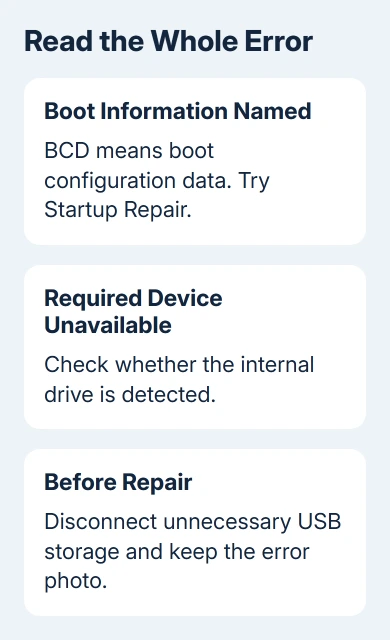
Take a photo of the full error screen for your own records. Make sure the photo includes the code, any file path, and the line describing the problem.
A path ending in BCD points toward boot configuration data, the information Windows uses to locate its startup files.
An error about a required device being disconnected or inaccessible needs a drive check as well. The number alone can't distinguish a failed drive from a connection fault or damaged startup data.
A Windows 10 screen showing 0xc0000001 needs its own recovery route; confirm the entire number before choosing repairs.
Turn the PC off and disconnect USB storage, memory cards and external drives that aren't needed to start it. Leave the keyboard, mouse, monitor and power connected. Start it again and check for the Windows sign-in screen.
If it now starts, sign in, then reconnect each removed device separately. Note which device was attached when the problem returned.
Ask the PC maker how to verify that Windows Boot Manager on the internal drive is the drive it normally starts from.
If the same recovery screen returns with external storage removed, open the recovery tools next.
Avoid changing storage-controller modes or switching between legacy and UEFI boot as an experiment; those changes can create another startup problem.
2. Open Windows Recovery Environment
Use the recovery option offered on the error screen if it opens the blue recovery menus. The key shown can vary, so follow that screen's label rather than assuming every PC uses the same function key.
If recovery doesn't open, the Windows recovery entry steps describe interrupting normal startup twice.
At the Windows or manufacturer logo, press and keep holding Power to switch the PC off. Repeat once, then start it a third time.
Windows should show Automatic Repair; choose Advanced options. Use this only to reach recovery during an existing startup failure, rather than repeatedly cutting power after repair tools have begun work.
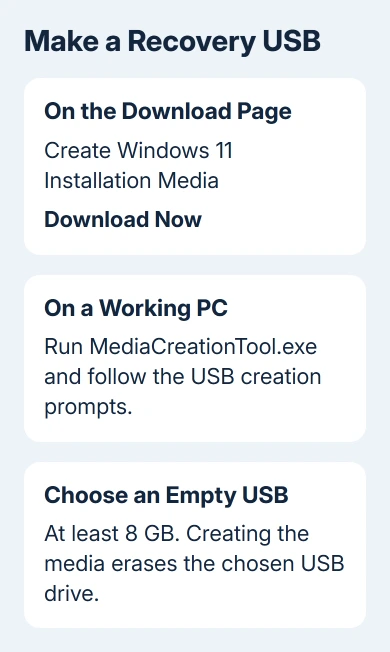
If the PC's recovery tools won't load, create a Windows installation USB using a spare PC and an empty USB drive with 8 GB minimum capacity. The process erases the chosen USB drive's contents.
Open the Windows 11 download page. Under Create Windows 11 Installation Media, choose Download Now. Run MediaCreationTool.exe and follow its USB creation prompts.
Follow the maker's boot-menu instructions to start the broken PC from your Windows USB drive. On the Windows setup screen, choose the repair option. Current setup labels it Repair my PC; older media can show Repair your computer.
This opens recovery tools without choosing a fresh installation. The USB boot guide helps when the affected PC won't start from the prepared drive.
3. Let Startup Repair check the boot files
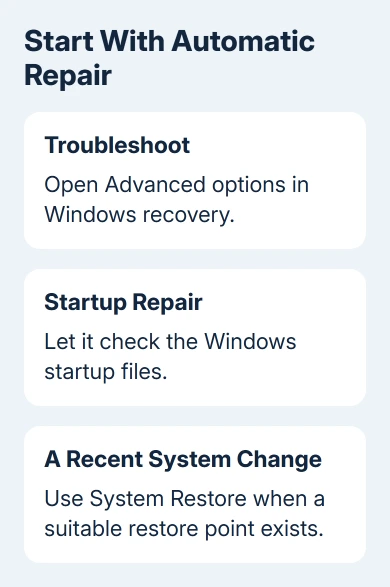
In recovery, choose Troubleshoot > Advanced options > Startup Repair and follow the prompts, including Restart if offered. Select the Windows installation or account if the tool asks for one.
An encrypted drive can require its BitLocker recovery key. Get the matching key from your Microsoft account or your organization's administrator before continuing.
Don't erase the drive because the recovery environment asks you to unlock it.
Microsoft says Startup Repair can address corrupted boot configuration and damaged system files. Read its report when the scan finishes.
If Windows reaches sign-in afterward, back up important files before assuming the interruption was a one-time event.
If automatic repair can't finish, save its error message and the location it gives for the log file.
If nothing has changed, check whether the PC detects the drive and can read it before running the same repair again.
I'd use automatic repair before pasting bootrec commands from a list. Windows 11 recovery can change drive letters, so repair commands need to point to the right Windows installation and the partition holding its startup files.
4. Undo a recent change with recovery tools
If the failure started after installing a driver or software, open Troubleshoot > Advanced options > System Restore. Pick a restore point that predates the trouble and use Scan for affected programs when available.
System Restore rolls back system settings and installed software changes without changing your personal files. A restore point must already exist for this to work. If no restore points are listed, move on to the next option.
For an error immediately following a Windows quality update, check Advanced options > Uninstall Updates and choose Uninstall latest quality update.
Match the recovery option to the change that preceded the failure, rather than removing unrelated software at random.
Restart normally after the chosen recovery action. If Windows starts, record which change was reversed and check with the device or software maker before repeating it. Back up the working installation before another repair attempt.
5. Check the drive before rebuilding startup manually
If recovery can't find Windows or the PC's firmware settings don't list its internal drive, ask the computer maker for that model's storage diagnostics.
If the PC can't detect the drive, its hardware or connection needs checking. Rebuilding boot information won't make the drive appear.
For a desktop with a recently moved or serviced drive, have a qualified person check its storage and power connections. On a laptop, use the maker's service route rather than opening it without the correct model instructions.
If the drive is detected and readable but boot repair still fails, a technician can check the Windows partition and rebuild the correct boot files.
Give them the error photo, Startup Repair result, encryption status and any drive-test result.
Ask for data preservation before a reset or clean installation. If files aren't backed up and the drive reports errors, ask whether the files can be recovered first.
The Windows backup guide is useful once the drive is accessible again.
The Short Version
Disconnect unnecessary storage, enter recovery, and run Startup Repair for 0xc0000185. Use a relevant restore point or update rollback when the timing fits. A missing or failing drive needs storage help before more boot-file changes.
Checked November 13, 2026.
 If you have any business, I can build it online