

You go to jot a line in Journal on your iPad, and a suggestions pop-up gets there first. Dismiss it, write, and next time it is back, on every new entry.
You already turned journaling suggestions off, so it should be gone.
Yet turning suggestions off is exactly what leaves the card empty, and the empty card is what keeps popping up.
So you have not missed anything. The switch that actually stops it is a different one, not the one you flipped, and I will take you to it because on iPad it is well hidden.
Turn off Show Suggested Moments, not the suggestions
The pop-up is not tied to the journaling suggestions you switched off in privacy settings. It is controlled by a separate toggle called Show Suggested Moments.
Open Settings, tap Apps, then Journal, and turn off Show Suggested Moments. That switch tells Journal to open a new entry straight into the writing area, with no suggestions card in the way.
It used to be called Skip Journaling Suggestions, so the newer wording can throw you off.
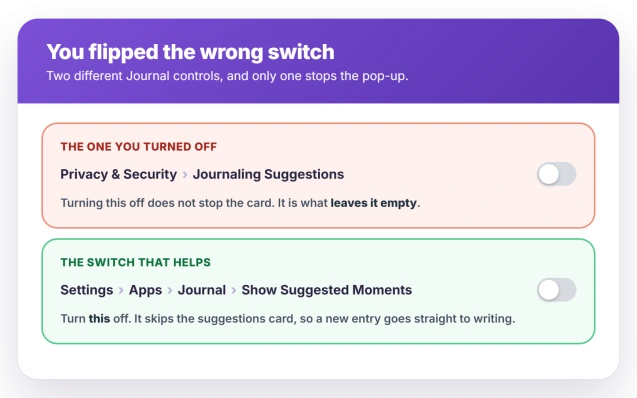
If you turned off the suggestion categories under Privacy and Security expecting that to help, that is why nothing changed. Those decide what Journal may gather, not whether the card appears.
Why turning suggestions off backfired
A new Journal entry is built to open onto the suggestions card, the row of moments from your photos, workouts, and places.
Switch suggestions off, and that card has nothing to show, so it appears as an empty No Suggestions prompt instead of stepping aside.
So the very thing you did to remove suggestions is what leaves the blank card between you and the keyboard, every time.
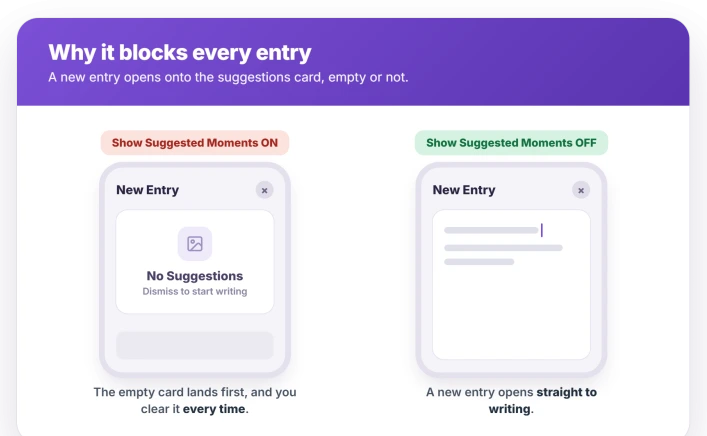
The fix removes the card itself, which is why it works when emptying it does not.
If the switch is missing on your iPad
Apple documents Show Suggested Moments for iPhone, but its iPad settings page does not list it, and some iPad owners never see the switch.
Apple's own iPad guide, Change your Journal settings on iPad, lists only location, title, and photo options, with no way to skip the card.
If it is there under Settings, Apps, Journal, use it. If it is not, the pop-up can hang on until Apple adds the option or changes the behavior.
As a partial step, some people turn Journaling Suggestions back on and let them sync to the iPad from a paired iPhone, so the card has something to show rather than sitting empty.
The suggestions engine often returns nothing, though, so this is hit or miss.
A few people also get a separate Always Add Location dialog on new entries. Turn off Add Current Location in the same Journal settings to stop that one.
Status: on iPadOS 26 a new Journal entry opens onto an empty suggestions card. Turn it off with Show Suggested Moments, if your iPad shows the switch. Unfixed and unacknowledged by Apple.
What will not fix it
A few obvious moves change nothing, because the pop-up is a setting behavior, not damaged data.
- Deleting and reinstalling Journal. People who tried it, and also cleared the app's iCloud data, saw no change.
- Turning the suggestion categories off. That is what causes the empty card, so more of it cannot help.
- The Siri and Search toggles. Learn from this App and the Spotlight options govern where Journal shows up in search, not the new-entry card.
- Restarting on a loop. A restart does not change which card a new entry opens onto.
This is the suggestions pop-up specifically, not a crashing app.
If Journal or another iPad app is misbehaving in other ways, that is separate, like the Files app not working or the Preview app crashing.
How do I stop the No Suggestions pop-up in Journal?
In Settings, go to Apps, then Journal, and switch off Show Suggested Moments.
That is a separate switch from the suggestion categories in Privacy and Security, and it is the one that opens a new entry straight into the writing area.
On iPad the switch is not always shown, in which case there is no clean off button yet.
Why does Journal show No Suggestions when I turned suggestions off?
Because a new entry opens onto the suggestions card by design, and with suggestions off that card has nothing to display, so it shows an empty No Suggestions prompt instead of disappearing.
Turning the card off entirely, through Show Suggested Moments, is what removes it, not turning the suggestions off.
Why can't I turn off the Journal pop-up on my iPad?
Apple documents the Show Suggested Moments toggle for iPhone, but not on its iPad settings page, so some iPads do not expose it. Look for it under Settings, Apps, Journal.
If it is missing, the pop-up may stay until Apple fixes it, since the common resets do not stop it.
Is the Journal pop-up bug fixed?
Not as of now. The main support thread was closed with no accepted solution, and Apple has not acknowledged the behavior. Turning off Show Suggested Moments, where it appears, is the only real mitigation.
The Short Version
- The pop-up is not controlled by the suggestions you turned off. Turn off Settings, Apps, Journal, Show Suggested Moments instead.
- Turning journaling suggestions off is what leaves the card empty, and the empty card is what keeps appearing.
- On iPad, Apple's settings may not show Show Suggested Moments, since it is documented for iPhone. Look for it under Settings, Apps, Journal.
- Reinstalling Journal and clearing its iCloud data do not stop the pop-up, and neither do the Siri and Search toggles.
- If a separate Always Add Location dialog appears too, turn off Add Current Location in the same Journal settings.
Where to Next
- The Files app misbehaving on iPad: iPad Files app not working
- The Preview app crashing when you open a PDF: iPad Preview app crashing
- The keyboard covering the line you type: iPad keyboard covers the text field

Isaac Smith is the founder and editor of PC Glance, a website that covers computers, laptops, and technology. He is a tech enthusiast and a computer geek who loves to share his insights and help his readers make smart choices when buying tech gadgets or laptops. He is always curious and updated about the latest tech trends.