
Your phone has stopped buzzing, and the first thing everybody tells you is to check the little switch above the volume buttons. On a lot of current iPhones there is no such switch.
So that advice ends there and leaves you nowhere, which is why this one is so annoying to look up.
The setting you actually want is called Haptics, and it quietly swallowed two settings you probably remember by name. Apple does not flag that rename anywhere you would see it.
The setting that replaced two settings
For years the answer here was a pair of toggles called Vibrate on Ring and Vibrate on Silent.
Apple's current Sounds & Haptics page carries neither, which is why so much of what you find sends you looking for switches that are not on the screen.
What exists now is one picker. Go to Settings > Sounds & Haptics, tap Haptics, and choose from Always Play, Play in Silent Mode, Don't Play in Silent Mode or Never Play.
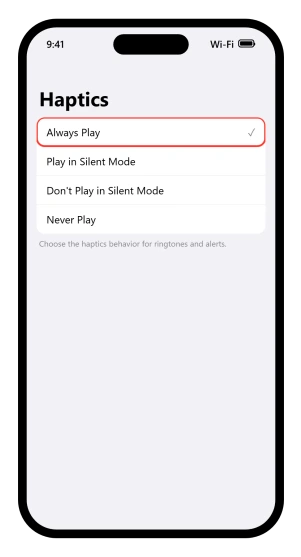
Apple's sounds and vibrations page states what the last one costs: "When Haptics is set to Never Play, you won't hear or feel vibrations for incoming calls and alerts."
Read the middle two slowly. Play in Silent Mode means the phone vibrates only when silenced. Don't Play in Silent Mode means it does everything except that.
Pick the wrong one and the phone behaves exactly backwards from what you wanted, which is easy to do when two of the four options are the same words with "Don't" in front.
"Turn off all vibrations"
That is Apple's own heading for a screen that is not in Sounds & Haptics at all.
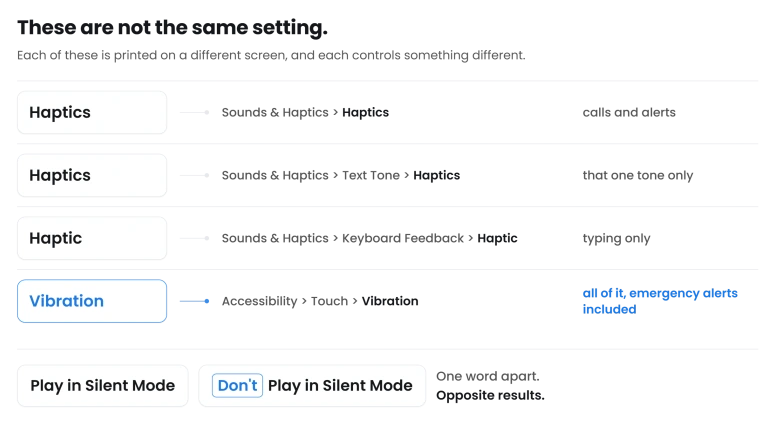
Go to Settings > Accessibility > Touch and check that Vibration is switched on.
Apple's turn off vibration page documents the same screen from the other direction, as the way to stop vibration everywhere: "Turn off all vibrations: Go to Settings > Accessibility > Touch, then turn off Vibration."
With that switched off, nothing you do in Sounds & Haptics matters.
The picker still reads Always Play, the per-contact patterns are still there, and the phone stays quiet, because a master switch two menus away has already answered the question.
There is a warning attached to it, and it is the reason this setting matters more than the others: "This setting turns off vibrations for earthquake, tsunami, and other emergency alerts."
So this is not simply a preference.
Someone who switched it off years ago to stop a buzzing desk has also switched off the alerts designed to wake them, and no other setting on the phone will restore those while it stays off.
That same Vibration switch appears to decide whether you feel anything when you hold an app icon too, though Apple only ever says it turns off all vibrations.
Our guide to Haptic Touch and the touch duration covers the rest of that screen.
Press and hold the button on the edge
Watch what the phone does. If the camera opens, silent mode is not on that button any more.
Apple's Action button page says that with the default action, "you can press and hold the Action button to put iPhone in Silent mode", and holding it again turns Silent mode off.
Its opening line is the one that dates most of the advice you will read: "On supported models, iPhone has an Action button in place of the Ring/Silent switch."
Check what yours is set to at Settings > Action Button, where an image of the side of the phone appears and you swipe between the actions.
There is a second half to setting that button, and skipping it is easy: choose Controls, Shortcut or Accessibility and a list appears underneath, and nothing happens on a press until you pick something from it.
Our guide to an iPhone opening apps by itself covers the reverse case, where that button launches things you did not ask for.
If your iPhone does still have the switch, orange showing means Silent Mode is on. Flick it back and keep going, because Silent Mode by itself is not what stops the vibration.
Silent Mode does not mean no vibration
This trips people up before any of the settings do.
Apple's silence iPhone page puts the whole thing inside one bracket: "When Silent mode is on, iPhone doesn't ring or play alerts or other sound effects (but iPhone may still vibrate)."
Silent Mode silences the ringer and leaves the vibration question to the Haptics picker. They are not the same switch.
The same page gives the route for a phone with no switch, and it is not Control Center: "On models with an Action button: Go to Settings > Sounds & Haptics, then turn Silent mode on or off."
A phone in Silent Mode that also refuses to vibrate therefore has two things set against it, not one.
Our own guide to audio pausing on iOS 26 told readers to flick that switch for years, and it now carries the caveat.
You type and the keys give you nothing back
Then the phone rings in your hand and buzzes perfectly well. Keyboard haptics have a setting of their own, which is why one can stop without the other.
Apple's keyboard sounds and haptics page gives the route: "Go to Sounds & Haptics > Keyboard Feedback", then turn Haptic on or off.
Sound is a separate switch beside it, so the click and the buzz are not the same setting, and neither is tied to the Haptics picker for ringtones.
That page also notes that switching haptics on "might affect the battery life of your iPhone".
It is the one place Apple joins two of these screens up: "If you turn on keyboard haptics but you don't feel haptics when you type, make sure that Vibration is turned on in Settings > Accessibility > Touch." A keyboard that stays dead after you switch Haptic on is pointing back at the master switch.
If you turned it off yourself to cure a laggy keyboard, our guide to keyboard lag on iOS 26 is where the advice came from, and that is the trade you made.
It also suggests parking the phone in Silent Mode at your desk, so a reader who took both pieces of advice and has the picker on Don't Play in Silent Mode now owns a phone that never buzzes, and two of our own pages put it there.
When only some things vibrate
Calls come through and the phone buzzes. Texts land in silence. Or one person messages you and nothing moves at all.
Nothing global is wrong here. The vibration is set per tone.
Each tone carries its own pattern. In Settings > Sounds & Haptics, tap Ringtone or Text Tone, then tap Haptics and choose a pattern.
Create New Vibration sits on the same screen, and it records whatever rhythm you tap out.
There is a per-person layer on top of that. Open Contacts, tap the person, tap Edit, and set their ringtone and text tone individually.
A contact given a custom tone with no vibration stays quiet while everyone else buzzes, and nothing in Settings will explain why.
If the sound is missing rather than the buzz, our guide to an iPhone not getting notifications from one person covers the conversation-level controls that do the same job.
The check that costs ten seconds
The phone has been on the desk all morning and nothing has arrived. Not a buzz, not a ring, not a banner.
Apple puts one check on its own sounds page: "If you're not receiving incoming calls and alerts when you expect them, open Control Center, then check whether Do Not Disturb is on. If the Do Not Disturb button is highlighted, tap it to turn off Do Not Disturb." When it is on, the icon shows in the status bar too.
Do Not Disturb sits upstream of everything else here. If the alert never fires, no vibration setting gets a say, which is why it belongs on this list even though it is the shallowest thing to reach.
A Focus does the same with more precision and less warning, because it can be scheduled or tied to a location.
Our guide to a Focus blocking calls names the control that decides it in one line: "The ringing is decided by Allow Calls From, full stop."
Alarms carry a rule of their own that is not in Sounds & Haptics at all.
Our guide to an alarm going off silently names it: StandBy mode, the phone charging on its side in landscape, disables alarm haptics while the sound still plays.
Is the motor working at all?
A phone that cannot vibrate and a phone told not to vibrate look identical from the outside, so separate them before assuming anything is broken.
Confirm Vibration is on at Settings > Accessibility > Touch, then touch and hold an icon on the Home Screen.
Apple describes that feeling as haptic feedback, and it comes from the same hardware that buzzes for calls.
If that produces nothing while Vibration is on, no setting on this page will help you and the motor is the problem.
If it does tap back, the motor is fine and one of the settings on this list is still the wrong way round.
Set every one of them and the phone still taps for a Home Screen press but never for a call, and you have run out of switches. Book the Genius Bar appointment.
Status: written against iOS 26.6. Every route here was walked on Apple's current pages, and the one setting that carries a safety cost is flagged where it appears.
Why is my iPhone not vibrating on iOS 26?
Check four things in this order. Settings, Sounds and Haptics, Haptics, where Never Play stops call and alert vibration. Then Settings, Accessibility, Touch, Vibration, which overrides both of those. Then Control Center, for Do Not Disturb, which stops the alert before any of them get a say. Then the Action button.
Where did Vibrate on Ring and Vibrate on Silent go?
Apple's current page carries neither. What is there instead is a single Haptics picker. Go to Settings, Sounds and Haptics, then tap Haptics, and choose Always Play, Play in Silent Mode, Don't Play in Silent Mode, or Never Play. Advice that still names the two old switches is describing an older version of iOS.
Does turning off Vibration in Accessibility affect emergency alerts?
Yes, and Apple says so directly. Its note on that setting is that it turns off vibrations for earthquake, tsunami and other emergency alerts. If you switched it off to stop a buzzing desk, that is the trade you made, and no other setting restores those alerts while it stays off.
Why does my iPhone vibrate for calls but not texts?
Because each tone carries its own vibration pattern. Open Settings, Sounds and Haptics, tap Text Tone, then tap Haptics and choose a pattern. A single contact can also have their own tone set in the Contacts app, which explains one person arriving silently while everyone else buzzes.
The Short Version
- The setting is called Haptics, at Settings > Sounds & Haptics, and it replaced Vibrate on Ring and Vibrate on Silent.
- Play in Silent Mode and Don't Play in Silent Mode are opposites with almost the same name.
- Settings > Accessibility > Touch > Vibration overrides everything in Sounds & Haptics. Do Not Disturb sits above even that.
- That master switch also silences earthquake and tsunami alerts, in Apple's own words.
- Do Not Disturb stops the alert entirely, so nothing later on this list gets a chance to buzz.
- Keyboard buzz is a separate switch, at Settings > Sounds & Haptics > Keyboard Feedback > Haptic.
- Each tone has its own pattern, and a single contact can have their own.
- The Ring/Silent switch is gone on supported models, replaced by the Action button.
Where to Next
If you remember Vibrate on Ring and Vibrate on Silent, stop looking for them. One switch called Haptics does the job of both now, and that rename is most of why this is hard to find.
Check that first, then the Accessibility switch that can silence everything from a level above it.
If Haptics is on and your phone still will not buzz for anything at all, run the ten second motor test and tell me in the comments what it did, because that answer decides whether this is a setting or a part.

Isaac Smith is the founder and editor of PC Glance, a website that covers computers, laptops, and technology. He is a tech enthusiast and a computer geek who loves to share his insights and help his readers make smart choices when buying tech gadgets or laptops. He is always curious and updated about the latest tech trends.