
You cleared your inbox this morning. You look again after lunch and the same messages are sitting there, unread, exactly as they were.
Being made to delete the same email twice is genuinely annoying, so let me show you where they keep coming back from.
Short version before the detail. Your iPhone deleted them and your mail server did not, so the next sync puts them back.
1. Empty the Trash, not just the inbox
Start here, because it fixes more cases than anything else on this page.
Deleting a message moves it. It does not remove it. In Mail, tap Mailboxes, open Trash for that account, then tap Edit and Delete All.
If the messages reappear in the inbox again after that, keep reading. If they stay gone, you were only ever seeing the move.
2. Check where your iPhone is actually putting deleted mail
Apple documents the setting that decides this, and some accounts archive by default rather than deleting. An archived message is still in your account.
Apple, in Delete emails on your iPhone or iPad: "Depending on the type of email account you have, you might see Archive instead of Trash when you try to delete emails."
Apple's own route to change it: Settings, Apps, Mail, Mail accounts, your account, Account Settings, Advanced, then "Scroll to Move Discarded Messages Into and select Deleted Mailbox or Archive Mailbox."
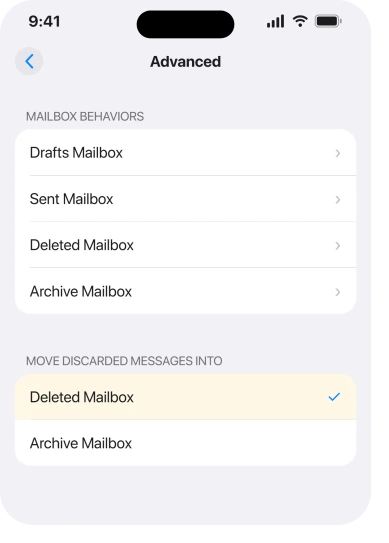
Pick Deleted Mailbox if you want swiping to mean gone. Pick Archive Mailbox if you would rather keep everything and never see it.
Either is fine. What is not fine is not knowing which one you are on. Archived mail still turns up in search. It reappears the moment a folder resyncs.
While you are on that screen, if Mail is also sorting your inbox into boxes you never asked for, iOS 26 Mail categories covers that separate change.
3. Make sure the Trash you are emptying is on the server
Same Advanced screen, a little higher up. I would check this before the POP question below, because it takes ten seconds.
Under Mailbox Behaviors you choose which folder each function maps to. The list is split into On My iPhone and the folders on the server.
If Deleted Mailbox points at an On My iPhone folder, your deletions never leave the handset. The server still holds every message, and it hands them back at the next fetch.
Set it to the account's own Trash or Bin folder instead. That single change is what turns deleting on the phone into deleting everywhere.
4. If the account is POP, the phone and the server never agree
Owners report this as the cause behind the worst cases, and it is worth two minutes even if the answer turns out to be no.
A POP account downloads copies and leaves the originals where they are. An IMAP account keeps every device looking at the same mailbox. That is the whole difference. Delete on POP and you have deleted your copy, nothing more.
A member on an Apple Community thread about this exact problem put the diagnosis plainly: "If emails start appearing or disappearing from your inbox without you retrieving/deleting them, it almost always means one of your devices is on POP3."
Check it in Settings, Apps, Mail, Mail accounts, your account. An IMAP account shows an IMAP Account Information heading. A POP account shows POP Account Information.
If it is POP, remove the account and add it back as IMAP. Most providers support it now. Your mail lives on the server, so nothing is lost.
One genuine exception. If you have been on POP for years and your provider deletes messages from the server after download, the only complete copy may be on your device.
Export or forward anything irreplaceable before you touch the account.
5. Another device is quietly putting them back
Narrower, and it is the answer when your iPhone behaves perfectly on its own.
An old iPad in a drawer. A work laptop. A desktop client set to POP with "leave messages on server" switched on. Any of them can restore a folder your phone just cleaned.
The tell is timing. If messages return within a minute or two of a device you own waking up, that device is the one talking.
One owner described watching it happen live: "I deleted a couple of thousand emails off my iPad and watched as my iPhone XS number of emails went down then back up again." They were on IMAP and on current software at the time, so this is not only a POP problem.
Turn Mail off on every other device for a day. If the iPhone then stays clean, you have found it.
6. Do the big clear-out on your provider's website
Apple says to do it this way itself, and it sidesteps every sync question in one go.
Apple, same page: "To delete a large number of emails, you might find it easier to use your email provider's website."
Sign in to Gmail, Outlook, Yahoo, iCloud or whoever hosts the account. Delete there. Then empty their trash there. The server decides, so changing it at the source ends the argument.
If you use Gmail in a browser for that clear-out, wait a minute before closing the tab; the Gmail deletes page explains why.
Give the phone a minute afterwards and pull down on the inbox to refresh. Our page on an iPhone that says Cannot Get Mail covers what to do if the refresh itself fails.
7. Remove the account and add it back
Last, and it is the step with a confirmed outcome behind it. I would leave it until everything above has failed.
Go to Settings, Apps, Mail, Mail accounts, tap the account, then Delete Account. Add it again and sign in.
An owner who had deleted messages returning to the inbox for weeks was talked through account settings by an Apple Community Specialist and reported: "Removing my account and setting it up again did the trick."
Read this before you tap. Removing a mail account also removes whatever else it carries, which is usually Contacts, Calendars and Notes for that account. Nothing is deleted on the server, but the phone empties until the account is back.
Status: iOS 26.6.1, checked 19 August 2026. The discarded-mail route is Apple's current wording. The POP diagnosis and the account rebuild are owner-reported and older than iOS 26.
Why do deleted emails keep coming back on my iPhone?
Because the deletion did not reach the server. Either Mail moved them to a folder on the phone instead of a folder on the account, or the account is POP, or another device is syncing an older copy of the mailbox back to you.
Is my email POP or IMAP?
Open Settings, then Apps, then Mail, then Mail accounts and tap the account. The heading tells you: IMAP Account Information or POP Account Information. IMAP keeps every device in step, POP does not.
Does deleting an email on my iPhone delete it everywhere?
On IMAP, yes, once it leaves the Trash. On POP, no. And on any account where Move Discarded Messages Into points at an On My iPhone folder, the deletion never leaves the handset at all.
Why do my emails come back as unread?
Because you are seeing the server's copy, not yours. Read status is stored alongside the message, so a restored copy arrives with whatever state the server had before your phone touched it.
The Short Version
- Deleting moves a message. Empty your Trash as well.
- Some accounts archive instead of deleting, and Apple names the setting that decides.
- If Deleted Mailbox points at an On My iPhone folder, nothing ever leaves the phone.
- A POP account cannot delete anything from the server by design.
- Another device on your account can put a whole folder back.
- Apple itself suggests doing a large clear-out on the provider's website.
- Removing and re-adding the account is confirmed to work. It takes your contacts with it.
Where to Next
Two copies of your mailbox disagree, and the server always wins. Nothing is broken, which is exactly why it feels like a bug: the phone does what you asked and then appears to undo it.
That is why the order above matters. Three of the seven rungs are about making your phone and your account mean the same thing by the word delete, and once they do, this stops for good.
If yours turned out to be a second device rather than a setting, tell me which one it was in the comments. Old iPads come up more than anything else and I would like to know if that matches your experience.
Mail has a separate family of faults where nothing arrives at all rather than too much. If that is closer to your problem, an iPhone that will not block an email sender and email stuck in the Outbox are the two nearest pages.

Isaac Smith is the founder and editor of PC Glance, a website that covers computers, laptops, and technology. He is a tech enthusiast and a computer geek who loves to share his insights and help his readers make smart choices when buying tech gadgets or laptops. He is always curious and updated about the latest tech trends.