

Your iPhone is plugged in, the Mac's Photos app lists it in the sidebar, and the panel says No Photos. Or it shows a handful from 2023 and nothing since.
Being able to see the phone and not the pictures is a frustrating place to be, so let me take you through what causes it.
Two different faults produce this. Sort out which one you have first, because the fixes do not overlap.
- Nothing at all shows. Rungs 1 to 6 are yours.
- Some show and recent ones do not. Rung 7 is almost certainly it.
1. Unlock the phone, then plug it in again in that order
Cheap, and Apple documents the reason.
Apple, in Allow USB and other accessories to connect to your iPhone or iPad: "By default, you need to first unlock your iPhone or iPad to connect to an accessory or computer."
The same page gives the retry sequence in its own words: "If the accessory is still not recognized after you unlock your device: Disconnect it from your device, unlock your device, then reconnect the accessory."
So do it in that order. Unlock, disconnect, reconnect. Then tap Trust on the phone if it asks.
2. Leave the phone locked until Photos asks for it
This one contradicts rung 1 on purpose, and it is the most confirmed owner fix on the whole thread I read.
Plug the phone in locked. Open Photos on the Mac. Click the phone in the sidebar and wait. When Photos asks you to unlock, unlock it then, and not a second earlier.
The owner who worked it out described it like this: "This has worked 100% for me." They added a warning worth repeating, that with Face ID on it is very easy for the phone to unlock too early just by you looking at it.
Two other owners confirmed it independently. One wrote simply: "Thank you, this worked!"
It does not work for everybody. Another owner replied that the iPhone will not appear in the Photos device list at all until it is unlocked, so on their setup the trick could not even start. If that is you, go to rung 3.
3. Force a fresh permission prompt with Always Ask
Narrower, and it is the documented way to make the phone offer Trust again when it has quietly decided it already trusts this Mac.
On the iPhone, go to Settings, Privacy & Security, scroll to Security, then Wired Accessories.
Apple describes the top option like this: "Always Ask: Manually approve every accessory, every time."
Choose Always Ask, reconnect the cable, and approve the prompt when it appears. You can put it back to Automatically Allow When Unlocked afterwards, which Apple names as the default.
Our page on an iPhone USB-C port that will not connect goes deeper on this screen if the Mac does not see the phone at all.
4. Quit Photos while the phone is still plugged in, then reopen it
Independent of the two above, and confirmed by two separate owners on different macOS versions from yours.
Leave the cable connected. Quit Photos completely with Command Q. Open it again and click the phone in the sidebar.
One owner reported: "Finally it showed the new photos so I could import them!" A second, on a much older Mac, said only: "This method worked for me."
If it half works, repeat it. The owner who opened the thread found that going through his plug-and-reopen sequence twice was what made everything appear.
5. Wait for the counter to stop climbing before you scroll
Small, and it explains a lot of cases where your photos look missing and are not.
When Photos reads the device it shows a running count of items found. That number keeps rising for a while on a large library.
An owner on the thread pinned it down: once that number stops increasing, only then can you scroll down to find your new photos. Scrolling early interrupts the read and you see a partial list.
So plug in, click the phone, and do nothing for a minute. Watch the number rather than the grid.
6. Try Image Capture instead, and give it twenty seconds
Image Capture is already on your Mac, in Applications. It talks to the phone directly and does not care what Photos thinks.
Plug the phone in locked, open Image Capture, and wait before you unlock. The owner who confirmed this put a number on it: at least twenty seconds, and longer the more photos you have.
Then unlock, pick a destination folder, and import.
Image Capture copies files out. It does not add them to your Photos library, so you will be importing that folder into Photos afterwards if that is where you want them.
7. Optimize Storage means the originals are not on the phone
This is the rung for the second symptom, where some pictures import and the recent ones do not, and Apple documents it exactly.
Apple, in If photos or videos on your iPhone or iPad aren't available for import into Photos on your Mac: "If you're using an iPhone or iPad with iCloud Photos and have Optimize Storage turned on, the original photos and videos are stored in iCloud, not on your device."
The same page names the tell you are probably looking at: "When you manually connect your device to your Mac that isn't using iCloud Photos, an alert icon appears in the sidebar that indicates that some content might be unavailable for import."
Apple's own answer is not a workaround: "To import content from your device to your Mac, turn on iCloud Photos on your Mac. If you don't want to use iCloud Photos on your Mac, you can AirDrop content from your device to your Mac."
So a cable will never reach those files. They are not on the phone to reach. Check yours in Settings, tap your name, iCloud, Photos, and look at whether Optimize iPhone Storage is selected.
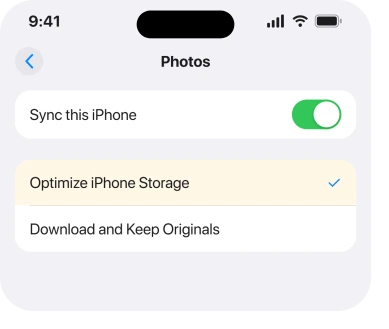
If iCloud Photos is on but stuck rather than optimising, iCloud Photos stuck on Syncing Paused is the page for that instead.
8. Update macOS, because the oldest Macs are where this concentrates
Last, because it is the biggest change to make and it is not free.
The owner who started the long-running thread on this was on a 2019 iMac running macOS Ventura with an iPhone on iOS 26. After months of workarounds he upgraded the Mac and reported: "The problem has been resolved with the upgrade."
Every confirmed workaround on that thread came from somebody on an older macOS. Monterey. Mojave. Ventura. A 2016 MacBook Pro. That pattern is consistent enough to act on.
I am not going to tell you an upgrade will fix it, because one person's result is one person's result.
What I will say is that if you are several macOS versions behind and reaching for a locked-phone trick every time you want your photos, that is the direction the evidence points.
Status: iOS 26.6.1, checked 19 August 2026. Reported since iOS 26 shipped and still reported in July 2026. Apple documents the Optimize Storage cause. The workarounds are owner-confirmed.
Why does my Mac see my iPhone but no photos?
Usually the accessory permission or a timing problem, not your cable. The Mac lists the device as soon as it is connected. Photos only reads the camera roll after the phone approves the connection. Unlock too early or too late and that handshake breaks.
Why are only some of my iPhone photos available to import?
Because Optimize Storage moved your originals to iCloud. Apple states this plainly. Its fix is to turn on iCloud Photos on the Mac, or to AirDrop instead. No cable can import a file that is not on the device.
Does Image Capture work when Photos does not?
Owners report that it does, provided you keep the phone locked for at least twenty seconds after plugging in. It copies files to a folder rather than into your Photos library. So treat it as a rescue route, not a replacement.
Is this an iOS 26 bug or a macOS problem?
Nobody has established which, and Apple has not commented. The reports start with iOS 26 and cluster heavily on older macOS versions, so the pairing matters more than either half on its own. Your Mac's version is the part worth checking.
The Short Version
- Decide first whether nothing imports, or only your recent photos are missing.
- Apple says the phone must be unlocked before it will talk to a computer at all.
- The most confirmed owner fix is the opposite: stay locked until Photos asks.
- Always Ask under Wired Accessories forces a fresh approval prompt.
- Quitting Photos with the cable still in, then reopening, is confirmed twice.
- Let the item counter finish before you scroll. Scroll early and you see a partial list.
- Optimize Storage keeps originals in iCloud, and Apple says a cable cannot reach them.
- Every confirmed workaround came from somebody on an older macOS than yours may be.
Where to Next
What makes this one hard is that your phone and your Mac each look fine. No error, no warning, just an empty panel where a thousand pictures should be.
That is why rung 7 matters even if it is not your fault. Knowing that Optimize Storage puts files somewhere a cable cannot go stops you working through six workarounds for photos that were never on the phone.
If the locked-phone trick worked for you, I would like to know which macOS version you are on, because the reports lean heavily towards older Macs and a clear pattern would be worth printing here.
And if what is missing came from a Shared Library rather than your own roll, six things decide whether it appears.
If your Mac cannot see the iPhone at all rather than seeing it and finding nothing, an iPhone not showing up in Finder is the page to start on.
Camera RAW files from an SD card are a different story on macOS Sequoia 15.8, where a bug stops them importing.

Isaac Smith is the founder and editor of PC Glance, a website that covers computers, laptops, and technology. He is a tech enthusiast and a computer geek who loves to share his insights and help his readers make smart choices when buying tech gadgets or laptops. He is always curious and updated about the latest tech trends.