

Your cursor sits there, completely still. The pad under your hands may as well be a coaster. I know how fast that turns into a bad afternoon, because with no pointer you cannot even reach the settings that would fix it.
Most pages hand you a driver reinstall and stop there. I want to start somewhere more useful. There is a real change in how these machines act, it catches people out, and Microsoft has never written it down.
First, get a pointer back so you can work
Before anything else, borrow a way to move.
Plug in any USB mouse if you have one. If you do not, drive Windows from the keyboard. Tab moves between controls. Space and Enter press them. The Windows key opens Start, so you can type settings.
That gets you to everything on this page.
The change: a mouse now switches your touchpad off
Learn this one, because it is new and it reads as a hardware failure.
Windows has a setting that switches your touchpad off while a mouse is connected. That has existed for years. What changed is how machines act around it.
Reported by an owner on the Microsoft Q&A boards, 4 November 2025, on a Lenovo Yoga 6 running build 26200.
Their touchpad stopped after a Windows 11 update, and after working through drivers, the function key, a clean boot and uninstalling the manufacturer's software, they found this:
> "I have a workaround - leave the 'touchpad on while using a mouse' setting on, and then the touchpad will work with or without a mouse. Odd that it won't work without this setting turned on anymore, when that used to work just fine with Win 10."
Read that twice. The logic of it is inside out. The pad only came back once the setting that keeps it alive alongside a mouse was switched on. That held whether or not a mouse was plugged in.
Where to find it: Settings, Bluetooth & devices, Touchpad. Expand the section. Look for the option about leaving the touchpad on when a mouse is connected. Switch it on.
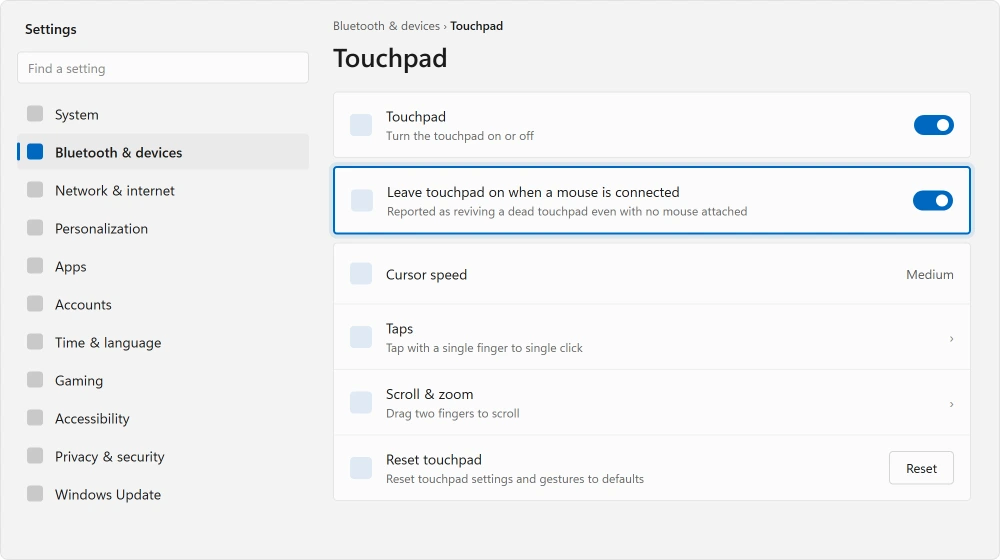
Ours, and marked as ours: we cannot tell you why this works. Neither could the owner who found it.
There is a real cost too, you lose the ability to switch the pad off while using a mouse. Try it anyway, because it is free and instant, but know what you are getting.
Four things the same owner tried that failed
This part matters as much as the fix, because it saves you the evening they lost.
Reported as failing, all four of these, in their own words. If you were about to try any of them, save yourself the trouble.
The function key first. On a Lenovo that is usually Fn + F8. Their reply: "Pressing Fn + F8 didn't do anything that I could tell."
Then Fn Lock, which can leave the top row sending the wrong signals. They switched it on in Lenovo Vantage: "This doesn't change the situation."
Then a clean boot, with every non-Microsoft service stopped. If that is on your own list, this was the result: "I tried the cleanboot and the issue persisted, even with all the non-MS processes stopped."
Then the manufacturer's software, removed one piece at a time with a restart between each: "I uninstalled several game related systems and all the Lenovo stuff, one at a time, rebooting and checking again. No change in touchpad behavior."
No fix was ever confirmed on that thread. The setting is a workaround, not a cure. That is how it is presented here.
Still check the function key, because it is often just off
None of that makes the function key irrelevant. On most laptops it is the real answer.
Look along your F1 to F12 row. Find a key with a small touchpad symbol, often with a line through it. Hold Fn and press it.
Fn + F5, Fn + F6, Fn + F8 and Fn + F9 are all common, and it varies by maker. Some laptops use a small dimple in the top left corner of the pad instead, which you double-tap.
The reason so many people miss it is silence. Nothing appears on screen either way, so one stray press switches the pad off and you never see it happen.
If your keyboard is misbehaving generally as well, keys that will not type covers that separately.
If the pointer works but has changed appearance on its own, that is something else. Microsoft has reports of cursor settings reverting after an update.
Check the toggle Windows keeps for it
There is a plain on and off switch for the whole pad. It is easy to knock.
Go to Settings, Bluetooth & devices, Touchpad. Make sure the Touchpad switch at the top reads On.
Now look at where this sits in the documentation. Microsoft's own touchpad troubleshooting page covers driver updates and nothing else. It never mentions this switch, the function key, or the mouse-connected setting.
None of the three appears on the vendor page even though all three fix real cases. That alone explains why searching this fault feels so useless.
Now the drivers, which is what Microsoft does document
Documented by Microsoft in its touchpad guidance: update the driver through Windows Update, or through Device Manager, and reinstall it if updating does not help.
Where it tells you to look matters, because a touchpad is not always filed where you expect. Microsoft names two places in Device Manager: Human Interface Devices and Mice and other pointing devices.
Open Device Manager with Windows + X. Check both sections. Right-click your touchpad, choose Uninstall device, then restart. Windows puts a driver back on its own.
If updating the driver did nothing, do not just repeat it. An update and a reinstall are different jobs, and only one of them replaces a damaged file.
When the mouse is the problem instead
A dead USB mouse is a different fault, and a much shorter list.
Move it to another USB port. Use one on the machine itself rather than a hub or a dock. Then test it on a second computer if you can, which settles whether the mouse has died.
On a wireless mouse, change the battery first. A dying battery gives you a cursor that stutters and drops out rather than one that stops cleanly. That is the more confusing failure of the two.
Bluetooth mice carry their own trap. Remove the mouse in Settings, Bluetooth & devices, then pair it again from scratch. A half-broken pairing keeps reporting itself as connected while doing nothing at all.
A mouse that clicks everywhere except one patch of the screen is not dying. An invisible window usually sits there, and one app owns it.
If the machine has felt sluggish generally, why a PC slows down is a separate check.
When it is the BIOS
Rare, and you need to know about it, because no work inside Windows will ever find it.
Some laptops keep a touchpad setting in their firmware. Restart, and press whichever key your maker uses to enter setup, commonly F2, F10 or Delete. Look for an internal pointing device option. Confirm it is enabled.
Disabled there, Windows never sees the hardware. That is why it does not even appear in Device Manager.
Status: checked 20 August 2026 on build 26200 and on 22H2. Microsoft's touchpad page covers drivers only, so the function key, the Windows toggle and the mouse-connected setting are undocumented.
Why did my touchpad stop working after a Windows update?
Check the setting that keeps the touchpad on while a mouse is connected.
One owner on a Lenovo Yoga 6, on build 26200, found their touchpad only worked once that was enabled, with or without a mouse plugged in, and said it had behaved normally on Windows 10.
What is the shortcut key to turn the touchpad back on?
It is on your F1 to F12 row, marked with a small touchpad symbol, and you hold Fn while pressing it. Fn + F5, F6, F8 and F9 are all common. Nothing appears on screen either way, which is why it gets switched off by accident.
Why does my touchpad stop when I plug in a mouse?
Because Windows has a setting to do exactly that, at Settings, Bluetooth and devices, Touchpad.
Turning that setting on so the touchpad stays active has also, oddly, been reported as reviving touchpads that were dead even with no mouse attached.
Does Microsoft document the touchpad function key?
No. Its touchpad troubleshooting page covers updating and reinstalling drivers and nothing else, then refers you to your laptop manufacturer. The function key, the Settings toggle and the mouse-connected option are not on it.
The Short Version
- Get a pointer first, with a USB mouse or with Tab, Space and Enter.
- Turning on "leave touchpad on when a mouse is connected" has revived dead touchpads.
- The function key is on the F row and gives no on-screen feedback.
- Microsoft's own page documents drivers only, which is why searching feels useless.
- Look in both Human Interface Devices and Mice and other pointing devices.
- A touchpad disabled in the BIOS never appears in Windows at all.
Where to Next
The lasting lesson: how much of this is simply unwritten. Three fixes that genuinely work are missing from the vendor page entirely.
Remember that the next time a search for a laptop fault turns up nothing but the same driver advice on every result.
On a laptop with a touchscreen as well, that panel fails in its own way and tests separately.
Once it is working again, setting the gestures up properly is a one-time job and the three finger tap is the one worth changing.
If the mouse-connected setting fixed yours, drop your laptop make and build number into the comments. It is currently one owner's finding on one machine, and I would very much like to know how far it actually reaches.

Isaac Smith is the founder and editor of PC Glance, a website that covers computers, laptops, and technology. He is a tech enthusiast and a computer geek who loves to share his insights and help his readers make smart choices when buying tech gadgets or laptops. He is always curious and updated about the latest tech trends.