
You have a call in four minutes. The camera shows you nothing, or a black rectangle, or an error code you have never seen before. Horrible timing, and I will not make you wade through a general list to find your case.
What follows is grouped by what yours is doing, so go straight to the one that matches.
Give the next section thirty seconds first, though. It catches more people than everything else here put together.
Check the physical cover first
Laptops have a switch, and it is off far more often than anybody admits.
Documented by Microsoft on its camera troubleshooting page, which lists four forms it takes: "A button on the keyboard that's activated with the Fn key; A dedicated camera button on the keyboard; A sliding switch on the side of a laptop; A small slider for a shutter, built right into the camera".
Look along your function keys for a camera symbol. Check the edges of the laptop for a small slider. Then look at the camera itself for a tiny shutter you can push across.
Reported working by an owner on the Microsoft Q&A boards, 12 January 2026, on an HP laptop, after exactly this suggestion: "Thank you I went to a guy and spent 23 dolares and he did nothing but you saved me".
Reported as not applicable by another HP owner nine days earlier, who said plainly that "there is no keyboard setting for camera" on their machine and could find no documentation for one. Not every laptop has one.
Give it a proper look, then move on rather than hunting.
The camera works in one app but not another
The commonest software case, and its cause hides somewhere you would never think to check.
Go to Settings, Privacy & security, Camera.
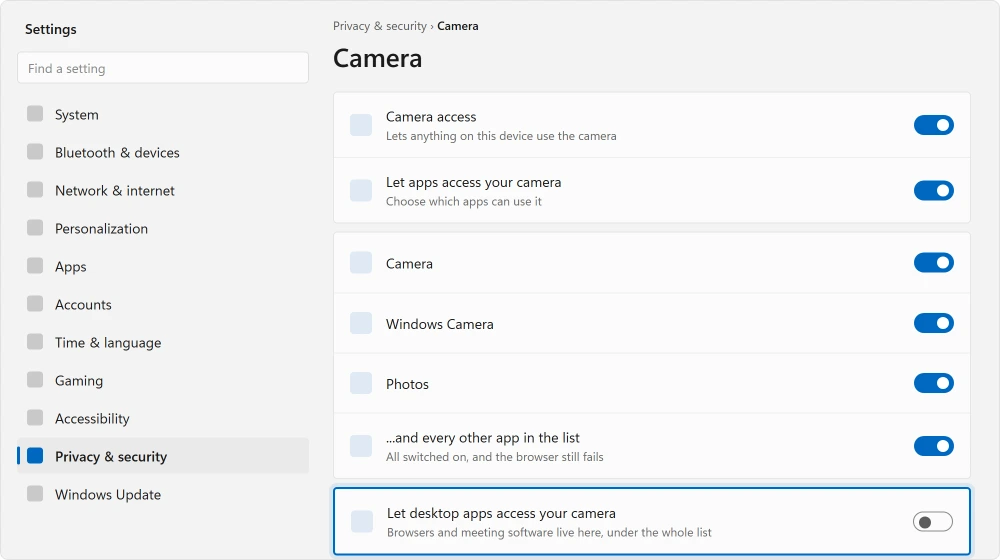
You get Camera access at the top, then Let apps access your camera, then a list of individual apps. Almost everybody sets all of those and stops there.
Now scroll to the very foot of that page, past the entire app list. Find Let desktop apps access your camera.
Documented by Microsoft: "Internet browsers, like Microsoft Edge, and many video conferencing apps, like Microsoft Teams, are desktop apps that require this setting to be turned on."
That is the answer for the majority of people who reach this page. Your browser and your meeting software are not in that list at all. They answer to that single switch underneath, which is far too easy to scroll straight past.
Windows Hello uses a separate infrared camera, so face sign-in failing while Zoom works has its own fix.
Everything is switched on and it still says blocked
Two things left, and one of them surprises people.
Reported by a third owner on the same thread, 22 April 2026: they found microphone access had to be enabled before the Camera app would work, and said so with some irritation.
So go to Settings, Privacy & security, Microphone, and switch that on as well. It should not be necessary. On some machines it is.
The other is your security software. Documented by Microsoft: "Some antivirus programs or firewalls might block camera access."
Open anything installed beyond Windows Security and look for a webcam protection feature. Several products ship with one switched on by default. Where updates are also refusing to install, clear an update that will not move first.
You get an error code
Microsoft publishes what each one means, which spares you a great deal of guessing.
| Code | What it means |
|---|---|
| 0xA00F4244 | The system cannot detect a camera at all |
| 0xA00F4243 or 0xA00F4289 | Another app is already using it |
| 0x80070005 | Access denied |
| 0xA00F4292 | Access restricted by policy |
| 0x800705AA | Insufficient system resources |
| 0xA00F4246 | Locked by security software |
I would read two of those twice.
Another app is already using it is extremely common, and no setting of yours caused it. Close the browser tab with the meeting in it. Close the other conferencing app sitting in the background. Then try again.
Windows hands the camera to one program at a time and no more.
Locked by security software sends you straight to the antivirus section, with no guessing at all.
The camera is missing from Device Manager entirely
If Windows cannot see the hardware at all, no permission setting will help you. The same is true of a machine that will not turn on, where software stops being the answer entirely.
Press Windows + X and open Device Manager. Look under Cameras and under Imaging devices.
Not there at all? Click Action, then Scan for hardware changes. Still nothing, on a built-in laptop camera? Then the physical switch becomes much more likely, because some of them genuinely disconnect the device.
There with a warning triangle? Right-click it, choose Uninstall device, and restart. Windows reinstalls the driver by itself.
It broke right after an update
Documented by Microsoft as one of the common causes, listing missing drivers after a recent update alongside antivirus and privacy settings.
The route is the same one that works for most hardware after an update. In Device Manager, open the camera's Properties, then the Driver tab. Use Roll Back Driver if it is offered.
Grayed out? Then no previous version is stored, and your laptop maker's support site is the next place to look rather than Windows Update.
The picture is black but the camera is working
A camera that is clearly active, light on, showing a black image, is usually nothing to do with Windows.
Check the shutter again. A closed slider does exactly this while the camera itself runs perfectly normally.
Then look at your lighting. Webcams cope very badly with a bright window behind you, and the automatic exposure gives you a silhouette or a black frame. Turn to face the light instead of sitting in front of it.
With the preview restored, save a photo from the laptop camera if you need an image to attach.
Status: written 21 August 2026. Microsoft lists four forms of physical camera switch, and the desktop apps permission governing browsers and meeting software sits under the app list.
Why is my camera blocked when all permissions are on?
Check the setting right at the foot of the Camera privacy page, underneath the app list, called Let desktop apps access your camera. Browsers and meeting software answer to that one switch, not to the app list. One owner also found microphone access had to be enabled before the Camera app would work.
Where is the webcam switch on a laptop?
It takes four forms according to Microsoft: a function key combination, a dedicated camera button, a sliding switch on the side of the machine, or a tiny shutter built into the camera itself. Not every laptop has one, so do not keep hunting if a careful look finds nothing.
What does error 0xA00F4244 mean?
Microsoft documents it as the system being unable to detect a camera. Check Device Manager under Cameras and Imaging devices, use Scan for hardware changes, and on a laptop check the physical switch, because some of them genuinely disconnect the device.
Why is my webcam picture completely black?
Usually a closed privacy shutter, which leaves the camera running normally while blocking the lens. After that, strong light behind you will produce a black frame through automatic exposure. Turn to face the light instead.
The Short Version
- The physical switch takes four forms, and one owner paid for a repair before finding theirs.
- Browsers and meeting apps need the desktop apps switch under the whole app list.
- One owner found microphone access had to be on before the camera worked.
- Another app already using the camera is a documented error, not a settings fault.
- Antivirus with webcam protection blocks it, and Microsoft says so.
- A black picture with the light on is a shutter or the lighting, not Windows.
Where to Next
If I could get you to check one thing twice, it would be the desktop apps setting, because it sits under the list rather than inside it. Almost everybody who gets this far has already switched on every visible toggle.
If the camera is fine but nobody can hear you, you have a different problem, and a PC with no sound covers the output side of it. If the whole machine has been struggling, rule out a machine that is short of resources first.
If it works everywhere except a meeting app, the cause is narrower than this list. One toggle can say allow at the top and deny underneath.
Put two things in the comments for me: which app fails, and whether the Windows Camera app works. That pair separates a permissions problem from a hardware one straight away, and I will gladly puzzle over an odd one with you.

Isaac Smith is the founder and editor of PC Glance, a website that covers computers, laptops, and technology. He is a tech enthusiast and a computer geek who loves to share his insights and help his readers make smart choices when buying tech gadgets or laptops. He is always curious and updated about the latest tech trends.