
You press Windows and Shift and S. Nothing happens. Or the tool opens and refuses, telling you it "is currently not available in your account", with an error code you have never seen before.
You use that shortcut fifty times a day without thinking. Losing it mid-afternoon is genuinely disruptive. There is a fix, and it is not the one every page gives you.
Better still, somebody who had the problem found it. Seven other people confirmed it working within four hours.
What happened on 21 January 2026
That morning a lot of people lost the Snipping Tool at once. No update installed. Nothing changed on their machines.
Reported by an owner on Microsoft's own boards at 15:43 that afternoon.
She quoted the message exactly: "Snipping Tool is currently not available in your account. Make sure you are signed in to the Microsoft Store and try again. Here's the error code, in case you need it: 0x803F8001".
And the part that matters: "I was using it earlier today. I didn't restart my computer or download anything or do anything unusual before it just stopped working. I rely on the tool for work so this sucks."
Before posting she had restarted four times, reset the Microsoft Store five times, repaired it, deleted and reinstalled it, signed in and out repeatedly, and added a second account. None of it worked.
That list matters because it is the list every page will give you, and she had done all of it before she found the answer.
The fix she found, nine minutes later
Confirmed by an owner, posted at 15:52 on the same day.
In her words: "Delete and re-install the snipping tool itself. Don't bother with the Microsoft Store like all the advice I found."
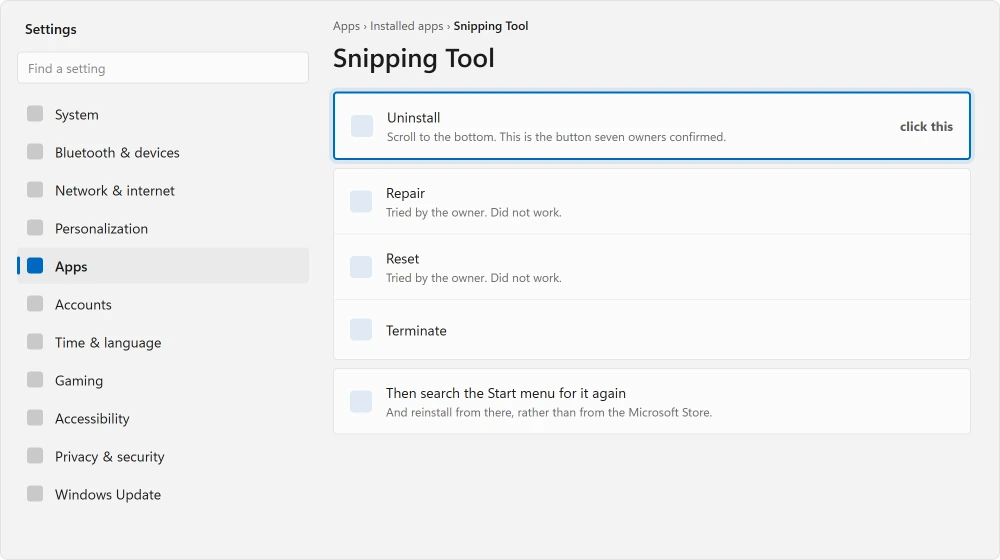
And the route, exactly as she gave it: "Search for the tool in the start tab, right click to go to the app settings, scroll down and press uninstall. Then search for it again in the start tab and it will be the .exe file to reinstall it. This finally fixed it after hours!!!"
Seven other people confirmed it that same afternoon, which is rarer than almost anything else I read.
"I just experienced the same problem - only way it worked was to uninstall and reinstall the snipping tool." "Uninstalling worked! Thank you!" "I just experienced the same issue, and I did what you recommended. It worked, thanks."
"ah so happy thankyou for this guidance 🙂 uninstall and reinstall all worked great." "Yes, this fix works! Thank you!" "just did that as well now its working."
Why the Store advice fails and this does not
You get sent to the Microsoft Store, because the message mentions it. That is the trap itself.
One owner compared the two directly: "Same issue, uninstall and reinstall worked! Reset the app didn't work :-("
Resetting an app clears its data and settings. It does not replace the app's registration with Windows. That registration is what breaks here.
Uninstalling and reinstalling replaces the registration. That is why it reaches what a reset cannot.
If the tool works but your snips paste into Paint at two thirds size, paste the older copy from Win+V instead.
Where it did not work, because three people said so
I am printing the failures too, because they are on the same thread and they are specific. One could not reinstall at all: "dude i cant reintall. there is no .exe file."
One got an error trying: "Says 'retry' and 'something went wrong'."
One simply reported it made no difference: "didn't work has the same issue."
So it has a real success rate and a real failure rate. Both are visible on one page, within a few hours.
If the reinstall will not run
Open Windows Terminal as administrator. The first command is the Settings reset in command form, so skip it if you have already reset the app:
Get-AppxPackage *ScreenSketch* | Reset-AppxPackageIf that fails, this one reinstalls it from your existing package files:
Get-AppxPackage -AllUsers *ScreenSketch* | Foreach {Add-AppxPackage -DisableDevelopmentMode -Register "$($_.InstallLocation)\AppXManifest.xml"}Neither of those is a confirmed fix for this fault. They are the standard route for a broken app registration, and I am giving them as that rather than as something anybody reported working on 0x803F8001.
Terminal that opens as a bare window with no tabs is a separate quirk; its focus mode setting explains it.
If Windows and Shift and S does nothing at all
Different problem. The app may be fine. The shortcut may be off. Or taken by something else.
If your keyboard shortcuts have gone more widely, shortcuts that have stopped working covers that.
Go to Settings, then Accessibility, then Keyboard, and check the Print screen key option. Then look for another screenshot tool claiming the same keys. Whichever loaded last usually wins.
Ours, and marked as ours: open the Snipping Tool from the Start menu by hand first. Does it work that way? Then your app is healthy and this is purely a shortcut problem. That saves you every uninstall step above.
Shortcut works and the snip pastes, but the markup pop-up never shows? That is a notification problem, and it has its own fixes.
What this tells you about the next one
The useful lesson is not about the Snipping Tool. A Microsoft app breaking for many people on the same day, with no update and no change at your end, is a licensing problem on their side, not a fault on your machine.
The error message will point you at the Store. The Store is not usually where the answer is.
And if the whole machine has been struggling rather than one app, a PC that has got slower starts by measuring instead of guessing.
Ours, and marked as ours: search the error code with the date before you spend an hour on it.
Dozens of people posting the same thing that morning tells you it is not you. Wait or reinstall, rather than dismantling your PC.
Status: written 22 August 2026 about the outage of 21 January 2026. One owner found the fix and seven others confirmed it the same afternoon, while three reported it failing for them.
What does error 0x803F8001 mean in Snipping Tool?
Windows is saying the app is not licensed to your account. It points you at the Microsoft Store, which is why that is where you end up.
In the January 2026 outage the Store route failed for everybody and uninstalling and reinstalling the app itself worked.
Does resetting the Snipping Tool fix it?
It did not in this case, and an owner compared the two directly: reset failed, uninstall and reinstall worked.
A reset clears the app's data. It does not replace the app's registration with Windows, and that registration is what breaks here.
How do I reinstall the Snipping Tool?
Search for it in the Start menu, right-click it, open its app settings, scroll to the bottom and choose Uninstall.
Then search for it again in the Start menu and reinstall from there. That exact route was confirmed by seven people on the day of the outage.
Why did Windows and Shift and S stop working?
Open the Snipping Tool from the Start menu by hand. If it works, your app is fine and only the shortcut is broken, which usually means another screenshot tool has claimed the same keys or the Print screen setting has changed.
The Short Version
- Error 0x803F8001 means Windows thinks the app is not licensed to your account.
- The message points at the Microsoft Store, and the Store is not where the fix is.
- Uninstall the app from its Start menu entry, then reinstall it from the Start menu.
- Seven owners confirmed that on the day of the outage. Three reported it failing.
- Resetting the app was tried and failed for at least one person who then reinstalled successfully.
- If the shortcut is dead but the app opens by hand, only the shortcut is broken.
Where to Next
Try opening the Snipping Tool from the Start menu before anything else. That single test tells you whether you have a broken app or a broken shortcut, and they need completely different fixes.
If your keyboard shortcuts have stopped working more widely, a keyboard misbehaving more widely covers that.
And if the whole machine has been struggling rather than one app, a PC that has got slower starts by measuring instead of guessing.
When you only need the picture rather than the tool, there are four other ways to take a screenshot that do not involve this app at all.
Once it is working again, it also records the screen as video, which is the half people miss.
Hit this on a different date to the one above? Tell me in the comments with the error code. Knowing whether it recurs is worth more to me than any single fix.

Isaac Smith is the founder and editor of PC Glance, a website that covers computers, laptops, and technology. He is a tech enthusiast and a computer geek who loves to share his insights and help his readers make smart choices when buying tech gadgets or laptops. He is always curious and updated about the latest tech trends.