
You press Windows, Shift and S, drag a box, and wait for the little pop-up in the corner that opens your snip for markup. It never comes. The snip is on your clipboard, so Ctrl and V still pastes it, but you cannot edit it first.
I check the notification side before the app, because the capture clearly worked. This one is common: 500+ people on Microsoft Q&A clicked Same question on it, that thread has 210 answers, and the Super User version has 92,020 views.
The pop-up is a notification
That corner pop-up is an ordinary Windows notification banner. Whatever silences notifications silences it too.
Microsoft's keyboard shortcuts list says the shortcut captures "a screenshot to the clipboard", and "You can then open the Snipping Tool to share or markup the image".
So a missing banner rarely means a broken capture, and the first place to look is the notification center, which Windows and N opens. A snip taken during Do not disturb waits there, and selecting it opens the snip.
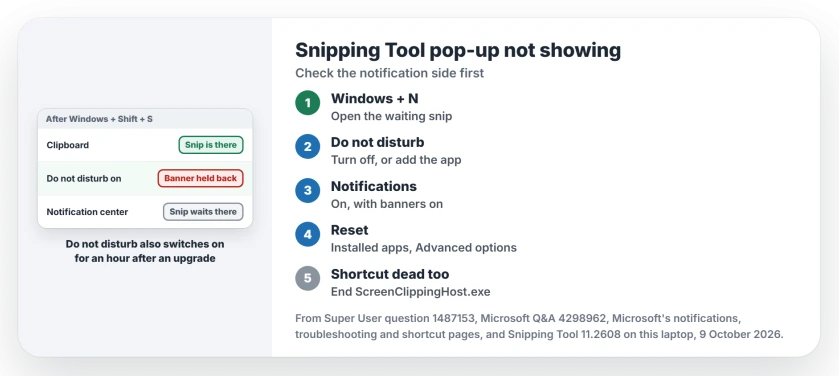
Status: Do not disturb hid the pop-up for owners in both forums, Microsoft documents how it holds banners back, and a reset fixed many of the rest. The app on our laptop examined 9 October 2026.
Ours: this laptop runs Snipping Tool 11.2608.41.0. Its resource file holds lines such as Screenshot copied to clipboard and Automatically saved to screenshots folder.
1. Turn off Do not disturb, or let Snipping Tool through
Microsoft's notifications page spells it out: "With do not disturb on, you will only receive banners for alarms, reminders, and apps of your choice". Everything else goes straight to the notification center.
I would try this before any reset, since it changes nothing else. Open the notification center and find the bell icon marked zZ; if it is lit, select it, then take a test snip.
On Super User, this is the fix confirmed by owners most. The answer that found Focus assist set to Alarms only drew four replies from owners it helped.
One of them simply wrote "OMG, that worked!", and Focus assist is the Windows 10 name for the same feature.
Want to keep Do not disturb? Microsoft says you can choose which apps may still notify you. Go to Settings, System, Notifications, open Set priority notifications, select Add apps and add Snipping Tool.
It switched on by itself
Do not disturb can turn itself on. Microsoft's troubleshooting page is clear on it. It lists automatic rules for "duplicating your display, playing a game, or using an app in full screen mode".
The same page adds one that catches people out. It switches on for "the first hour after an operating system upgrade". A big Windows update can hide the pop-up for an hour, then the problem goes away.
Snipping during presentations or full screen video? Open Settings, System, Notifications, Turn on do not disturb automatically. Clear the rules you do not want.
Outlook reminders get swallowed by those rules too, and they can open behind other apps as well. Outlook has its own on-top setting for that.
2. Check Snipping Tool's own notification switch
Go to Settings, System, Notifications and make sure Notifications is on at the top. One Super User owner had switched it off for everything on purpose. They had not realized that this includes the snip pop-up.
Then find Snipping Tool in the app list and open it, where Microsoft lists the switch that matters as "Show notification banners". A Windows 11 owner on Super User fixed theirs by making sure Banners was on.
3. Reset the Snipping Tool
Notifications on, banners on, and still no pop-up? Reset the app. Go to Settings, Apps, Installed apps, find Snipping Tool, open Advanced options and select Reset.
On the 500+ Q&A thread, the answer saying exactly that has 300+ people marking it helpful. Its author wrote "After this it started working normally". The Super User version of the same fix got "This worked for me".
I leave the reset for third because it clears the app's settings, so check your save folder afterwards. Lost a snip while testing? Clipboard history keeps your recent ones if you have it switched on.
No pop-up, and the shortcut stops working too
That points somewhere else. One owner on Q&A traced it to ScreenClippingHost.exe, which got stuck after a snip instead of closing. The next Windows, Shift and S did nothing at all.
Their workaround was to end ScreenClippingHost.exe in Task Manager, which, as they also wrote, holds only "until you take another screenshot". Use it to get through the day, then try the reset.
If Snipping Tool will not open even from the Start menu, our Snipping Tool not working page covers the reinstall and the outage that caused it.
Is Snipping Tool even installed?
Windows, Shift and S still copies a snip to the clipboard without the app. But no pop-up comes.
One Super User owner found theirs had never been installed. Another wrote that a setup script had removed it along with other built-in apps.
Search Snipping Tool in Start. Missing? Get it back from the Microsoft Store, and the pop-up returns with it.
Windows and Print Screen never shows it
That one is by design. Microsoft says Windows and PrtScn will "Capture a full screen screenshot and save it to a file in the Screenshots subfolder of the Pictures folder". There is no pop-up step.
Use Windows, Shift and S when you want to mark up the picture first. Choose the full screen mode in its toolbar for a whole-screen snip.
The Short Version
- The pop-up is a notification. Check the notification center with Windows and N first.
- Do not disturb hides it. Turn it off, or add Snipping Tool under priority notifications.
- It can switch on by itself in full screen, in games and for an hour after an upgrade.
- Check Notifications is on, and Snipping Tool's banners are on.
- Still nothing: reset Snipping Tool in Installed apps, or reinstall it from the Store.
Where to Next
Was Do not disturb on when your pop-up went missing, or was it something else? Tell me in the comments.

Isaac Smith is the founder and editor of PC Glance, a website that covers computers, laptops, and technology. He is a tech enthusiast and a computer geek who loves to share his insights and help his readers make smart choices when buying tech gadgets or laptops. He is always curious and updated about the latest tech trends.