

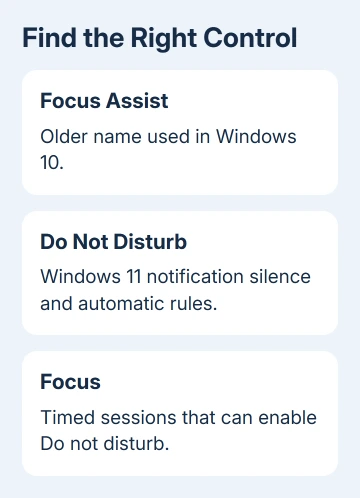
Newer Windows 11 versions put Focus Assist's notification controls under Do not disturb. Open Settings > System > Notifications and expand its automatic rules to allow alerts during full-screen apps or games.
Focus sessions are a separate control for timed work. The similar names make an older Focus Assist tutorial easy to follow into the wrong page, especially after an update changes the Settings layout.
In this guide
1. Open Notifications rather than the Focus page
Press Windows + I, select System, then open Notifications. Look for Do not disturb. Turn that switch off to hear and see ordinary notifications again.
The owner asking about the missing setting had Windows 11 version 22H2, build 22621.1555. The advice was to use the automatic Do not disturb controls on that page, rather than reinstall a missing feature.
If the switch is already off, stay on Notifications for the next check. A game or full-screen rule can enable quiet mode again, even though the desktop looked correct a moment earlier.
Open an app that sends notifications and trigger a fresh alert with its window at a normal size. Then make it full screen and repeat. That gives you a direct comparison for the condition you're trying to change.
Don't treat an app's maximize button and its full-screen mode as interchangeable. The automatic rule applies to full-screen use. Test the same display mode in which the alerts actually stop.
2. Change the rule that silences full-screen apps
Expand Turn on do not disturb automatically. Clear When using an app in full-screen mode if you want notifications during full-screen work. Leave unrelated conditions unchanged so your preferred schedule still works.
The same group includes conditions for games, duplicating the display, certain times and the first hour after a Windows feature update. Microsoft's Do not disturb controls list those rules.
For gaming, clear When playing a game as well if that is the activity during which notifications disappear. Changing only the full-screen condition won't remove a separate gaming condition that is still selected.
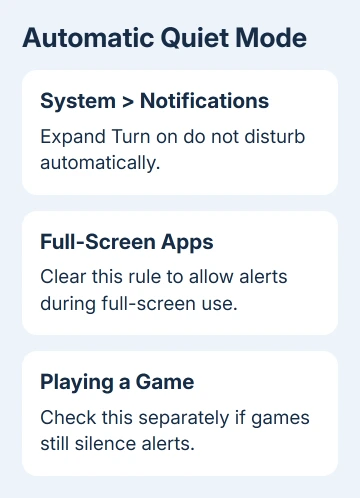
For presentations, check When duplicating the display. Duplicating shows the same desktop on two displays. That setting can explain why alerts disappear only when a projector or meeting-room screen is connected.
For a recurring daily gap, inspect the time rule and its start and end times. Change the schedule rather than repeatedly switching Do not disturb off by hand. Otherwise the next scheduled period can bring the problem back.
After changing the relevant condition, turn Do not disturb off and repeat your original activity. If it stays off but one app remains silent, move to that app's notification settings rather than changing more automatic rules.
3. End a Focus session that's turning it on
Open Settings > System > Focus. Look for an active session and end it if you don't want the current quiet period. Focus can also be started from the Clock app or the calendar area of Notification Center.
Starting a Focus session turns Do not disturb on by default. Focus settings also let you hide taskbar badges and flashing apps. Those changes can make alerts feel missing even when messages are arriving normally.
On the Focus page, find the Turn on do not disturb checkbox. Clear it for future timed sessions that allow alerts. This changes what happens during a Focus session. The automatic rules are still on Notifications.
The Focus session explanation describes those separate session behaviors. Use Focus for your work timer and Notifications to choose which alerts can interrupt it.
I'd change the automatic notification rule before changing a timer you use every day. It is easier to keep useful Focus sessions while allowing alerts for one activity than to turn off every quiet-time feature at once.
4. Where did the quick switch go?
Press Windows + N to open Notification Center in Windows 11. The panel contains your notifications and calendar. Use its Do not disturb control, shown as a bell with sleep marks, to switch the quiet mode on or off.
The network, volume and battery area opens Quick Settings instead. Looking there for the old Action Center tile can make the control seem missing. Windows 11 separates these panels, so use Windows + N for notifications.
Check any missed alerts in the panel after turning quiet mode off. While Do not disturb is on, ordinary notifications can go straight there rather than appearing as banners. That differs from an app failing to deliver a message at all.
If the missing pop-up is specifically the capture preview, the Snipping Tool notification guide covers its individual switch and app checks if turning quiet mode off hasn't brought the preview back.
5. Check the older Windows name and individual apps
Press Windows + R, enter winver and press Enter if the page doesn't match these controls. Read the Windows version. Windows 10 uses the older Settings > System > Focus assist page.
On Windows 10, choose Off to allow normal notifications, or adjust Automatic rules for the activity causing silence. Its Action Center also has a Focus assist tile. Use the Do not disturb steps for the newer Windows 11 layout.
If you're using an early Windows 11 release that still shows Focus assist, adjust the controls already shown on that build. Match the instructions to the screen and version actually installed.
On current Windows 11, return to System > Notifications and select the affected sender. Enable its notifications and banners. Enable Play a sound if the message appears but you can't hear an alert.
Outlook also has its own alert settings. The Outlook notification checks are useful when email arrives but that app alone won't announce it after Do not disturb is off.
If your organization manages these controls, ask IT to check your account's notification policy. If Notifications won't open on a personal PC, use Get Help with the winver result and a screenshot of the failure.
The Short Version
Use System > Notifications > Do not disturb in newer Windows 11. Change its automatic full-screen or game rule, and check whether a Focus session is enabling it. Windows 10 retains the Focus assist name and its older settings page.
Checked November 17, 2026.
 If you have any business, I can build it online






