
You connect to a printer shared from another PC and type that PC's login. Windows answers "The credentials supplied are not sufficient to access this printer". The same login opens that PC's shared folders without a fuss.
I would stop retyping it into that box. Save the login in Credential Manager instead, and the printer connects without asking, as owner after owner on Microsoft Q&A confirmed.
On that Q&A thread, open since 2023, 50+ people have clicked Same question. A Super User question from January has 1,229 views.
Where the login goes wrong
The Super User asker connected from Windows 11 to a printer on a Windows 10 PC. Their login for a local user on that PC opened every shared folder without complaint. The printer's Connect option asked again. It turned the same login down.
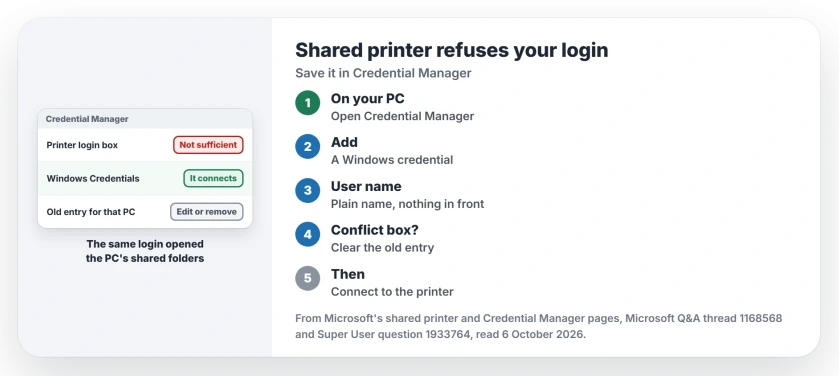
Status: checked 6 October 2026. A shared printer refused a login that opened the host PC's folders. Saved in Credential Manager with the bare user name, it connected.
Typing it another way brought a second box, which read "Credentials Supplied conflict with an existing set of credentials".
One Q&A answer gives 0x0000052e as the error code that comes with the first message. Microsoft's error list decodes 0x52E plainly: "The user name or password is incorrect".
Microsoft's advice, and where it stops
Microsoft's shared printer troubleshooting page is short on this: "Shared printers may require valid user credentials", it says.
You can use the same account on both PCs, or "enter the username and password of the host PC" when Windows asks.
Ours: that prompt is the step failing for you. Your login is fine. Windows just needs to hold it, saved, before you connect to the printer.
1. Save the host PC's login in Credential Manager
On the PC you print from, type credential manager in the taskbar search box, open it and choose Windows Credentials. Then pick Add a Windows credential. Windows 10 and 11 share this Control Panel page.
Fill in three boxes: the host PC's name, a user name on that PC, and its password. The top answer on Q&A gave this route, and more than 20 people marked it helpful.
Confirmed by an owner: "Adding Windows Credentials fixed my problem, thank you". Another wrote "Avoiding the login dialog and using the windows credentials path got passed the error".
Once your login is saved, connect to the printer again from Printers & scanners.
Still not listed? Add the printer by its share path or IP from the Add device screen.
2. Type the user name bare
The Super User asker fixed it the same way, with one detail: the user name had to be the plain name, with no PC name and no dot or backslash in front.
In their words: "Adding the credentials to the Credential Manager in the right notation solved my problem". Their tries with the PC name in front, or an @ and the PC name after it, all failed.
Ours: type the host's name in the Internet or network address box exactly as you connect to it. If you reach that PC by its IP address, save the IP instead.
3. Clear an older entry for that PC
The conflict box means Windows already holds a login for that PC, often from when you opened its folders. Ours: Windows will not keep two different logins to the same PC at once.
An owner on Q&A gave the rule. Do this on the client PC, and "make sure that there are no other existing credentials for the host computer". Edit the old entry so it carries the right user name, or remove it and add yours.
Did the host's own shared folders stop opening after a Windows update too? Then check the sharing switch that updates turn off before anything else.
If the host has no user to give you
Two Q&A answers made a separate local user on the sharing PC, just for printing, with lusrmgr.msc. Home editions of Windows do not have it.
Ours: on Home, add the user in Settings, under Accounts, Other users on Windows 11, or Family & other users on Windows 10. Give it a password.
I would never leave it blank, since Windows blocks network logins with an empty password by default.
Then save that user's name and password on your PC under Windows Credentials, as in step 1. I would write it down as well, because the next PC you add will need it.
The Short Version
- A shared printer's login box can refuse a correct login.
- Save the host PC's login in Credential Manager.
- Use the plain user name.
- Remove or edit an older entry for that PC.
- No user on the host? Make one with a password.
Where to Next
Open Credential Manager on the PC you print from, add the host's login under Windows Credentials, and connect to the printer.
Which version of Windows shares your printer? Add it in a comment.

Isaac Smith is the founder and editor of PC Glance, a website that covers computers, laptops, and technology. He is a tech enthusiast and a computer geek who loves to share his insights and help his readers make smart choices when buying tech gadgets or laptops. He is always curious and updated about the latest tech trends.