

Your mouse pointer reaches the edge of one screen and stops there, as if it hit a wall. Push faster or harder and it finally slips across to your other monitor.
I check the arrangement in Display settings first, because that wall is usually something you can see there. The Super User question has 100,048 views. Over 50 people marked a 2014 Microsoft Q&A copy as their own problem.
Three walls your pointer can hit
Windows moves your pointer between screens only where their edges meet in its own map of your desk. That map is the set of numbered boxes in Display settings, and it can differ from the real desk.
Microsoft's multiple monitors help page says arranging them "is helpful if you want your mouse to move smoothly across the displays". Three things in that map stop you.
They are a gap between the boxes, edges that only partly overlap, and the corners of a screen. Each has its own fix, so start with the first and work down.
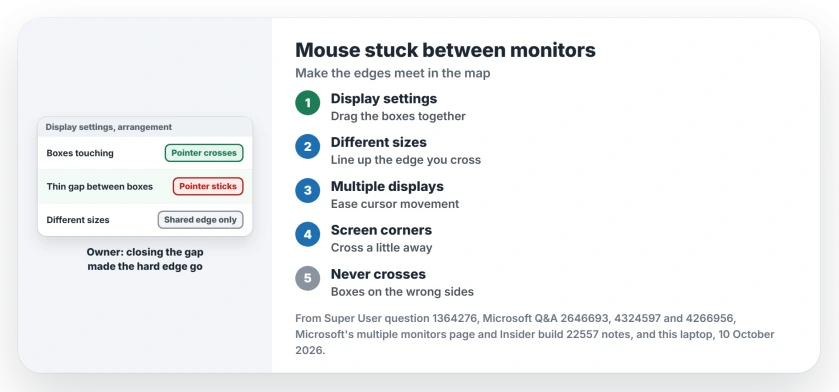
Status: Microsoft documents arranging displays and Ease cursor movement. Closing the gap is the owner fix. Display settings and the registry examined 10 October 2026.
Ours: the two 4K screens on this laptop sit 79 pixels apart in height, the left one higher. So the top 79 pixels of the left screen have nothing beside them. Without the switch in step 3, your pointer would stop there.
1. Close the gap between the boxes
Right-click the desktop and choose Display settings. Look closely at the boxes. A thin space between two of them is a strip your pointer has to jump. I look for that first. Drag one box until its edge touches the other, then select Apply.
Readers pointed to this Super User answer as the real fix. Its owner found "there was a thick gap between 1-2 in the plan" and pushed the boxes together. A reader replied: "I'm glad it's such a simple fix!"
Another reader wrote "I have a Windows10 machine and this fixed it for me". The 2014 Q&A got the same answer from an owner in 2016: "Once I pulled the two monitors together, there was no issue".
2. Line up the edges you cross most
When your screens have different resolutions, their boxes have different sizes too. The pointer crosses only along the part of the edge they share, so the rest of that edge acts as a wall.
A smaller box beside a bigger one leaves you a dead strip.
Drag the smaller box up or down until the shared part sits where you actually move the mouse. One owner dragged their second box a little up. After that, their pointer crossed along the bottom of the screens, where they moved it most.
Microsoft ends that step with a check you can copy: "Test your new layout by moving your mouse pointer across the different displays to make sure it works like you expect". The numbered boxes page shows which box is which.
3. Turn on Ease cursor movement between displays
Windows 11 has a switch for dead strips. Microsoft announced it in 2022: "It is now easier to move your cursor and windows between monitors, by letting your cursor jump over areas where it would previously get stuck".
In Display settings, expand Multiple displays and tick Ease cursor movement between displays. Ours: it is already on here, saved as CursorDeadzoneJumpingSetting with a value of 1.
It will not cure every layout for you. On a 10+ Q&A thread about a six-screen setup, the owner still had sticking going up and down. Switching it off changed nothing. Approaching the edge fast got through.
A Microsoft community specialist replied that "this may be a design problem that appears on multiple screens". Still hitting a wall with the switch on? Go back to steps 1 and 2.
4. Cross away from the corners
Even with the boxes lined up, Windows can hold your pointer near the corner of a screen. One Super User owner put the zone at about five pixels.
They called it a feature: "it thinks you might actually be aiming for the corner of that monitor".
Getting past it is simple. Cross a little away from the corner, rather than along the very top or bottom of the screen you are leaving.
You may find an old registry fix for this, MouseMonitorEscapeSpeed. It comes from a 2014 answer written for Windows 8. A reader who searched their registry for it "found nothing".
Ours: this laptop has no such value either, so I would not chase it.
When it never crosses at all
Can your pointer not cross at any speed? That is an arrangement mistake, not a sticky edge. The boxes are on the wrong sides, so the pointer leaves by the edge facing away from your other screen.
Drag the boxes into the order of your real desk and select Apply, then test the crossing again. Getting the arrangement right on two monitors covers it, from Identify onward.
One reader fixed a stubborn case by updating the NVIDIA graphics driver, after the layout itself looked right. If your layout looks right and nothing helps, get the newest driver for your graphics chip.
The Short Version
- Close any gap between the display boxes, then Apply.
- Line up the shared edge where you actually cross.
- Windows 11: tick Ease cursor movement between displays.
- Cross a little away from screen corners.
- Will not cross at all? The boxes are on the wrong sides.
Where to Next
Sticking in one direction only? Describe your layout, sizes and which screen sits higher, so I can map it with you.

Isaac Smith is the founder and editor of PC Glance, a website that covers computers, laptops, and technology. He is a tech enthusiast and a computer geek who loves to share his insights and help his readers make smart choices when buying tech gadgets or laptops. He is always curious and updated about the latest tech trends.