
You click Shut down, and instead of a black screen you get Task Host Window, with a line saying Task Host is stopping background tasks. Then Windows gives up on the shutdown and drops you back on your desktop.
I would read the task name it shows before changing anything. Then I would try two switches owners keep confirming: one in Sign-in options, one in Power Options.
On Microsoft Q&A, a 2022 thread about it counts 200+ people with the same question, and a 2025 thread 100+. New questions kept arriving through August 2026.
What the message means
Task Host is the Windows process that runs background tasks for Windows and your apps. Ours: this laptop's taskhostw.exe calls itself "Host Process for Windows Tasks".
Its message file holds the exact line you see: "Task Host is stopping background tasks".
When you shut down, Windows waits for those jobs to stop, and if one hangs, it pauses the shutdown instead of cutting it off.
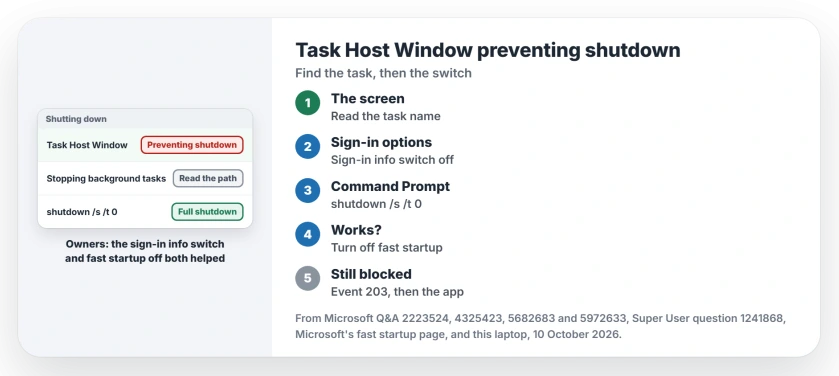
Status: owner threads and Microsoft's fast startup page checked 10 October 2026. Owners confirm two switches; Microsoft documents the full shutdown command.
An adviser on Microsoft Q&A described one such job: "It normally closes almost instantly, but if it gets stuck, Windows will delay shutdown to prevent data loss".
1. Read the task name under Task Host Window
The screen often lists the task path. On Windows 11, the one owners keep naming is DeviceDirectoryClient's RegisterUserDevice task.
One owner tied it to Windows Update: "This seems to be related to looping which occurs when checking for software updates in Settings". If that sounds like yours, let the update finish installing and restart once before anything else.
Ours: this laptop holds RegisterUserDevice among 12 tasks in the DeviceDirectoryClient folder, and a normal account cannot even open their files.
Another owner tried to switch that task off, "only to be told I don't have permission". I would not fight it. Change what starts it instead, in the next two steps.
2. Turn off the sign-in info switch
Open Settings, then Accounts, then Sign-in options. Turn off Use my sign-in info to automatically finish setting up after an update.
That switch lets Windows sign you back in after an update to finish setup jobs. On the 100+ Q&A thread, one owner followed a guide that started there. Their verdict: "Method 1 (change account settings) worked".
They added a warning. "The first restart after I made the change took a long time", so they forced it off with the power button. After that, every restart and shutdown went quickly.
3. Try a full shutdown, then decide on fast startup
With fast startup on, a shutdown is half a hibernation; Microsoft writes that "all sessions are logged off, and the computer enters hibernation". It also says fast startup is on by default.
So test a real shutdown first, before you change any setting. In Command Prompt, type the command from Microsoft's fast startup page:
shutdown /s /t 0Microsoft says "Full shutdown is the default when you use Shutdown.exe". Did that one go through cleanly? Then I would suspect fast startup.
To switch it off for good, press Windows key and R, type powercfg.cpl and press Enter.
Open the power buttons link on the left, then the link that unlocks the settings you cannot change yet. Untick Turn on fast startup (recommended) and save.
Two owners on the 100+ thread did this, and one wrote, "That seemed to do the trick". Another said it "worked for me without much of a delay in the startup".
Microsoft still advises leaving fast startup on, and your PC will boot a little slower. Restart and shut down are not the same explains the trade.
Still there? Find the program behind it
Not every block comes from Windows. One owner's message stopped after they repaired Microsoft Office, which they think a power cut had left half open.
Outlook can do it too, and Outlook that will not close covers that case.
A Q&A support agent pointed to Event Viewer: look in the Diagnostics-Performance log, under Operational, for event ID 203. Its entries can name the app or service that slowed your shutdown.
Ours: that log opened on this laptop without admin rights and held no 203 events, so checking costs you a minute.
Started right after an update? On the 200+ thread, one owner switched their power plan to Balanced and back. Their result: "I have had 2 clean shutdowns since".
Registry timeouts I would leave alone
Super User's accepted answer lowers WaitToKillServiceTimeout. One reader replied, "This solution never worked for me", and on this laptop the value already sits at 5000, five seconds.
Another answer sets AutoEndTasks to 1, so Windows ends blocking apps on its own. Its author warned that this "can be risky if you're prone to leave work unsaved". I would rather know which app was holding on, and fix that.
Is Shut down anyway safe?
Usually, if you have saved your work. Windows then closes whatever is still running.
That is the risk Microsoft names for the shutdown command's /f switch, which "might result in loss of unsaved data".
The Short Version
- Task Host Window means a background task did not stop in time.
- Read the task name; RegisterUserDevice is common on Windows 11.
- Turn off Use my sign-in info to automatically finish setting up after an update.
- Test shutdown /s /t 0; if it works, turn off fast startup.
- Still blocked? Check event 203 in Diagnostics-Performance for the app.
Where to Next
Which task name did your screen show? Share it, and your Windows version, in the comments. Say which switch stopped it too.

Isaac Smith is the founder and editor of PC Glance, a website that covers computers, laptops, and technology. He is a tech enthusiast and a computer geek who loves to share his insights and help his readers make smart choices when buying tech gadgets or laptops. He is always curious and updated about the latest tech trends.