
Clearing cache on an iPhone starts with the app causing the problem. Safari has a website-data control in Settings. Other apps manage their own stored files, while Offload App keeps documents and data instead of clearing them.
For a broken Safari page, start with Safari's controls. For a full phone, check which app actually occupies the space before removing anything.
Clear Safari's website data while keeping history
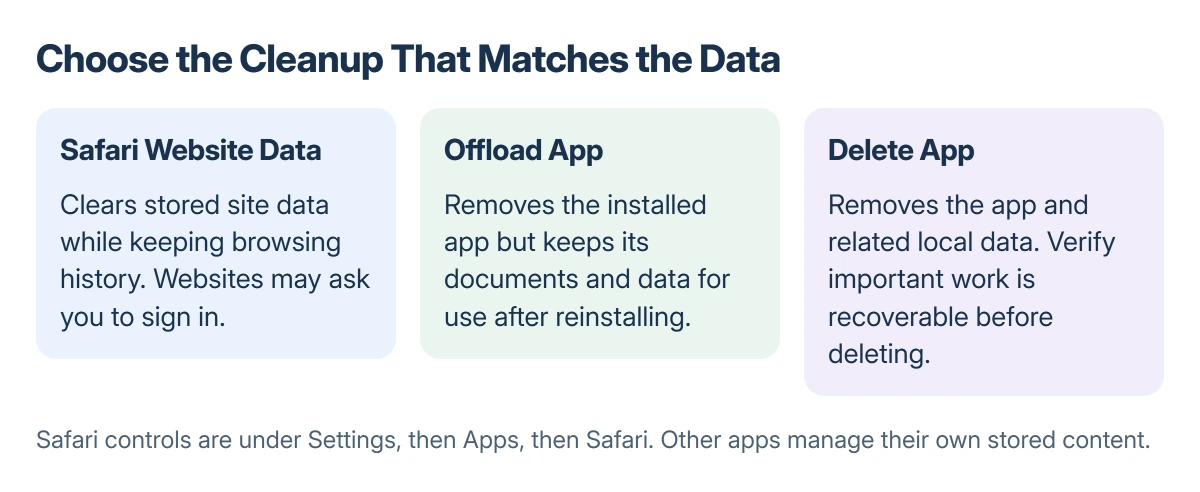
Open Settings > Apps > Safari. Choose Advanced, then Website Data. Tap Remove All Website Data, then confirm with Remove Now.
Apple documents this route on its Safari data page. It clears stored website data while keeping browsing history, so it is the narrower choice when that history matters.
Status: iPhone Safari and storage controls checked 22 October 2026 against Apple's current help. No phone was cleared or measured for this guide.
Website data includes information used to remember logins. Have the relevant passwords available, because removing stored login data can end existing website sessions.
Open Safari and revisit the affected page. If it loads correctly, stop there. Clearing more apps adds disruption without explaining the original problem.
Clear Safari history as well
For a broader Safari cleanup, return to Settings > Apps > Safari and choose Clear History and Website Data. Select the period to remove, then tap Clear History.
Apple says this does not change AutoFill information. It still removes the selected browsing history and website data, so choose this route deliberately rather than assuming every browser item must go.
A gray button can mean there is no data to clear. Apple also identifies Screen Time web-content restrictions as a reason to check when the control is unavailable.
For a page that stays blank afterward, follow the Safari white-page checks. A content blocker or another setting can cause that symptom without a cache fault.
Does Offload App clear an app's data?
Open Settings > General > iPhone Storage and let the app list appear. Tap the app you suspect, then inspect its storage details and the actions offered.
Apple states that Offload App removes the installed app while retaining its documents and data. Reinstalling an offloaded app can therefore bring that retained data back into use.
Use offloading when the app itself takes space and you want to preserve its content. It is not equivalent to resetting all of that app's stored information.
Some apps provide their own download or cache management screen. Use the app maker's instructions for that control; Safari's cleanup does not reach another app's saved files.
Delete App removes the app and its related data. Before choosing it, confirm that important drafts, downloads or other local work can be recovered. A sign-in account alone does not establish that every local file is backed up.
When the goal is free storage
Read the app sizes on the iPhone Storage screen before deciding which cleanup matters. Apple's recommendations there can point toward downloaded content or apps using much more room than Safari.
Cache is designed to be recreated when content is needed again. Apple describes cached media as files the device can remove when it needs space, so an empty cache is not a permanent storage upgrade.
If iCloud shows free space while this screen is full, check the difference between iCloud and iPhone storage. Buying a larger cloud plan does not enlarge the phone's internal storage.
Do not turn on Block All Cookies just to perform a cleanup. Apple's Safari page warns that blocking cookies can prevent logins and break website features. Removing existing data and refusing future cookies are different choices.
If clearing data changes nothing
Record which app fails and what happens when it fails. A single site that still breaks in Safari needs different support from an app that crashes immediately or a phone that cannot store another file.
Contact the app developer for a fault confined to their app. For a persistently incorrect storage reading, give Apple Support the iPhone model, iOS version and the category or app occupying the space.
The Short Version
Safari's Website Data screen clears site storage while keeping history. The broader history control removes both. Offloading another app preserves its data; deletion has wider consequences.
Check the storage list when freeing space is the actual goal.
Where to Next
Reopen the affected page or app after the one relevant cleanup. If the symptom persists, pursue that specific fault before erasing more stored content.

Isaac Smith is the founder and editor of PC Glance, a website that covers computers, laptops, and technology. He is a tech enthusiast and a computer geek who loves to share his insights and help his readers make smart choices when buying tech gadgets or laptops. He is always curious and updated about the latest tech trends.