
To clear cache on an iPad, start with the app causing the problem. Safari can remove browsing data from its History controls. A full iPad needs a storage check instead, because clearing Safari cannot remove another app's downloads.
Apple treats website data, app documents and cached media separately. Choose the cleanup that matches the symptom before deleting content that cannot be downloaded again.
Clear Safari data from the iPad sidebar
Open Safari, tap Show Sidebar, then select History. If History is not visible, tap the sidebar's back control to return to its main list.
Tap the More button, choose Clear, select the time period and tap Clear History. If Safari profiles are configured, choose the intended profile or All Profiles before confirming.
Status: Apple's iPad Safari and device-storage instructions checked October 25, 2026. The cleanup scopes differ. No iPad data was removed or storage gain measured.
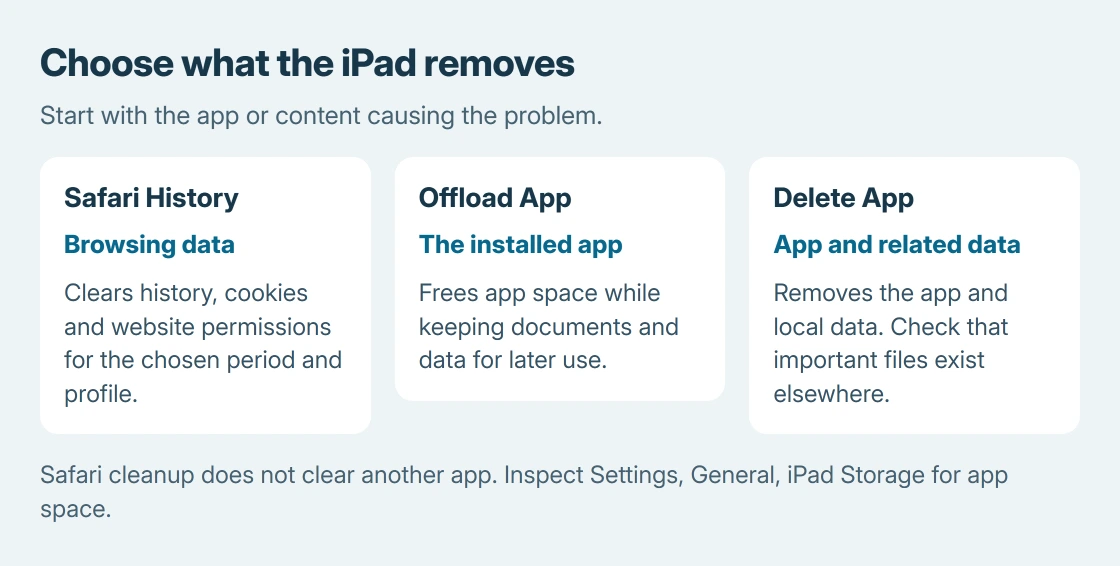
Apple says this iPad cache-clearing procedure removes browsing history, cookies and website permissions. It does not clear histories held by other apps or by the websites themselves.
Have the relevant website sign-in details available. Removing the data a site uses to remember a login can require signing in again. Reopen the affected page afterward to see whether its behavior changed.
Use Settings if the Safari page will not cooperate
Apple's Safari loading guide, which also applies to iPad, gives Settings > Apps > Safari > Clear History and Website Data. Confirm with Clear History.
Use this Settings entry when Safari itself is difficult to navigate. The sidebar path and Settings path are alternatives for a browsing-data cleanup; running both is unnecessary.
If the control is gray, Apple's Safari documentation identifies two possibilities: no data to remove, or web-content restrictions in Screen Time. An unavailable button alone does not establish a software failure.
If a page remains blank, try the Safari blank-page checks for shared Safari causes such as extensions and the connection. The page is written for iPhone; use the iPad's corresponding Safari controls.
Check iPad Storage before touching another app
Open Settings > General > iPad Storage. Wait for the application list, then select the app using the space. Read its storage details and any cleanup recommendations before choosing a removal action.
Apple documents these choices in its iPhone and iPad storage guide. Offload App removes the installed app while preserving documents and data. Delete App removes the app and related data.
Offloading therefore cannot be treated as a full reset of an app's saved content. When the aim is removing downloaded videos or maps, use that app's download controls if provided.
Before deletion, check whether local drafts or files exist elsewhere. An app account can restore some content without backing up every document saved on this iPad.
Leave automatic system cleanup to iPadOS
Cached media can reappear as the iPad loads content again. Apple states that iPadOS removes temporary and downloadable items when it needs space; the storage page describes that automatic behavior.
There is no need to promise a permanent storage gain from clearing a browser cache. Compare the iPad Storage categories instead of repeatedly deleting the same small set of site files.
If the missing room belongs to downloaded files, inspect them in Files. For content being moved to external storage, check the iPad USB-drive connection steps before relying on a copied file as the only backup.
Follow the result to the right support route
Retry the same page or app after the relevant cleanup. That comparison is ours: a working webpage answers a browser fault, while a large app still occupying the drive needs that app's storage controls.
For a site that fails after Apple's network, restart and Safari checks, contact its operator with the address and symptom. For an app that cannot manage its own downloads, ask its developer before deleting unique work.
For an unexplained full-storage report, contact Apple with the model, iPadOS release and occupied storage category. A factory reset is a separate, destructive operation and is not the next cache button.
If a full erase is the intended job, compare iPad reset options and complete the backup first.
The Short Version
Use Safari's sidebar History controls or its Settings entry for browsing data. Use iPad Storage for app space. Offloading keeps documents and data; deleting an app has wider effects. Check the original symptom after the relevant cleanup.

Isaac Smith is the founder and editor of PC Glance, a website that covers computers, laptops, and technology. He is a tech enthusiast and a computer geek who loves to share his insights and help his readers make smart choices when buying tech gadgets or laptops. He is always curious and updated about the latest tech trends.