
Samsung Galaxy phones let you change the Home screen, Lock screen or both from Wallpaper and style. Hold your finger on a blank part of Home to reach that control, choose a picture, then select where it should appear.
Check the crop before the final Done. Selecting a photo and saving the finished wallpaper are separate steps, so leaving the preview early can leave the old background in place.
Choose a photo and the screen that should use it
Touch and hold a blank area of the Home screen, then tap Wallpaper and style > Change wallpapers. Choose Gallery, select the desired photo and tap Done.
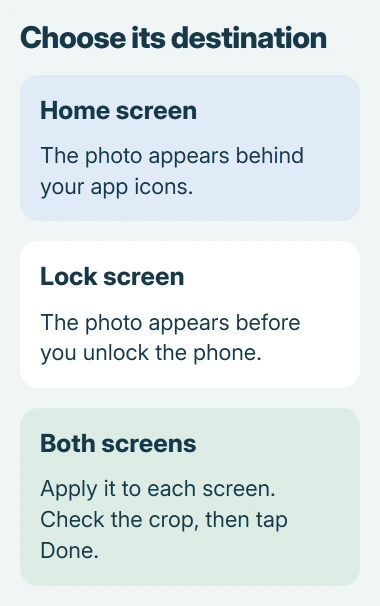
Samsung says the next selection lets you choose Lock screen, Home screen or both. Make that choice and tap Next. Its Galaxy wallpaper instructions describe this sequence.
Status: Samsung and Google instructions checked November 2, 2026. Menu wording and editing options vary with Galaxy model and One UI version. No phone wallpaper was changed here.
Drag the picture to position its subject, and pinch to adjust the crop. Check the preview for the selected screen, then tap Done in the upper-right corner to apply it.
Return to Home and check the result. If Lock screen was selected too, lock and wake the phone to inspect that screen separately. A correct Home screen does not confirm that the Lock screen was included.
Wallpaper changes do not change the keyboard's background. Use the Android keyboard picture settings for that separate surface.
Change only the Lock screen
Hold a finger on the Lock screen and authenticate to open its editor. Tap Wallpapers at the upper left, choose Gallery, select the photo and tap Done to reach its preview.
Position the picture, review any available effects, then use the final Done at the upper right. Samsung also documents the direct Lock screen editor.
Editing choices differ by One UI version. For example, Samsung describes Frame and Effect on newer versions in place of the earlier Filter control. These optional controls are not required to apply a plain photo.
If holding the Lock screen does not open the editor, use the Home screen route and select only Lock screen. The preview should identify the destination before saving.
To decorate the source picture first, place a Samsung photo sticker in Gallery, save the edit, then return to the wallpaper picker.
Download a photo that is missing from Gallery
A picture visible in Google Photos may still need a local copy before it appears in the Galaxy wallpaper picker. Open the picture in Google Photos, tap More, then Download.
Google says Download is absent when the photo is already on the device. In that case, check the local Gallery albums instead of repeatedly looking for the download command.
Return to Change wallpapers > Gallery and select the downloaded image. If the desired picture is a saved capture, the Samsung screenshot guide explains where its Screenshots album is stored.
Why does the Lock screen picture keep changing?
When the Lock screen keeps showing different pictures, check whether Dynamic Lock screen is enabled. Samsung states that this service supplies changing Lock screen images; it is separate from selecting one personal photo.
Open Settings > Wallpaper and style > Change wallpapers > Wallpaper services and choose None. Samsung's Dynamic Lock screen instructions use this service control.
Then choose the personal photo again for Lock screen and finish its preview. Menu labels can differ by software version, so check Wallpaper services if the change-wallpaper label is singular on the phone.
If the choice still will not save, note the model, One UI version, selected screen and what appears after Done. Contact Samsung Support with those details before resetting the phone.
The Short Version
Choose the photo and its destination in Wallpaper and style, then crop and save it. Download a cloud-only picture if needed. Disable Dynamic Lock screen when its rotating images replace the chosen background.

Isaac Smith is the founder and editor of PC Glance, a website that covers computers, laptops, and technology. He is a tech enthusiast and a computer geek who loves to share his insights and help his readers make smart choices when buying tech gadgets or laptops. He is always curious and updated about the latest tech trends.