
Use Replace Fonts in desktop PowerPoint for Windows to replace an existing font throughout the presentation. To give your layouts consistent heading and body fonts, change the slide master's fonts as well.
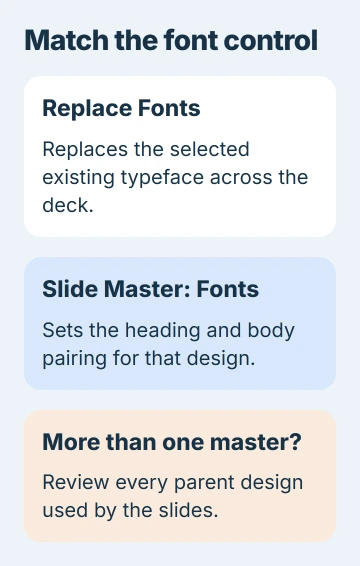
These controls do different jobs. Replace Fonts changes text that uses a particular font; the master sets the design your slides follow. Save a copy first, keeping the original deck for comparison.
Replace an existing font across the presentation
With your deck open in Windows PowerPoint, go to Home. Find the Editing group, open Replace, then choose Replace Fonts. This is separate from replacing a word in the presentation.
In Replace, select the font you want to remove. In With, choose its replacement. Select Replace, then Close. Review several slides that used the old font before replacing another font.
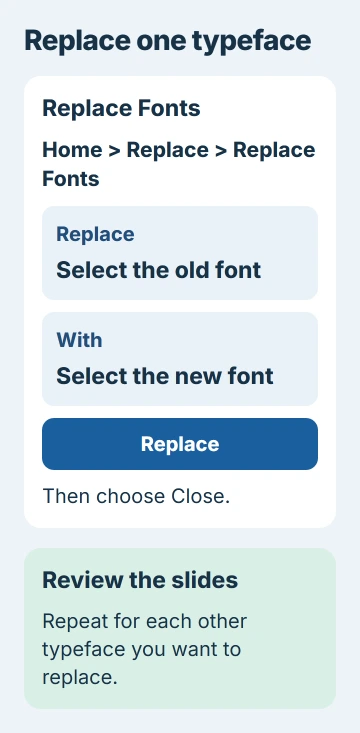
Microsoft explains this replacement method in its font-changing instructions. You won't need to select text in the same old font separately on each slide.
For example, if the deck uses one font for titles and another for body text, replacing the body font doesn't replace the title font too. Repeat this for each font you want to change.
Choose the replacement from the available font list. If the required font isn't available, use the PowerPoint font installation guide before trying to apply it across the file.
I'd replace one font at a time and check the result. If a title changes or a paragraph overflows, you'll have just one replacement to check.
Set the heading and body fonts in Slide Master
Choose View > Slide Master. The thumbnail pane shows the slide masters and their layouts. Select the master with the design you want to change.
A slide master is the parent design for a group of slides. Its layouts arrange the content, such as a title and body text. A placeholder is a box set aside for the layout's title, text or other content.
On Slide Master, open Fonts and choose a font pairing. Use Customize Fonts when you want to choose your own heading and body fonts, then give that pairing a useful name.
Select Close Master View when you're finished. Open a title slide and a content slide that use that master, and check that the text you wanted to change uses the new fonts.
The default-font procedure covers these defaults. Set them for your presentation's design instead of formatting each new slide by hand.
Changing the selected text box on a normal slide doesn't set the whole deck's default. That's different from using the Fonts control in Master View to change the design's fonts.
Check every master in a deck assembled from several files
A deck assembled from several templates can have several masters. Changing one affects the slides that use it, while the other masters keep their own fonts.
Stay in Slide Master and check the other parent designs in the thumbnail pane. Select each master that still uses fonts you don't want, and change its heading and body fonts too.
Keep any differences you want, such as a separate design for a section divider. You can make the fonts consistent while keeping the different slide arrangements.
If a footer still looks different or is missing, follow the PowerPoint footer and master checks. Its layout can affect where the footer sits and whether it appears, separately from the font replacement.
After closing Master View, compare slides from different sections of the deck. Checking only the first title slide can miss another master used much later in the presentation.
Inspect text that still looks different
Click the unchanged item and check what it actually is. Editable text has text formatting controls. Letters contained in a photograph or screenshot are part of that image, so replacing a font won't redraw them.
If it's editable text, select it or its placeholder and check Home > Font. It may use a different font from the one you replaced, or have formatting applied directly to that box.
Apply the font you want to that text, or replace its old font across the presentation if it appears elsewhere too. Check which master and layout the slide uses before changing another design.
Font size is a separate setting. Replacing a font doesn't mean titles and body paragraphs need the same size. Keep headings, body text and references at the sizes they need.
For digits in a chemical formula, retain their PowerPoint subscript formatting. The font and the character's position are separate settings.
Review layout and sharing before calling the deck finished
Check long titles, narrow text boxes, tables and footers after replacing fonts. Their character widths differ, so a paragraph that fit before can wrap differently even when the font size hasn't changed.
View the affected slides in Slide Show as well as the editor. Read the smallest text at the distance your audience will see it. Fix a crowded box by editing its wording or layout rather than shrinking everything automatically.
After visual changes, check the accessibility results for the presentation and review how its objects are read aloud.
Save the changed presentation with a filename you'll recognize. If colleagues will edit it, check that they have the font and use the font-sharing guide for supported ways to include fonts in the file.
PowerPoint for the web doesn't offer Slide Master view. Use desktop PowerPoint for these master changes. The Windows Replace Fonts command is also separate from a browser's text search.
If one item still won't change fonts, send that slide to the template designer or ask Microsoft Support for help. Give your application version, the old and new font names, and whether the item contains editable text.
The Short Version
Replace each unwanted font with Replace Fonts. Set heading and body defaults in Slide Master, and review every master used by the deck. Check remaining text, line wrapping and font availability before sharing the saved result.
Checked November 5, 2026.

Isaac Smith is the founder and editor of PC Glance, a website that covers computers, laptops, and technology. He is a tech enthusiast and a computer geek who loves to share his insights and help his readers make smart choices when buying tech gadgets or laptops. He is always curious and updated about the latest tech trends.