
Outlook can stop updating when it loses its connection or needs you to sign in again. Try a manual sync first, then check the same mailbox in a browser if new messages still don't appear.
Mail that's current on the web but stale in the app points toward the app's connection or account settings. Mail missing in both places needs a mailbox or delivery check instead.
1. Ask the right Outlook to sync now
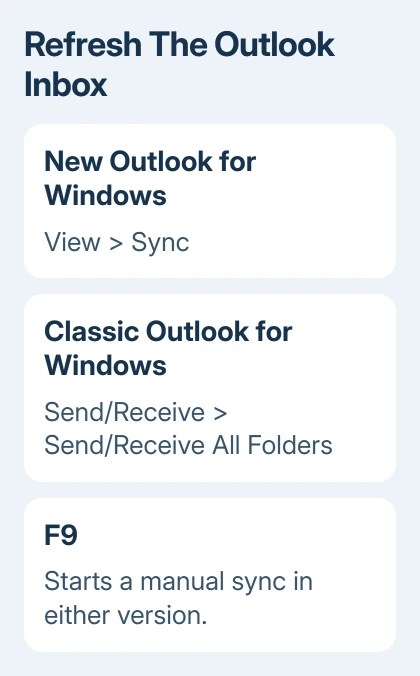
In new Outlook for Windows, select View > Sync, or press F9. Wait for the sync activity under the message list to finish, then check for new mail.
In classic Outlook for Windows, open Send/Receive > Send/Receive All Folders, or press F9 to check all accounts. The Send/Receive tab belongs to classic Outlook.
Microsoft describes the manual refresh controls for Outlook on the web too: refresh the browser page or use View > Sync there.
Check the newest message's time and date. If the missing message arrives, see whether the next one appears automatically. If nothing changes, check webmail next.
When mail arrives but the interruptions are unwanted, silence Outlook notifications rather than disabling mail synchronization.
2. Check whether webmail has the missing messages
Open your email provider's webmail in a browser and sign into the exact address shown in Outlook. For a work account, use your organization's Outlook web address. For Gmail in Outlook, compare Gmail's own inbox.
Make sure you're checking the same folder and account. Outlook can hold several mailboxes, and a shared mailbox or an archive isn't the same inbox as the account you signed into on the web.
If the expected message is absent there too, follow the missing incoming-mail checks. They cover sorting, Junk, rules and mailbox space, which an app repair won't change.
If webmail won't load or can't send and receive, tell your email provider or work IT team. Give them the affected address, what fails and when it started.
I'd check webmail before removing an account from Outlook. If the missing mail isn't there either, removing the account won't bring it back.
3. Reconnect classic Outlook when it says Working Offline
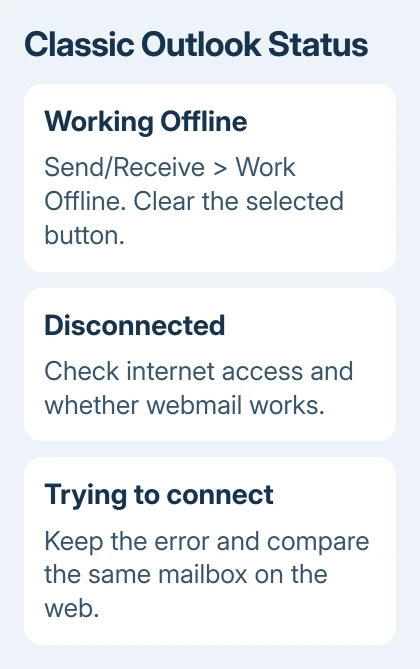
Check the connection status at the bottom of classic Outlook's window. Working Offline, Disconnected and Trying to connect mean it isn't communicating with the mail server. The fix depends on which message appears.
For Working Offline, select Send/Receive > Work Offline to return online. The button is shaded when offline mode is selected. Once its background is clear, run the send/receive from step 1 again.
The Work Offline button can be missing for an Exchange or Microsoft 365 account when Cached Exchange Mode, which keeps a local mailbox copy, is off. Ask whoever manages the account to check that setting.
For Disconnected or Trying to connect, check whether other sites load, then use the webmail result from step 2. An internet connection can work while the mail server or account sign-in still fails.
The offline status guidance explains this distinction. Repeatedly pressing Work Offline won't repair a server outage or a rejected sign-in.
4. Finish a sign-in request before changing server settings
Look for an account warning or password request in Outlook. Complete the sign-in for the affected account, especially after its password changed. Use the provider's sign-in window instead of guessing new server names.
If the password itself needs changing, follow the password route for your Outlook account. Outlook.com, a workplace account and Gmail can all appear in Outlook but use different account providers.
In classic Outlook, a newly added account that never synced its messages or folders may have the wrong account type. Open File > Account Settings > Account Settings and check the account's type against its provider's setup instructions.
For example, a personal Hotmail or Live address needs the Outlook.com setup route, not the workplace Microsoft 365 route. Note the current settings before asking your provider to correct them.
5. Repair the desktop app when the server is current
If webmail has current mail, the connection works and sign-in is complete, close and reopen Outlook. Retry Sync once it has reopened. Keep any error code that appears instead of immediately dismissing it.
If classic Outlook still won't sync, follow the Office repair procedure. It repairs the installed Office desktop suite. For new Outlook, ask support about that app instead.
Before removing a POP account, which downloads mail to your computer, or its data file, save messages held only on that computer. They may not have a copy on the server.
If syncing still fails, ask Microsoft Support or your work IT team to troubleshoot the affected Outlook version. Include whether View > Sync or Send/Receive fails, its connection status, and whether the same inbox is current on the web.
The Short Version
Refresh with View > Sync in new Outlook or Send/Receive All Folders in classic. Compare webmail, clear classic Outlook's selected offline mode, and finish any sign-in request. Give support the sync error and webmail result.
Checked November 7, 2026.

Isaac Smith is the founder and editor of PC Glance, a website that covers computers, laptops, and technology. He is a tech enthusiast and a computer geek who loves to share his insights and help his readers make smart choices when buying tech gadgets or laptops. He is always curious and updated about the latest tech trends.