

The message that Excel cannot paste the data often means the destination doesn't fit the copied cells. Copy the range again, then select just the destination's top-left cell before pasting. That lets Excel size the pasted block itself.
If that fails, check the destination's layout and protection. When pasting silently leaves cells unchanged, the checks differ from those for a visible error.
1. Paste from one starting cell
Select the source block and copy it with Ctrl+C on Windows or Command+C on a Mac. Click one destination cell, then use Ctrl+V or Command+V.
For example, a block copied from A1:C5 needs three columns and five rows. Select E1 as its starting point; don't select a differently shaped destination block first.
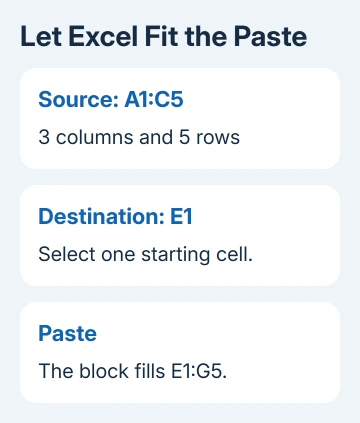
If you prefer to select the whole destination, its row and column counts must match the source. A five-column, three-row selection won't fit a three-column, five-row block.
Microsoft documents both destination-selection methods for Mac. The normal Windows copy procedure also starts from the destination's upper-left cell.
Check the destination for existing work you need to keep. A paste overwrites those cells. If starting from one cell works, use that method for future pastes too.
2. Compare the problem area with an empty sheet
Open a new blank workbook. Paste the same small block at A1. Use plain empty cells, away from formatted headings or a table's special rows.
If that works, the clipboard has your data. Return to the original sheet and check the cells you're pasting into.
Check for merged cells, such as headings that span several columns. Try pasting in an unused, unmerged area to see whether the layout is causing the error.
Don't unmerge a finished report just to make a large paste fit. I'd paste into spare plain cells first, check the result, then decide how the report should display it.
If even the empty workbook fails, try copying two ordinary cells from that new workbook to another empty position. This separates a particular source block from a paste problem affecting all files.
3. Check whether the destination is protected
Open Review and look for Unprotect Sheet. That command appears when worksheet protection is active. A locked destination can reject edits even when copying from the source is allowed.
When you're permitted to change the sheet, choose Unprotect Sheet and enter its password if requested. Otherwise, ask the owner for an editable input area instead of trying to remove their restrictions.
The worksheet protection instructions explain how to check protection and handle the password prompt. Protect Sheet and a password needed to open the workbook are separate controls.
Once those cells allow editing, try the paste again. If the file needs only certain input cells unlocked, use the Excel cell-locking steps with the workbook owner.
4. Choose the content you actually need to paste
When the destination accepts plain entries but rejects the full copied block, try Home > Paste > Paste Special. In Windows Excel, Ctrl+Alt+V also opens that dialog.
Choose Values if you need the current results without formulas or source formatting. Choose Formulas if those cells must keep calculating. Check the formula references after moving the calculation to its new location.
These paste options change what Excel transfers. Values is useful for a final report, but it turns a calculated result into a fixed entry.
If Values works, inspect dates, amounts and leading zeros before continuing. Destination formatting can change how the same value appears. The formula copying guide covers formulas and values separately.
On Mac, a large paste can also need column formats that match the incoming information. Select the relevant column heading, choose the correct format from Home > Number Format, and paste one column at a time.
5. Recheck the source and ask for the right help
For a large transfer, begin with a small rectangle that includes the affected data. Note whether it fails only between two workbooks or also within the same sheet. Keep the exact error wording.
If pasting still fails, give Microsoft support or your help desk the Excel version, operating system, copied range size and result of the blank-workbook comparison. Include a sample with private data removed.
For a paste that silently does nothing, check the Office paste regression against your installed build. That behavior differs from a visible rejection message.
The Short Version
Start at one destination cell, then check plain cells, protection and the required paste type. Use Values only when fixed results are enough. Report the exact error and the smallest failing range if the paste still fails.
Checked November 7, 2026.

Isaac Smith is the founder and editor of PC Glance, a website that covers computers, laptops, and technology. He is a tech enthusiast and a computer geek who loves to share his insights and help his readers make smart choices when buying tech gadgets or laptops. He is always curious and updated about the latest tech trends.