Saved offline in OneNote means the Mac hasn't finished sending your changes online. Reconnect and Control-click the notebook name, then choose Sync This Notebook. Keep the app open while it catches up after working offline.
A persistent error needs more attention than a brief offline session. Compare the same notebook in OneNote for the web before closing it or signing out, so you know whether the latest notes have actually reached your account.
In this guide
1. Reconnect and sync the affected notebook
Check that the Mac can load a normal website, then return to OneNote. If a hotel or workplace network needs a sign-in, complete that connection first. A Wi-Fi connection without working internet access won't carry your notebook changes.
In OneNote's left navigation, select the notebook that shows the error. Control-click its name > Sync This Notebook. If the notebook list is hidden, open the navigation controls until the notebook names are visible.
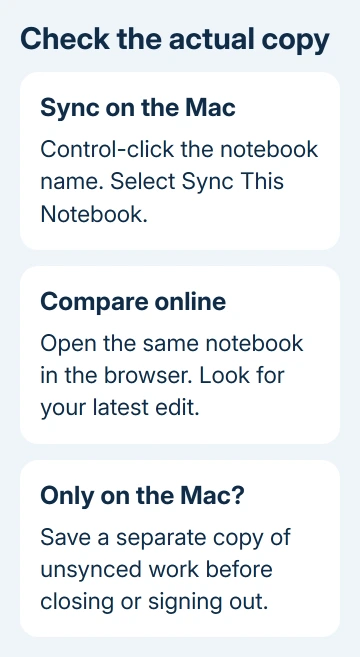
Leave OneNote open and give it time to send the changes. Large notebooks and first-time transfers need more time than a brief text edit. Watch whether the error clears and the most recent page becomes available online.
When adding a tablet next, connect the existing OneNote notebook on iPad and check the account before making a duplicate.
An offline warning during a lost connection doesn't mean the notes disappeared. OneNote keeps a local copy for continued work. After reconnecting, check whether the shared notebook has received that copy's changes.
2. Read the error and use Refresh when offered
Select the warning and note its wording and error code. Saved offline, Refresh and permission errors need different responses. Follow the instructions for that error rather than retrying a sync that keeps failing.
On a Mac, error E000006C (cig68) can come with a Refresh Now prompt. If it is present, use it. The notebook may be read-only until refreshed, or it may still let you edit while showing the offline warning.
Microsoft describes these Mac cases in its OneNote sync repairs. Don't follow a Windows-only shortcut from a similarly named error section; the Mac notebook menu gives you the relevant sync control.
If the warning persists, compare the online copy next. Editing one paragraph across several offline devices can leave conflicting versions. Work from the device holding the newest content while checking sync.
3. Compare the exact notebook in the browser
With the notebook open, use the Mac menu bar's Notebooks > Notebooks > Copy Link to Notebook. Paste that link into your browser and open it. Sign in using the account that owns or has access to that notebook.
Check a specific recent change, such as a sentence added today. Seeing the notebook title isn't enough; an older online copy can have the same name. Open the relevant section and page, then compare what's on the page.
If the latest changes appear in the browser, they're saved online, so focus on repairing the Mac's connection. If the browser shows an older page, keep the newer Mac copy and save anything missing online in a separate file first.
When the browser can't open the notebook at all, check the account and any permission message. A shared notebook may require a work or school account even while your personal account is signed into the browser.
If viewing works but editing doesn't, have the owner review your editing permissions. For a SharePoint notebook that won't open, send the administrator its link and error message. Reinstalling can't restore revoked permissions.
If the wider cloud connection is failing too, the OneDrive sync checks can help distinguish account, space and connection problems. A visible local folder by itself doesn't confirm that OneNote's newest pages are online.
4. Protect unsynced work before reopening
I'd save local-only pages before disconnecting the notebook. Copy important text into a separate document and save attachments separately. A PDF or image copy can preserve readable handwriting.
Open the saved copies outside OneNote and record which pages or attachments are missing online. Make those copies before signing out, clearing cached data or reinstalling; those actions can put local-only notes at risk.
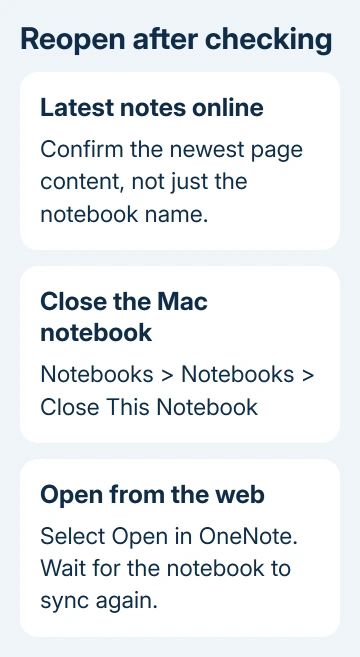
When the browser contains your latest changes, use Notebooks > Notebooks > Close This Notebook in the Mac app. Return to the notebook in OneNote for the web and select Open in OneNote to reopen it in the desktop app.
Give the notebook time to download and sync. Check the same recent edit again. If the notebook reopens and updates, its connection is working again. If the same error stays, keep its code handy for the next check.
5. Repair a section that won't sync
When other sections sync normally but one doesn't, keep the repair focused on that section. Create a new section in the same notebook. Copy the affected pages into it rather than moving or deleting the originals.
Use the page's Move or Copy command and choose the copy option to put the pages in the new section. Work through the affected pages, including any attachments, so the new section has everything you need.
Then select File > Sync All Notebooks. Open the new section in OneNote for the web and check the copied content. Consider removing the damaged original section only after the copy is complete and synced.
If the copy also fails to sync, keep both versions and stop deleting sections. A storage-limit or permission error won't be solved by repeatedly making new sections. Send that error to the account or notebook administrator.
6. Update OneNote before account repairs
For an Office-installed copy, open Help > Check for Updates and install the available OneNote updates through Microsoft AutoUpdate. For a Mac App Store copy, open the App Store's Updates section and update OneNote there.
After updating, quit and reopen OneNote, then retry the notebook. An older macOS release may limit available app updates. Check current requirements instead of getting an old installer from an unrelated site.
If several Office apps also refuse to save ordinary files, compare the Mac Office saving-error guide. A notebook sync error and a local Word save failure need different repairs even when they happen on the same Mac.
Get help with the notebook and error code
Find support or feedback in OneNote's Help menu. For a managed notebook, send the administrator its error code, location and app version. Say whether the latest content opens online and which pages exist only locally.
Ask for account or notebook sync help before agreeing to a cache reset or reinstall. That gives support the information needed to protect the notes that haven't synced while repairing the connection.
The Short Version
Reconnect, sync and use Refresh Now when offered. Compare the latest pages online and preserve anything missing there. Then reopen the notebook or copy a failing section. Update OneNote and send support the remaining sync code.
Checked November 10, 2026.