Chrome's Check your internet connection error can appear while websites still open. If Chrome won't install, try a fresh installer, then the offline package. For a browser file download, resume it and check whether only that website fails.
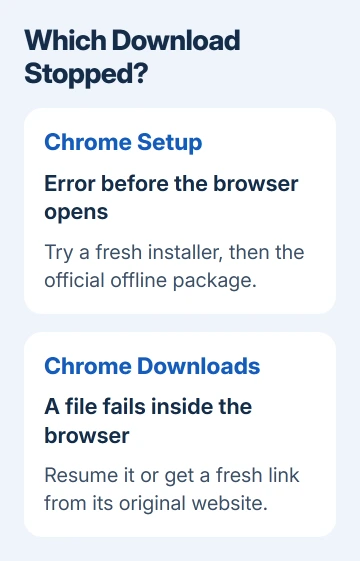
Check which window shows the error: ChromeSetup.exe is installing the browser, while Chrome's Downloads list handles files from websites. A connection fix that helps one won't necessarily help the other.
In this guide
1. Match the error to the download that stopped
Look at the window displaying the message. A small setup window running before Chrome opens points to the installer. A filename marked as failed inside the browser points to a file download that stopped.
Keep the full message, including any number. Disk full, Forbidden, and Virus scan failed need different fixes. Read that last line before changing network settings for what could be a storage or permission problem.
Open a new page in the browser that already works on your computer. Then open another unrelated website. If neither loads, fix your connected but no internet connection before retrying setup.
When pages open but a download fails, the connection can still drop during a longer download. Keep the computer on one stable network during the retry; moving between Wi-Fi and a hotspot changes the connection mid-download.
For a hotel or public network, finish its welcome-page sign-in first. Ask the network operator for its sign-in address if the prompt doesn't appear. A working Wi-Fi connection alone doesn't mean the network has granted internet access.
2. Replace the small Chrome installer on Windows
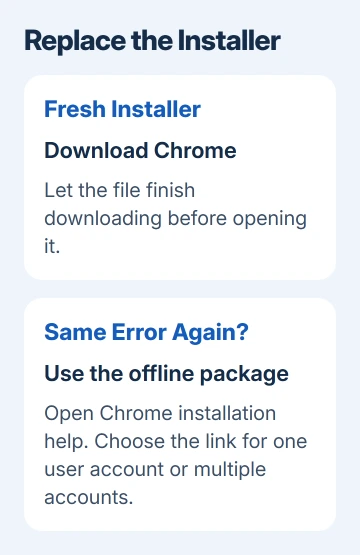
Close the failed setup window. Open Edge or another working browser and visit Google's Chrome installation troubleshooting page. Start with a new installation file rather than reopening the old copy.
Run the new file and approve the Windows prompt if you're authorized to install software. Watch for the download to finish and installation to begin. After setup completes, open Chrome from Start to confirm it installed.
If the same connection message returns, use the offline installer links on that troubleshooting page. Choose the link matching a computer with one user account or multiple accounts. Save the complete installer before running it.
The small installer needs to retrieve more files during setup. The offline package already includes those files. That's why it's useful when normal web browsing works but setup can't finish its download.
I'd try this before editing firewall rules. You can install Chrome this way without guessing which security setting stopped setup. Don't get a replacement installer from a download mirror or an advertisement.
For the download-page step, use the genuine Chrome site. After choosing Download Chrome, let the file finish in your current browser before launching it. A partially saved installer can't replace a complete package.
If Windows reports S mode instead, that's an app-installation restriction rather than this network error. Follow the S mode section of the installation help page and read about the permanent change before switching modes.
For a routine installation once the connection works, our Chrome installation guide for Windows also covers the package-manager route. Use the offline package first when setup's own download is what keeps failing.
3. Check what blocks the updater's connection
If an organization manages this PC, give its IT team the setup error. Public websites can load while a proxy or security policy blocks the installer. Include the full message and the time it happened.
Google recommends adding a Windows Firewall exception for updater.exe, rather than switching off the firewall. Only change that exception if you manage this computer's firewall settings.
Open Settings, search for Firewall, and select Allow an app through Windows Firewall. Choose Change settings, then Allow another app and Browse. Enter %ProgramFiles(x86)%\Google\GoogleUpdater in the location field.
Open the folder with the highest version number, select updater.exe, and add it. If that folder doesn't exist, don't substitute a random executable. Use the offline installer or ask IT to review the installation.
For a third-party firewall or web filter, use its own exception instructions. If Chrome updates fail too, check for blocks on tools.google.com or dl.google.com. A rule that allows Chrome can still block the program that updates it.
Retry setup once you've added the approved exception. If a different trusted connection works, report that comparison to the network administrator. Reinstalling Windows won't help if the network is blocking that address.
4. Resume a file that failed inside Chrome
For an ordinary file, open the three-dot menu and choose Downloads. Find the failed item and select Resume if available. The download may continue from where it stopped instead of starting from zero.
If Resume isn't offered or fails again, return to the original website and start a fresh download. This also gets a new link when a temporary download address has expired. Keep the original page open until the transfer completes.
For a missing accounting report, trace the QuickBooks Online Excel export from its report command to the saved workbook.
Download a different file from another trusted site. If that works, check the original file, link, or website. When every large download stops, check the connection and any software checking downloads on the computer.
A transfer that keeps moving but takes hours needs the slow Chrome download checks, including a comparison with another browser.
For Forbidden or Needs authorization, sign in at the file's original website. A No file message needs a current link from its owner. Retrying the same unavailable address won't create the missing file.
For Insufficient permissions, pick a folder your account can write to. For Disk full, free storage first. If security software flags a blocked or infected file, read its report rather than disabling protection to get the file.
5. Send the remaining failure to the right place
If the offline installer also fails, open Chrome Help Community from the installation page. Include Windows version, complete error, installer type, and whether another trusted network changed the result.
When only one website's file fails, send its support team the download address and error. If several devices fail on one network, ask the provider or administrator to check access and interrupted transfers.
The Short Version
Start by separating setup from a transfer inside the browser. Try a fresh installer or the official offline package for setup. Resume ordinary files and refresh expired links. Follow storage, permission, or security errors separately.
Checked November 10, 2026.