Chrome downloads slow down when the file's website limits its transfer rate, your connection is busy, or something in the browser interferes. Pause competing downloads first.
When a single website crawls but other trusted sites deliver files normally, the problem calls for a different fix from a browser-wide slowdown.
A download still adding bytes is also different from one marked Failed or Blocked. Check the download's progress to see which problem you have before clearing settings or starting the same large file again.
In this guide
1. Give the download the connection to itself
At the top right of desktop Chrome, open the download control and point to a competing file. Choose Pause. Leave the file you actually want running, and pause large cloud uploads, game updates, or video streams on the same connection.
Wait for the remaining download's rate to settle. A time estimate can jump when a transfer starts, so judge whether the amount downloaded keeps growing rather than treating one changing estimate as a fault.
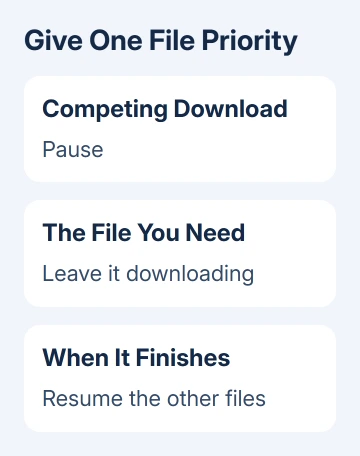
Google says the download controls can pause, resume, or cancel each transfer. Pausing other files is preferable to canceling the large download you're trying to finish.
If the rate improves, the other activity was slowing the download. Finish the important file before resuming the rest. If nothing changes, leave this download in the list while you check whether other websites are slow too.
On Android, open Chrome's three-dot menu and Downloads to check the file's state. The desktop extension steps later in this guide don't apply to mobile Chrome. On an iPhone or iPad, keep Chrome open while checking an active transfer.
2. Compare the website with another trusted download
Try a file from another trusted source, then compare the same original download in another browser. Use the same network, but run one download at a time. Running them together makes them share the connection and can slow both down.
If several browsers struggle with that one file while other sites work well, try the original download later or ask the website for help.
A busy server or a per-download limit won't be removed by changing Chrome's appearance or startup settings.
If every site downloads slowly in every browser, move on to your connection. If the original file is consistently faster in another browser, continue to Chrome's update and extension checks.
Don't pick an unfamiliar download mirror just because it promises higher speeds. Use the publisher's own alternative link if one is available, especially for installers. A faster copy from an unknown source isn't a useful trade.
If the download stops with an error message, follow the steps for that error. The Chrome connection download error guide separates an interrupted file from a Chrome installer that can't reach its server.
3. Check Wi-Fi and the wider connection
Bring the laptop near your router, then download the file again. If practical, compare Ethernet with Wi-Fi. A clear improvement with a cable points toward the wireless connection rather than a setting inside Chrome.
Compare another device on your router. Several devices struggling at once point toward shared congestion, the router, or the internet service. If only one computer struggles, focus your checks on that computer.
If your own VPN is enabled, compare the download with it disconnected, provided the website is safe to access directly. A work or school connection may require its VPN, so ask its administrator before changing that setup.
Restart your own router if the connection is poor across devices. Resume the file once internet access returns. For repeat wireless trouble, the slow Wi-Fi checks help separate weak coverage from a slow internet service.
I wouldn't change DNS servers just because a file's progress bar is crawling. First check whether the same file downloads faster on a different connection; that comparison gives you something concrete to act on.
4. Update Chrome and remove unnecessary work
On Windows or Mac, open More > Help > About Google Chrome. Let Chrome check for an update, then use Relaunch if offered. Save work in browser tabs and finish any transfer you can't afford to interrupt before relaunching.
Close unused tabs and windows afterward. A page playing video or a web app doing heavy work can make the browser feel unresponsive even when the network itself is fine.
Check both the transfer's progress and whether Chrome responds normally.
For Android or iPhone, update Chrome through Google Play or the App Store. The desktop About page and its Relaunch button aren't the mobile update method.
If updated Chrome remains slower than another browser on the same file, try a private window next. Reinstalling right away skips the chance to find a small setting you could change instead.
5. Check extensions with a private-window comparison
Open More > New Incognito Window on desktop Chrome. Visit the trusted download page there and compare its transfer. Some sites require a fresh sign-in in that window, so use a file you're allowed to download again.
If the download is faster in Incognito, something in your regular window could be slowing it down, such as an extension or stored site data. It doesn't identify a particular extension by itself.
An extension with Incognito permission remains active in that window.
Back in your regular window, open chrome://extensions. Switch extensions off, test the download, and if the speed returns, enable each extension separately and check again.
Start with download managers, VPN extensions, and tools that modify website traffic.
If the site works only in Incognito and extensions aren't responsible, remove that site's stored data and sign in again. Clearing all browsing data is a larger change than this single-site problem calls for.
When Chrome still can't finish the file
A transfer that reaches its end and then shows a scan or security warning needs you to address that message rather than keep changing speed settings.
Keep security protection enabled and use the file publisher's support if its legitimate installer is being rejected.
For one slow website, give its support team the link, time, and other-browser result. For poor transfers across devices, tell your internet provider which devices and downloads you compared.
For Chrome alone, use More > Help > Report an issue with its version and the affected URL.
The Short Version
Pause competing transfers, compare another website and browser, then check the connection. If Chrome alone is slow, update it and compare an Incognito window before testing extensions.
A server limit or a security warning needs its own response.
Checked November 12, 2026.