

Compatible Android phones cast to Windows laptops using Miracast; iPhones mirror to supported Macs with AirPlay. Both devices need the same method. Pixel Cast uses Google Cast, so it can't send to Windows Wireless Display.
Start with your phone and laptop combination. Bluetooth pairing alone won't make the phone's screen appear, and a laptop's ordinary HDMI socket usually sends video out rather than accepting a phone's picture.
In this guide
Choose the method for your two devices
For Android to Windows, check whether the phone supports Miracast or a supported Phone Link screen feature. Android manufacturers use different casting names and don't all support the same receivers.
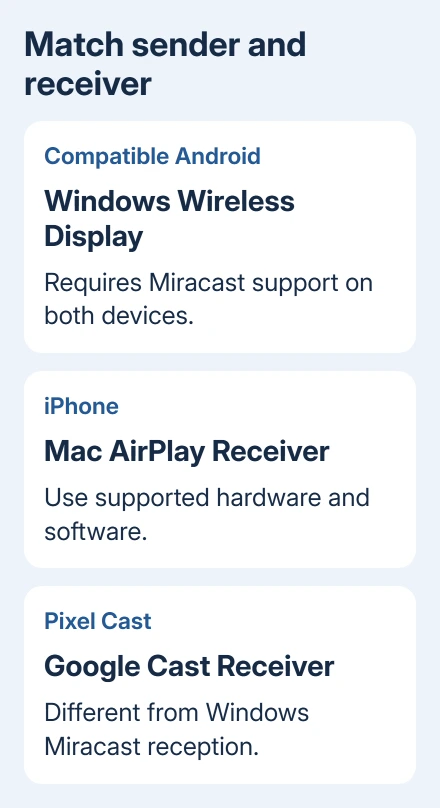
For iPhone to Mac, use AirPlay when you want to show what you're doing on the phone. The separate iPhone Mirroring app lets a compatible Mac interact with an iPhone, so its setup and requirements differ.
For iPhone to Windows, Android to Mac, or a Pixel to a laptop, a meeting app can carry the screen when the built-in receiver doesn't match. The meeting method later in this guide works through the app rather than Miracast or AirPlay.
I'd choose the connection method before installing Wireless Display. That optional feature is useful for a compatible Miracast sender, but it won't turn Windows into every kind of phone receiver.
Set up a Windows 11 laptop to receive Android
On the laptop, open Settings > System > Projecting to this PC. Under the option to add Wireless Display, select Optional features. Choose View features next to the control for adding an optional feature.
Search for Wireless Display, select its checkbox, then choose Next > Install. Once installation completes, open the receiving app. These steps prepare the laptop that will show the phone's screen.
Return to Projecting to this PC and review its availability and connection prompts. Choose a setting suitable for your own network and keep approval prompts enabled, so a nearby device can't start sharing without your knowledge.
Search Start for Wireless Display and open it. Starting with Windows 11 22H2, that's the receiving app's name. Earlier versions use Connect instead.
Microsoft's projection instructions explain the receiver installation. Keep the laptop's Wi-Fi on and leave the app open while connecting from the phone.
The ready screen should identify the PC you can connect to. If Windows says the hardware doesn't support receiving, the optional app can't add missing hardware support. Check the laptop maker's wireless and graphics requirements.
Use the Windows 10 receiving controls
On Windows 10, open Settings > System > Projecting to this PC. If prompted to add Wireless Display, open Optional features, choose Add a feature, select Wireless Display, and install it.
Return to the projection settings to choose when the PC is available. Open Connect from Start and leave its receiving screen visible. That app name matters when following instructions written for newer Windows 11 versions.
If Wireless Display is already installed, you can use it straight away. Check the availability setting and open the receiver instead. Pressing Windows+K on the laptop starts a sending connection, which isn't the direction needed here.
For a deeper Windows receiver problem, the wireless display guide covers support checks and missing optional features. Use it after you've confirmed that the phone supports the same method.
Connect from a compatible Android phone
Expand quick settings on the phone, then find screen mirroring. On a compatible Samsung Galaxy, look for Smart View. Other makers can use names such as Wireless Projection or Screen Share.
Open that control, select the laptop name shown in the receiving app, and accept the request on the laptop. Enter a displayed PIN if your receiving settings require one, then approve the phone's screen-sharing prompt.
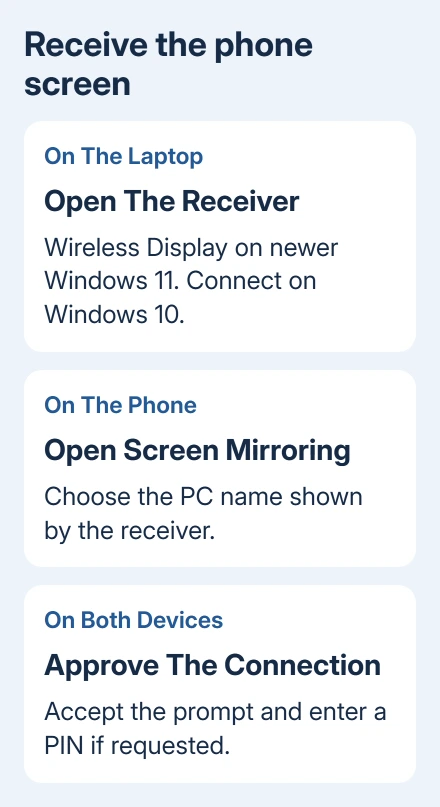
The phone's home screen should appear inside the laptop's receiver window. Open a harmless screen such as Settings to check the connection before presenting messages or other private content.
When finished, use Disconnect or the stop-sharing control in the phone's mirroring panel. Closing a video app on the phone doesn't necessarily end the whole screen-sharing session.
If the laptop doesn't appear, check Wi-Fi, the open receiver app and the phone's supported casting method first. A menu called Cast can still be looking for a different receiver type.
Know the Pixel and Phone Link limits
A Pixel's screen projection options use Google Cast or supported wired display output. Its Cast list shouldn't be treated as a list of Windows Miracast receivers.
A USB-C video cable also can't make a laptop's normal HDMI output receive video. Connecting your phone to a compatible monitor is different from showing it on a Windows laptop.
Phone Link offers Phone screen on supported Android models with the required Link to Windows integration. It's separate from the basic ability to pair a phone for messages, calls or photos.
If your model supports it, complete Phone Link pairing and the phone's requested permissions, then open its Phone screen feature. Check the supported-device requirements if that control is missing.
Don't assume an iPhone paired in Phone Link gains full screen mirroring. To show an iPhone's screen on Windows, choose a tool that supports that exact connection.
Mirror an iPhone to a supported MacBook
Join the same Wi-Fi network on both devices. With Ventura (macOS 13) or a newer release, open System Settings > General > AirDrop & Continuity (or AirDrop & Handoff) and enable AirPlay Receiver.
On macOS Monterey 12, check System Preferences > Sharing > AirPlay Receiver instead.
Check the allowed-senders setting. Current User is suited to your own devices using one Apple Account; choose another access option only when you need to share with other devices.
Open Control Center on the iPhone. For Face ID models, swipe downward from the top-right corner. For a Home-button model, swipe upward from the bottom. Tap Screen Mirroring, choose the Mac, and enter its AirPlay code if requested.
To end it, return to Screen Mirroring > Stop Mirroring. If the Mac stays missing, check its AirPlay compatibility and receiver setting, then use the AirPlay discovery checks.
A supported Mac and suitable software are required; the AirPlay requirements list the models. If a normal screen mirrors but a protected movie doesn't, check the video app's AirPlay restrictions.
For a failed connection, give the phone or laptop maker both model names, OS versions and the receiver app. Ask whether that exact pair can show the phone's screen on the laptop, so support doesn't send you laptop-to-TV instructions.
Use a meeting for other phone and laptop pairings
For a presentation, join the same Google Meet from the laptop's browser and the phone's Meet app. Keep the laptop's microphone and speaker off to avoid feedback. Only invite people who should see the phone screen.
On Android or iPhone, tap the meeting screen, then More > Share screen > Start Sharing. Follow the phone's broadcast prompt. If you join only to present, iPhone uses Start Broadcast, while Android uses Start Now.
The laptop displays the shared phone screen inside the meeting. This mobile presentation method needs a working meeting connection, and the host can restrict screen sharing. Finish with Stop sharing > OK on the phone.
The Short Version
Use a matching receiver: Miracast for compatible Android and Windows, supported Phone Link models for Phone screen, or AirPlay for iPhone and Mac. For other pairs, present the phone screen through a meeting app.
Checked November 10, 2026.






