

Old computers belong with a reuse program or electronics recycler after you remove personal data. A working machine may help someone else; a broken one still needs electronics collection, especially if it contains a lithium-ion battery.
Before handing it over, save the files you need and decide how its storage will be erased. A computer that won't start hasn't necessarily lost the information on its drive.
In this guide
Decide whether the computer can be reused
Check whether the machine starts and its screen works, and locate its power supply. Describe faults honestly. Before preparing a donation, ask the reuse organization whether it accepts that model and condition.
Ask about minimum specifications, supported software and accessories. Even a working computer might not suit a particular charity. Check first so you don't turn up with a machine they can't refurbish or give to someone.
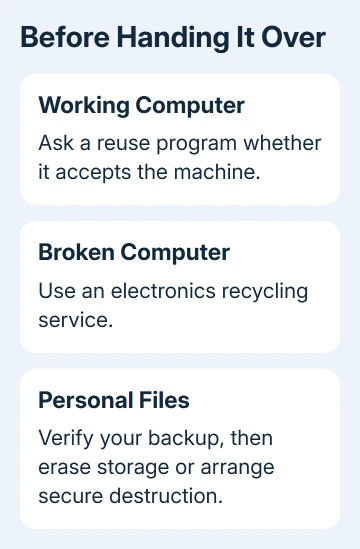
If reuse isn't suitable, try the manufacturer's take-back program, local electronics collection or a certified recycler. Ask about fees and accepted items for your location before taking the computer there.
The EPA's electronics donation and recycling page lists ways to locate collection programs. It also calls for removing personal information before donation or recycling. Ask the provider when and where you can drop it off.
I'd choose the receiving organization before wiping the machine. A refurbisher may want a reusable computer with its charger, while a recycling service may have separate instructions for batteries, monitors and drives.
Save your files before erasing anything
Copy the documents, photos and other files you want to keep onto another device or backup drive. Open a few important files from that copy. Check that your files are there and open properly, rather than just looking for a backup folder.
Check Downloads, Desktop and Documents, plus files inside individual apps. Save licenses and account details needed to move software to your replacement. Keep the backup drive out of the recycling pile.
For a Mac, the Time Machine backup steps explain the built-in backup route. For Windows, check the actual contents of your backup rather than assuming that signing into a Microsoft account saved every local file.
Disconnect external backup drives and remove memory cards after checking the copies. A forgotten card or portable drive can carry personal files even after the computer itself has been erased.
If this is an employer's or school's computer, return it through that organization's equipment process. Ask its IT team to handle the data and ownership records. Let them prepare it for retirement rather than resetting it yourself.
Erase a Windows PC using the removal option
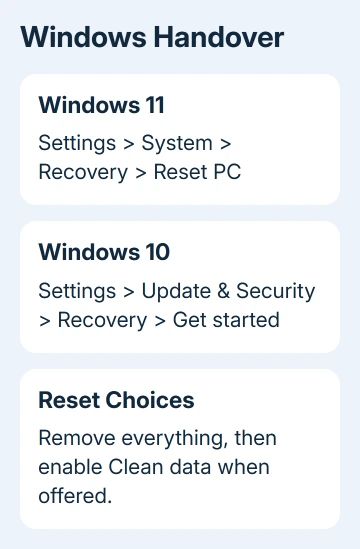
On Windows 11, open Settings > System > Recovery, then select Reset PC beside Reset this PC. On Windows 10, open Settings > Update & Security > Recovery, then choose Get started under Reset this PC.
Select Remove everything, not Keep my files. Check the reset settings and turn on Clean data when it's offered. This slower option makes deleted files harder to recover, which matters when someone else receives the PC.
Microsoft's reset instructions recommend cleaning data for a PC being donated, recycled or sold. Review which drives the reset will affect, especially when the computer has more than one internal drive.
Leave its power supply attached throughout the reset. A dark screen or several restarts can be part of the process. Don't interrupt it simply because the screen goes black while Windows is working.
This consumer cleaning option doesn't meet government or industry data-erasure requirements. If business records need certified destruction, follow your organization's process or use a provider that records how it handles the data.
For more preparation before a computer changes hands, the laptop handover guide covers account and drive checks. You still need to arrange recycling after the reset; erasing the data only handles one part of the job.
Prepare a Mac for its next owner
Erase All Content and Settings works on Apple silicon Macs and Intel Macs equipped with a T2 chip, running macOS Monterey 12 or newer. On Ventura 13 and newer, open System Settings > General > Transfer or Reset to find it.
On Monterey, open System Preferences, then choose Erase All Content and Settings from the menu named System Preferences in the menu bar. Follow Erase Assistant, including its account prompts, after making your backup.
An older Intel Mac without that feature uses a different sequence: sign out of the required services, erase the startup disk through macOS Recovery and reinstall macOS. Use the Mac handover instructions for that model.
Older Macs need iCloud and iMessage sign-out, plus iTunes deauthorization on systems that require it. Dragging your home folder to the Trash doesn't replace those steps. Leave the donated Mac ready for its recipient's setup.
If the Mac is still linked to your account, resolve that before handover. Ask the organization what it needs from you. Keep the Apple Account password to yourself rather than passing it on so someone else can finish setup.
Handle dead computers and batteries through the right service
A computer that won't start can still have readable files on its drive. Tell the recycler or refurbisher it hasn't been erased. Ask whether they offer secure data destruction, what it costs and what written record you'll get.
If the recycler doesn't handle data, use a qualified repair shop or destruction provider before handover. Ask about every storage device, including a second internal drive. A broken screen or dead motherboard doesn't erase them.
Keep lithium-ion batteries, including those inside laptops, out of household trash and curbside recycling. Ask the collector how to handle a built-in battery. Get help rather than prying open a sealed laptop to remove it.
Mention a swollen, damaged or leaking battery when arranging collection, so the service can give you its handling instructions. They may not accept a damaged battery through their usual mail-in service.
Before you set off, check that the service accepts your computer, display and accessories. Ask about fees and whether you need an appointment. For data destruction, keep the receipt or certificate with your handover records.
The Short Version
Arrange reuse or electronics recycling, verify your backup and remove personal data. Windows offers Remove everything and Clean data; Macs have their own erase process. Plan drive destruction for dead hardware and proper battery handling.
Checked November 10, 2026.
 If you have any business, I can build it online






