

A fixed white spot on an iPad screen usually needs a display inspection, rather than a brightness adjustment. A floating circle that opens a menu is often AssistiveTouch, which you can turn off in Accessibility settings.
Check which kind of mark you're seeing first. That way, you won't arrange a repair for an accessibility button or spend time changing settings that can't fix a physical bright patch.
In this guide
1. Check whether the white spot is a button
Tap the spot once. If it opens a menu with controls such as Home, Device, or Control Center, it's the AssistiveTouch button. It can sit over apps and look like a white or gray circle even when the app underneath changes.
Open Settings > Accessibility > Touch > AssistiveTouch and turn off AssistiveTouch if you don't need it. The circle should disappear immediately. Turning it off removes the button; it doesn't repair the screen.

If the circle returns later, check Settings > Accessibility > Accessibility Shortcut. Triple-clicking the Home button or top button, depending on your iPad, can turn AssistiveTouch back on if it's assigned to that shortcut.
A bright patch that stays in place and doesn't open anything needs the next checks. Don't tap it harder. I'd check this before changing display settings, because a button and a bright patch need different answers.
2. Separate surface marks from a bright patch
Lock the iPad and look at the glass in normal room light. A fingerprint, dried droplet, or mark on a screen protector can catch the light and appear white. A patch that lights up is easier to see with the display on.
Disconnect the charger and use a slightly damp, lint-free cloth to wipe the glass. For a dirty surface, the iPad screen cleaning steps explain how to clean it without soaking the openings.
Remove a case that's squeezing the screen or preventing the iPad from sitting flat. Apple says to remove accessories in its screen troubleshooting steps. Remove the protector too when checking the surface.
Don't press, massage, heat, or pull on the patch with a suction cup. That puts more force on the screen. Even if the patch changes for a moment, it won't tell you which part inside needs repair.
After cleaning, open a familiar app with a pale background. If the mark is gone, the surface or accessory was affecting what you saw. If it remains in the same location across apps, compare a screenshot next.
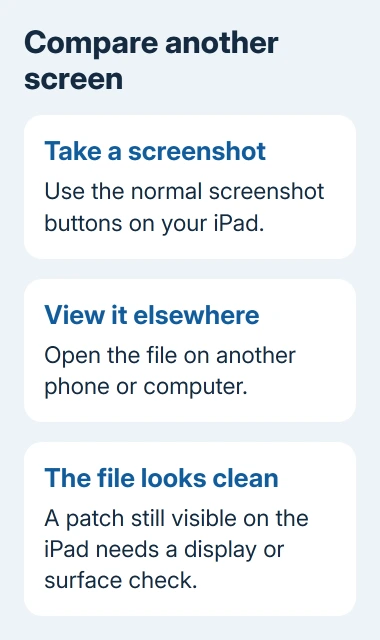
3. View a screenshot on another screen
A screenshot records the iPad's picture. Open that file on another device to compare the recorded image with the iPad's display. Looking at it on the iPad's marked screen won't help you tell them apart.
No Home button: capture with top + volume, using a brief simultaneous press. Either volume key works. Home button model: use Home + top, pressed briefly together.
Open the saved screenshot in Photos and send it to another phone or computer using your usual sharing method. Compare the area where the white spot appears on the iPad. Use a screenshot without private messages or account details.
If the same mark appears in the file on the other screen, check the app, image, or accessibility feature producing it. Try a different app before arranging a screen inspection. A mark inside one photo can simply be part of that photo.
If the image looks clean on the other device but your iPad still shows the patch, have the screen and its surface inspected. This check can't tell you whether the battery, a display layer, or a connector needs attention.
4. Restart once, then compare the same picture
Restart once when a mark appears suddenly or follows an app problem. Save your work first. If the same patch survives startup and appears across unrelated apps, restarting repeatedly won't help.
For models without Home, press two buttons at once: top + either volume. Hold them until the shutdown slider appears. Drag it and let the iPad shut down. Hold top to restart it.
For a model with Home, hold top until the shutdown slider appears, then drag it. Once the iPad is off, hold top again. Release it at the startup logo. This restarts the iPad normally, without entering recovery mode.
Open the same pale image at a comfortable brightness after startup. Check whether the mark stays in one place across apps or only appears in one app's picture. Note whether touch works there and whether the patch has grown.
If the whole screen is dim or turns black rather than showing one bright area, use the iPad backlight checks. A dim screen and a white spot in one area need different checks.
5. Arrange service for a persistent patch
Back up the iPad while it's usable, then contact Apple Support through the Support app or an authorized provider. Ask them to inspect the fixed bright patch. Give your model, the patch's location, and what the screenshot check showed.
Some iPads have LCD screens lit by a backlight; others use OLED pixels that light themselves. A photo can't tell a technician which part to replace. Ask whether the repair means a new display or a replacement iPad before agreeing.
If the screen is lifting, the case is bulging, or the device appears damaged, stop using and charging it. Those signs need prompt attention. Don't try to flatten the screen or push it back into place yourself.
Ask the repair provider to check your warranty or AppleCare coverage and give you a price. The technician needs to inspect the iPad before confirming free service or a damage charge.
The Short Version
A circle that opens a menu is usually AssistiveTouch. A fixed bright patch needs a surface check, a screenshot viewed on another device, and one restart. If it stays, back up the iPad and request a display assessment.
Checked November 10, 2026.
 If you have any business, I can build it online






