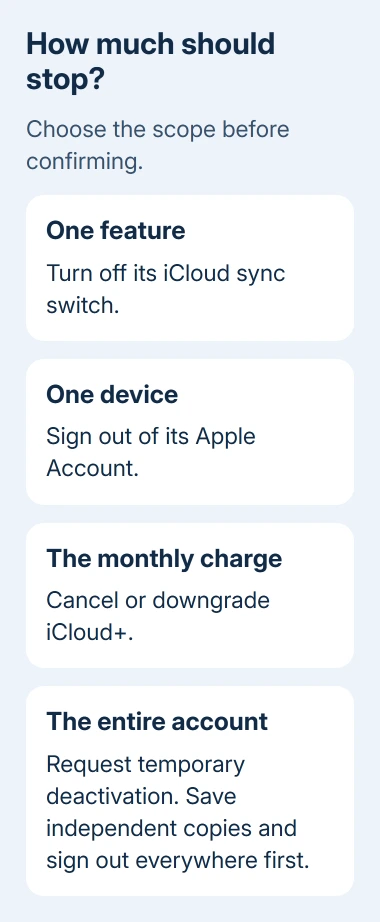
There isn't one iCloud off switch for every situation. Disable selected syncing features to stop uploads, sign out to disconnect a device, cancel iCloud+ to stop paying, or deactivate the Apple Account to pause access across the account.
These choices have different effects. To stop a phone using iCloud, changing its iCloud settings is usually enough. Account deactivation also stops access to other Apple services, so choose it only when that's what you want.
In this guide
Decide which part of iCloud to turn off
Match the change to your aim. Photo uploads need a Photos setting, disconnecting an old computer means signing out, and ending a storage charge needs subscription controls. None requires disabling the entire Apple Account.
Using an iPhone or iPad, open Settings > your name > iCloud and review the services using it. On a Mac, open Apple menu > System Settings > your name > iCloud. Check the list to see which services use your account.
Before turning off anything that holds your only copy, download or copy the content somewhere you can open it without iCloud. A file visible in an app can still depend on a cloud download. Check a few important originals after saving them.
I'd start by changing only the service you want to stop. Keeping an account active while disabling one sync feature leaves mail, purchases and other useful services available. You'll have less to set up again if you change your mind.
Stop a particular iCloud service
Open the iCloud settings for your device, select the app or feature and turn off its syncing switch. In recent versions of iOS and iPadOS, See All beside the saved-to-iCloud apps expands the list when the feature isn't initially visible.
For Photos, use Settings > your name > iCloud > Photos and turn off Sync this iPhone. Read the download or removal prompts carefully. The Photos-only turn-off procedure covers keeping originals before disabling that service.
Disabling a feature on one device doesn't disable it on every device using the account. Review the setting on each device you want to disconnect. Deleting cloud content isn't a substitute for changing a sync switch.
For automatic iPhone backups, open Settings > your name > iCloud > iCloud Backup and disable Back Up This iPhone. That stops future automatic backups without removing the existing stored backup.
Decide what will protect new data afterward. A computer backup is an option when leaving cloud backups behind. Set up that replacement before losing a phone leaves you depending on an old backup.
On older macOS versions, the iCloud controls are in System Preferences under Apple ID or iCloud. Intel Macs use the same account choices as models with Apple silicon. Your macOS version determines which menus you see.
Disconnect one device or end an iCloud+ charge
Disconnect a device through its Apple Account Sign Out control. An iPhone uses Settings > your name > Sign Out. A Mac uses System Settings > your name > Sign Out. iCloud for Windows has a Sign Out button in the app.
Follow the prompts about keeping copies or erasing content. This disconnects that device, and you can still use the account elsewhere. If you're selling it, finish the erase process before handing it over.
An iCloud+ subscription needs a separate cancellation or downgrade. Signing out of all your devices doesn't stop its recurring charge. Check which account is paying for that subscription, especially when family storage is involved.
To keep the storage plan while changing its card, replace the iCloud payment method through account billing instead of canceling the subscription.
On iOS 18.4 or later, open Settings > your name > Subscriptions > iCloud+. Tap Cancel Subscription to end the paid plan, or See All Plans to choose a smaller one.
On iOS 18 through 18.3, use Settings > your name > iCloud > Manage Plan > Downgrade Options. With iOS 17 or earlier, use iCloud > Manage Account Storage > Downgrade Options from your account settings.
Check the date the downgrade takes effect and compare your stored data with the new storage limit. If your data exceeds that limit, syncing and backups won't complete until you free up space or increase the plan.
The iCloud space guide helps when the real aim is reducing the bill without abandoning the account. Clear only content you no longer need or already saved elsewhere.
Temporarily deactivate the whole Apple Account
Apple's account deactivation explanation describes a temporary pause that keeps account data but makes it inaccessible. Some countries and regions don't offer this request. That affects much more than iCloud on one phone.
First, save your iCloud data somewhere that doesn't require this Apple Account to open it. Download needed purchases and save important account information. Review active subscriptions; they aren't renewed while the account is inactive.
An active AppleCare One plan must be canceled before deactivation. Sign out of every device before submitting the request as well. Once the account is inactive, you can't sign out of iCloud or turn off its Activation Lock on those devices.
Open privacy.apple.com and sign in. Select Request to deactivate your account and follow the prompts. If the option isn't present, the feature isn't available in your country or region; don't select account deletion as a replacement.
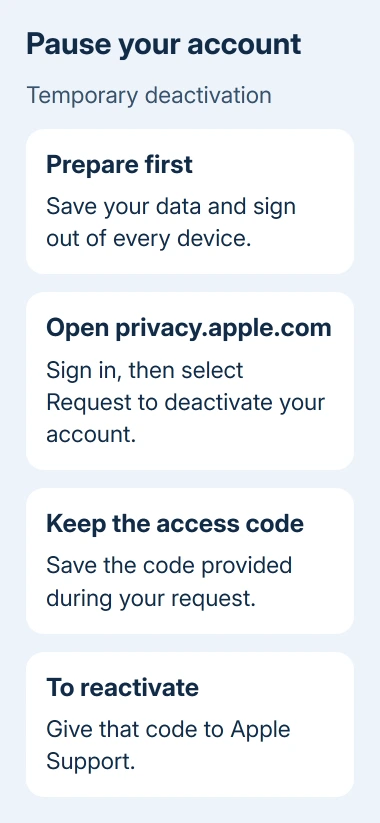
Save the unique access code (letters and numbers) you receive during the request. You'll need it to reactivate the account. Deactivation happens after ownership is verified; check the status information you receive during the process.
An inactive account can't receive new iCloud mail or iMessage messages. Services such as the App Store, FaceTime and Apple Pay are affected too. Tell important contacts how to reach you before that address becomes unavailable.
Reactivate the account or resolve an unavailable option
To reactivate, give the request's access code to Apple Support. Signing in with the old password alone won't reactivate the account. Keep the code until access is restored and you've checked your services.
Permanent Apple Account deletion removes account data instead of keeping it for a temporary pause. Read the deletion information on the Data and Privacy site before choosing it, especially if you need purchases or stored files.
If you aren't sure which request you submitted, contact Apple Support about Data and Privacy with your request details and code. Ask whether deactivation or deletion is still pending, or whether the account is already inactive.
The Short Version
Disable individual features, sign out to disconnect a device, or downgrade iCloud+ to end a paid plan. For account deactivation, save independent copies, sign out everywhere and keep the access code from the Data and Privacy request.
Checked November 10, 2026.