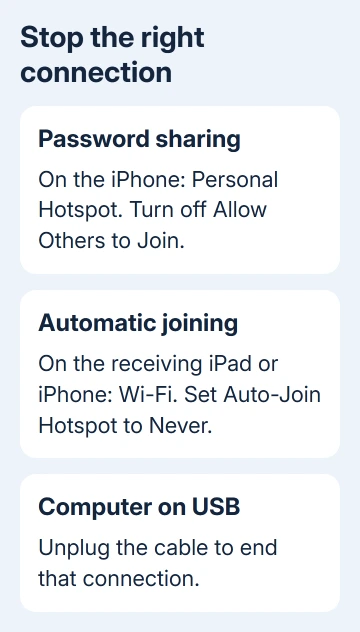
Turning off Allow Others to Join in Settings > Personal Hotspot stops devices from joining with your hotspot password.
A Mac or iPad using the same Apple Account can still connect through Instant Hotspot, so automatic reconnections need a setting on that device too.
Start with the sharing switch, then check which device keeps joining. Unplug a USB connection as well if the computer is using your iPhone for internet while it charges.
In this guide
Stop sharing from Personal Hotspot settings
Open Settings > Personal Hotspot and turn off Allow Others to Join. Depending on your carrier and settings layout, the route can be Settings > Cellular > Personal Hotspot.
The switch should look off when you return to that page. This is the main control for a Windows laptop, an Android phone, or another device joining with your hotspot password.
On the connected device, open its Wi-Fi menu and check whether it has left the iPhone's network. Choose your home Wi-Fi on it if you want that device to keep working online without using your cellular plan.
Apple's hotspot disconnection steps also separate Wi-Fi, USB, and Bluetooth connections. That matters when the Wi-Fi icon changes but a cable still gives the computer internet access.
Don't use the presence of the iPhone's name in a nearby device's network list as your only check. A listed hotspot and an active connection aren't the same thing. Check which network the receiving device is actually using.
If the switch stays off but your own iPad or Mac joins again, move to the automatic-connection settings. Changing the hotspot password won't address a connection that doesn't ask for that password.
Stop your iPad or second iPhone joining automatically
On the device that connects to the hotspot, open Settings > Wi-Fi > Auto-Join Hotspot. Choose Never to prevent automatic joining, or Ask to Join if you want a prompt instead.
Change this on the device that keeps joining. On the iPhone providing the hotspot, the same setting controls connections to other people's hotspots, so it won't stop your iPad from joining yours.
With Never selected, connect the iPad or second iPhone to normal Wi-Fi. When that Wi-Fi becomes unavailable, it shouldn't automatically switch to your iPhone's hotspot.
Instant Hotspot lets devices sharing an Apple Account connect without entering the hotspot password, even when Allow Others to Join is off.
That's why the sharing switch can appear to turn itself back on when the other device is reconnecting.
I'd change Auto-Join Hotspot before changing account settings. It deals with the unwanted connection without signing devices out or interrupting shared photos, contacts, and other account features.
Never stops automatic joining, but someone using another device on your Apple Account can still choose your iPhone manually from its Wi-Fi menu.
Change the Mac's hotspot choice
On the Mac, click Wi-Fi in the menu bar or Control Center, then choose Wi-Fi Settings. Scroll to Ask to join hotspots and choose Never if you don't want the Mac to offer or make these automatic connections.
Choose Ask to Join if occasional sharing is useful but you want to approve it. macOS added Automatic with Tahoe 26. Earlier releases lack that three-way choice.
If your older Mac shows an on/off Ask to join hotspots control, turn it off to stop those offers. Use the controls your installed version provides rather than looking for an Automatic option it doesn't have.
After changing it, select your regular Wi-Fi network from the Mac's Wi-Fi menu. Before starting a large download, check its name so you know you're using home broadband rather than the phone's cellular connection.
When you want to keep sharing but the connection drops, use the checks for an iPhone hotspot that keeps disconnecting.
Ask family members before they connect
On the iPhone providing the hotspot, open Settings > Personal Hotspot > Family Sharing. Select a family member and change Automatic to Ask for Approval.
With approval required, their attempt to join brings a request to your iPhone. You can approve that connection without removing the person from the family group.
If you don't want to provide this family access at all, turn off Family Sharing within Personal Hotspot. This is the hotspot's sharing control, not an instruction to leave your Apple Account family group.
The family option appears when Family Sharing is set up. If it isn't there, check same-account devices and ordinary password-based connections instead of trying to create a family group to turn sharing off.
Ask the family member to check their receiving device's Auto-Join Hotspot setting too. With Automatic selected, their device can join when another Wi-Fi network disappears, even though they didn't select your phone that time.
Disconnect USB and Bluetooth sharing
For a USB hotspot, unplug the cable between the iPhone and computer. The cable can carry the internet connection as well as charge the phone, so turning off Wi-Fi on the computer doesn't remove that route.
If you need to charge the iPhone without providing the computer a connection, use a wall charger. Turning off Allow Others to Join is also part of stopping ordinary USB sharing.
For Bluetooth sharing, open Bluetooth settings on the connected computer and disconnect the iPhone's network connection. Don't assume the computer has stopped tethering just because it isn't connected to the iPhone over Wi-Fi.
A keyboard or headset pairing doesn't need to be removed to stop the hotspot connection. Work on the iPhone's connection entry, rather than disconnecting every Bluetooth accessory.
When sharing is needed again, the iPhone hotspot setup steps cover choosing Wi-Fi, USB, or Bluetooth when needed. Reconnect by one method so you know which connection you're using.
When sharing still seems to continue
Check the receiving device first: its selected Wi-Fi network, any USB cable, and its Bluetooth network connection. Also check whether it uses your Apple Account or belongs to your family group.
If an unwanted connection continues after those checks, use Apple Support's Personal Hotspot help and describe the connection method and both device models.
Include whether Allow Others to Join stays off and whether Auto-Join Hotspot is set to Never.
For a question about data already charged, ask your carrier for the hotspot usage breakdown and billing period. Turning sharing off stops future connections; it doesn't remove data that a connected computer has already used.
The Short Version
Disable password sharing with Allow Others to Join. Stop Auto-Join Hotspot on the iPad, iPhone, or Mac that keeps connecting. Require family approval and unplug USB tethering when needed.
Checked November 10, 2026.