OneNote syncs iPad notes automatically through OneDrive or a supported SharePoint location. Sign in using the notebook's account, tap More Notebooks, and open the existing notebook instead of making a duplicate.
A notebook that opens on the computer but is missing from the iPad usually needs the correct account or cloud location. A notebook that opens on both devices but shows different pages needs a sync check instead.
In this guide
Open the existing notebook with the right account
Check the account used for the notebook on your computer. Personal and organization accounts can look similar in a list, but they can have different notebooks and access to shared notes.
In OneNote on iPad, sign in with that account. Open the notebook list, tap More Notebooks at the bottom, then select the notebook you want. Open one of its sections, then a page you recognize.
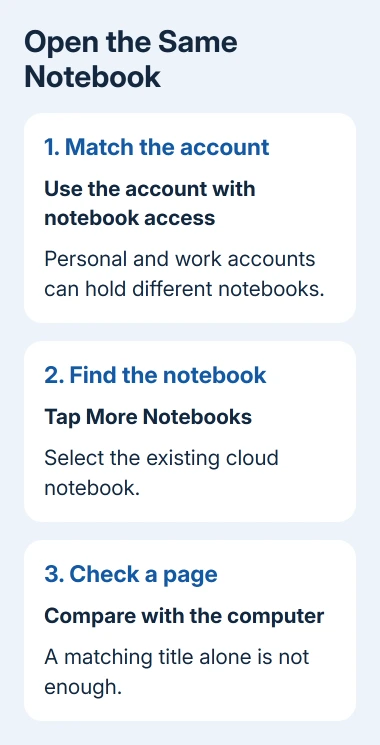
If an account is already signed in, check which one it is before adding anything. Creating a new notebook with the same title doesn't connect it to the old notebook. It creates another place to put notes.
Microsoft explains notebook access in its OneNote notebook-sync instructions for the same or another OneDrive account.
The iPad controls differ from the Windows sync commands.
Add the notebook's other account when needed
For a notebook in another OneDrive account, open OneNote's Settings using the gear control. Under Account, tap the currently selected account, then use Connected Services > Add a Service > OneDrive.
Enter the account used for the notebook on your computer and complete sign-in. Return to More Notebooks, select the existing notebook, and open its sections.
Signing in gives OneNote access to that account. You still need to select the notebook to open it in the app.
For a shared work notebook, use the account that was given permission. A personal account doesn't gain access simply because its display name matches your work name.
If access is refused, ask the notebook owner or administrator to check the invitation and account.
This is OneNote's own cloud connection. The iPhone and iPad syncing guide covers iCloud services, but enabling an iCloud switch won't add a Microsoft notebook to OneNote.
Move a computer-only notebook to a supported cloud location
A notebook stored only on a PC's local drive won't appear through OneDrive on the iPad. Check its location in desktop OneNote before spending time refreshing the mobile app.
In Windows desktop OneNote, open the notebook and choose File > Share. Select its OneDrive location, sign in if asked, choose the notebook name, and use Move Notebook. Let the upload finish before opening it on the iPad.
Then return to the iPad's More Notebooks list under the matching account. Open the cloud notebook and compare an existing page with the computer's version.
Keep working in that shared notebook rather than continuing in a separate local copy.
For a work notebook, use the organization's approved OneDrive or SharePoint location. If you're unsure where a managed notebook belongs, ask the administrator before moving company notes into a personal account.
Confirm that a change reaches the second device
While both devices have internet access, add a short, recognizable line to a page on the iPad. On the computer, open that notebook, section, and page to check for the line.
Then make a small change on the computer and look for it on the iPad. That checks syncing in both directions and helps you spot two separate notebooks with the same name. Once both changes appear, remove the temporary lines.
I'd use a plain text line before a large file attachment. A quick text change tells you whether the notebook itself is syncing before you wait for a much larger download.
OneNote for iPad doesn't have the desktop Sync All or Sync This Notebook command. Automatic syncing is the normal method. You won't find those Windows and Mac commands hidden in an iPad menu.
Decide whether attachments should be ready offline
OneNote automatically uploads pending changes when the connection returns after offline work. Before going offline, open the pages you'll need and check that their content is available on the iPad.
To have attachments download for offline use, open OneNote Settings > Sync and enable Auto Sync Attachments. Depending on the layout, reach Settings from the gear control or the notebook's … menu.
Large notebooks can take longer to open and sync the first time. If the notebook struggles to sync the first time, try turning Auto Sync Attachments off, letting the notebook sync, then opening the attachments you need.
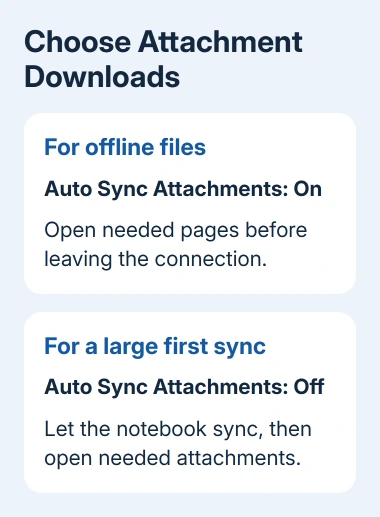
The offline-work instructions explain the attachment option.
That setting controls attachment downloads. It doesn't turn syncing for all your notes on or off.
When an open notebook still shows old content
Check that another online service works on the iPad, then reopen the affected notebook. If OneNote displays a Refresh Now button or a yellow refresh message, use that control and let the notebook resume syncing.
Open that notebook in browser OneNote with the matching account. If the latest page is there but not on the iPad, check the iPad app and its account next. If the page isn't on the web either, check the device that last edited it.
Save unsynced work in a separate place before signing out, closing the notebook, or reinstalling the app. Don't start with those steps when the iPad holds the only copy of your recent notes.
If a Mac also shows a saved-offline warning, the OneNote saved-offline guide follows that app's controls. The Mac steps won't match the iPad menus.
If refreshing and the correct account don't resolve it, report the exact error code, notebook location, and whether the web copy updates to Microsoft Support.
For a work SharePoint notebook that won't open on the web, ask the organization's administrator to check access and service health.
The Short Version
Use the notebook's account, open it through More Notebooks, and let OneNote sync automatically. Move a computer-only notebook to an approved cloud location first.
Check one page on both devices, then choose whether attachments should download for offline use.
Checked November 11, 2026.