Press Ctrl+Tab to switch to the next File Explorer tab in Windows 11, or Ctrl+Shift+Tab to go to the previous one. For a particular tab, use Ctrl+1 through Ctrl+9 to select it by position.
Those shortcuts change the tab you're viewing. They don't change its place in the row of tabs. If you're trying to rearrange tabs, these shortcuts won't change their order.
In this guide
Put the shortcut in the right File Explorer window
Press Windows+E to open File Explorer, or select the Explorer window you're already using. Look for folder tabs along the top. The keys work in the selected window, so start with the window that contains your folders.
A browser also uses Ctrl+Tab, but it switches browser pages. If Chrome or Edge is in front, the shortcut won't reach File Explorer. Select the folder window before trying the keys again.
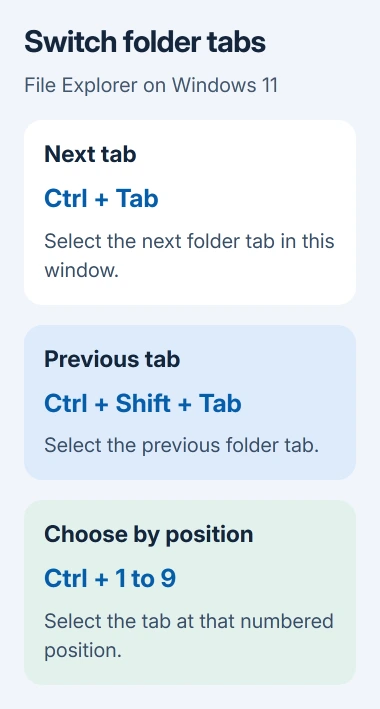
Microsoft's File Explorer keyboard shortcuts list switching, numbered selection, new tabs and closing tabs. Each does a different job from opening another window or moving around inside a folder.
Native File Explorer tabs are a Windows 11 feature, introduced with the 2022 update. Windows 10's built-in File Explorer doesn't have this row of tabs, so these commands won't add tabs to it.
If you're running a third-party tab utility, its shortcuts can differ. Check that utility's settings rather than assuming its tabs behave like the built-in Windows 11 ones.
Switch to the next or previous folder tab
Hold Ctrl and press Tab to select the next tab. Repeat Tab while holding Ctrl to keep moving through the open tabs. The window now shows the contents of the folder in the selected tab.
Use Ctrl+Shift+Tab for the previous tab. This is useful when the tab you need sits just before the active one and cycling through the others would take more presses.
Try the pair with two or three ordinary folders first. Open one folder per tab, then switch between them while watching the selected tab name. That makes it clear whether you're changing tabs or just moving the highlight between controls.
Pressing Tab alone is different. It moves the highlight between controls; it isn't the command for selecting the next folder tab. Keep Ctrl held when you want a tab switch.
If the visible folder doesn't change, check that more than one tab exists in this window. Another folder window on the taskbar isn't another tab in the current window.
Jump directly to a tab by number
Use Ctrl+1 for the first tab, Ctrl+2 for the second, and the corresponding number through Ctrl+9. Count the tab positions in the current File Explorer window rather than counting all folder windows on the desktop.
For example, keep a source folder first and a destination folder second. Ctrl+1 and Ctrl+2 then give you a predictable way to look at either location without cycling through other tabs.
Each number refers to a tab's position; it isn't a permanent shortcut for that folder. Opening or closing tabs can change the arrangement you're counting. Check the tab titles if the shortcut brings up a different folder than expected.
Browser shortcuts can behave differently in Explorer. The documented command is Ctrl+Number (1-9) for that tab number. Treat it as a tab number rather than expecting the special behavior browsers can give certain number keys.
I'd keep a small group of related folders in one window when using number keys. It's easier to remember three useful positions than to count a crowded row of tabs each time you switch.
Open another tab or a separate window
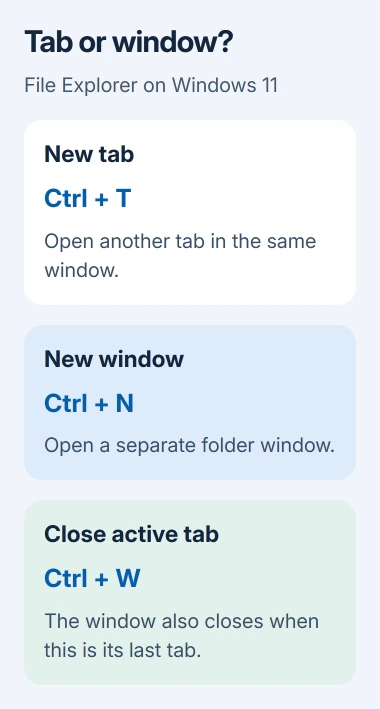
Press Ctrl+T to create a new tab and switch to it. To open a specific folder in that tab, press Ctrl+L, type or paste the folder path, and press Enter. The selected tab now shows that location.
Ctrl+N opens a separate File Explorer window. Use a new tab when you want another folder in the same window; use a new window when you want two folder views available side by side.
If every new window starts in a location you don't want, the File Explorer startup-location guide changes that preference. It doesn't change what Ctrl+Tab does inside a tabbed window.
Alt+Tab changes the active app window. Windows+Tab opens Task View. Neither is a substitute for moving between folder tabs inside the selected Explorer window.
For a different tab order, these switching commands won't help. The shortcut list doesn't include a command for changing tab order with the keyboard. With a keyboard, use numbered selection to reach tabs in their existing order.
Close a tab without deleting the folder
Press Ctrl+W to close the active tab. That closes the folder view, not the folder's files. If it's the last tab in the window, the window closes too, so check which tab is selected first.
When you want to keep a location handy, copy its address before closing. Reopen it later by entering that path in the address bar. It's simpler than trying to reopen the tab with recovery shortcuts meant for a browser.
A missing thumbnail after switching tabs is a display issue rather than a failed tab switch. Our File Explorer thumbnail guide takes you through preview settings and checks for OneDrive files.
Handle focus problems and unresponsive shortcuts
To move between Explorer's main areas with the keyboard, use F6 to move forward and Shift+F6 to move backward. That moves the keyboard highlight through areas such as the tabs and folder contents; it doesn't rearrange tabs.
If the same shortcut works in another normal Explorer window, compare the active app and any keyboard-remapping utility first. A remapped Ctrl or Tab key can change what reaches Explorer.
If the problem keeps happening in Windows' built-in Explorer, open Feedback Hub with Windows+F. Include your Windows version, the keys you pressed and whether that window has multiple tabs. Use Microsoft Support for direct troubleshooting.
The Short Version
Ctrl+Tab moves to the next folder tab, Ctrl+Shift+Tab to the previous one, and Ctrl+1 through Ctrl+9 selects by position. Ctrl+T opens a tab; Ctrl+N opens a window. Ctrl+W closes the active view, including the window when it's the last tab.
Checked November 11, 2026.