To turn down brightness on a Windows 11 PC, click the taskbar's network area and move the Brightness slider left. That adjusts a supported built-in screen. For a separate desktop monitor, reduce it in the monitor's physical control menu.
The right control depends on which screen you're using. A laptop connected to a monitor can need two separate adjustments, even while both screens show the same Windows desktop.
In this guide
Lower the built-in screen from Quick Settings
Open Quick Settings by clicking the taskbar's network, volume or battery area. Find the brightness slider, usually identified by a sun symbol, and drag it left a little. The laptop display should become dimmer as you move it.
Windows+A opens the same panel without the mouse. This is useful when the screen is too bright to comfortably search through Settings. Stop at a level where text remains easy to read in the room you're using.
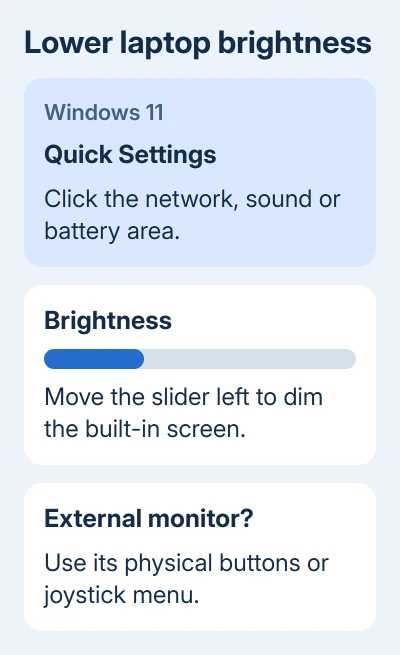
Microsoft says its display controls also include the full Settings route. Use that route when you want to check automatic adjustments as well as change the current level.
A comfortable percentage depends on your screen, the room lighting and what you're viewing. I'd judge the level while reading a normal document. A dark movie scene isn't a useful reference for how a bright page will feel.
These steps are for Windows 11. For the older taskbar panel, use the Windows 10 brightness instructions, where the quick control lives in Action Center.
Use Display settings when the quick control is awkward
- Open Start > Settings.
- Choose System > Display.
- Find Brightness and move its slider toward the lower end.
- Look at the screen itself as you adjust, then leave it at a comfortable setting.
Leave resolution and scaling alone for this task. Resolution sets how many pixels make up the image; scaling makes text and controls appear larger or smaller. Brightness controls how much light the screen gives off.
If two displays are connected, note which screen actually changes. The Windows slider can lower the laptop's built-in panel while an external monitor stays just as bright. If that happens, use the external display's own controls.
A working brightness slider shouldn't need a restart after each adjustment. If the level changes and then shifts again, read the automatic-adjustment section rather than repeatedly making the same manual change.
Dim a separate monitor through its own menu
Feel along the lower edge or back of the monitor for its control buttons or joystick. Open the on-screen menu and look for Brightness, sometimes inside a picture or image category. Use that model's manual when the labels differ.
Turn the brightness down, then close the monitor menu. This setting belongs to the monitor, so it can work even when Windows has no slider for that display. An absent desktop slider doesn't automatically mean a graphics driver is broken.
On a two-monitor desk, adjust each monitor separately. The same percentage won't necessarily look equally bright on both screens because their panels can differ. Compare the same ordinary document on both instead.
A laptop keyboard's brightness keys can still control its own panel while leaving the external monitor unchanged. Keep track of the screen you're trying to dim before repeating the key press.
Some monitor modes restrict the controls you can change. If Brightness is grayed out in the monitor's own menu, check its manual for the active picture or HDR mode. The appropriate mode change depends on the display model.
Keep automatic brightness from undoing the setting
Some built-in displays respond to room lighting. In Settings > System > Display, expand Brightness and look for Change brightness automatically when lighting changes. Turn that off if you want to choose the level yourself.
That option needs hardware that can sense room lighting. If you don't see it, that doesn't mean something is missing from Windows. A monitor without the relevant sensor won't show the same controls as a laptop that has one.
A separate Windows 11 feature changes brightness and contrast according to the picture on the screen. Look for Change brightness based on content and choose Off to disable this automatic adjustment.
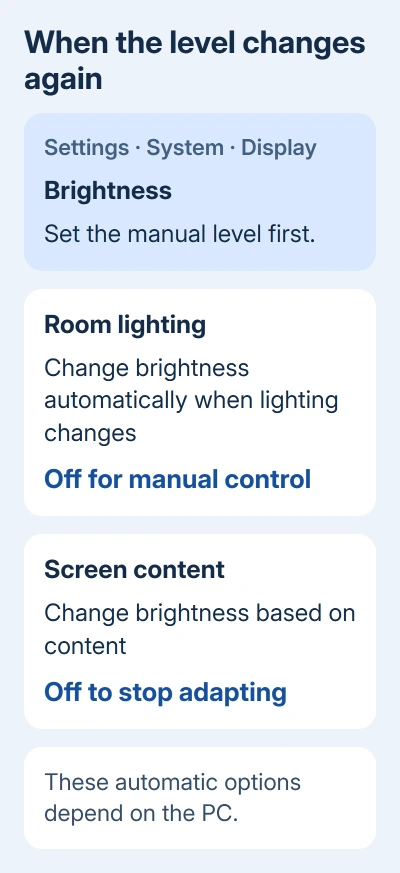
Content-based adjustment can make a dark app or video appear to change the brightness of the entire panel. For a screen that repeatedly brightens or dims as you change windows, use the content-dependent brightness checks.
Not every PC shows both automatic controls. Read the labels that are actually present instead of disabling unrelated color or graphics settings just to make the menu look like another computer's.
Separate a bright screen from a harsh color or HDR image
Night light changes the screen's color toward a warmer appearance. It can make evening reading more comfortable, but it's a different adjustment from the Brightness slider. Lower brightness first if the screen gives off too much light.
Find Night light in Settings > System > Display if you also want a warmer color. Don't use it as the only brightness adjustment and then assume the physical panel control has stopped working.
An HDR display can make standard content look different. In Display > HDR, check its supported brightness controls. These help balance the image, but you may still need to adjust the monitor's physical brightness control.
For an HDR screen with automatic lighting adjustment, a change can take longer to become visible. Give it time to respond before moving the control repeatedly. Compare the same page while judging the result.
When lowering the control doesn't change the display
First check whether the screen that won't dim is built in or external. A missing control on a laptop needs the brightness slider repair guide; an attached monitor needs its own menu checked first.
If the built-in control is present but has no effect, ask the PC maker's support team to check the display driver for your exact model. Give them the Windows version and whether the keyboard keys and Settings slider behave the same way.
If the external display ignores its own Brightness control, tell its manufacturer which model and picture mode you use. Those details help support check the monitor's own brightness controls.
The Short Version
Use Quick Settings or System > Display for a Windows 11 laptop panel. Dim an external monitor with its own controls. Check automatic lighting and content settings when your chosen level keeps changing.
Checked November 11, 2026.