Excel's message that there isn't enough memory to complete this action can come from a heavy workbook, an add-in, or the printer driver. Save a copy, close unused apps and workbooks, then retry. More RAM isn't always the answer.
Check whether the error affects one file or every workbook. Use that result to decide whether the spreadsheet or Excel itself needs attention.
In this guide
1. Close other work and compare with a blank workbook
Save any files that will still save, then close unused workbooks and applications. Quit Excel and reopen only the affected file. Retry the action that failed, such as inserting a column, sorting, or copying a range.
If the message returns, open an empty workbook and repeat a small version of the same operation. For example, enter a few values and insert a column. If that simple file works, focus on what's in the original workbook.
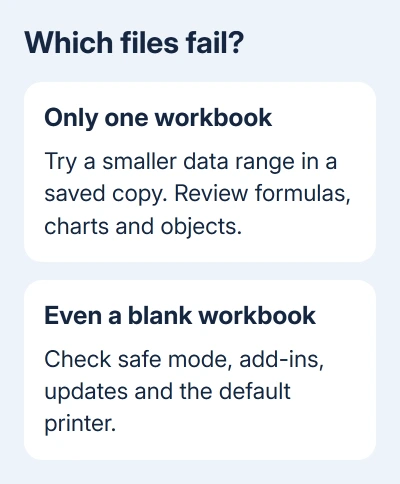
A blank workbook that also fails points toward add-ins, updates, drivers, or the installation. Note the exact error message alongside the action that triggered it. Different Excel errors can appear during the same copying task.
Microsoft's available-resources troubleshooting guide explains that these memory messages can be generic. Check when the error appears before assuming your PC needs more memory.
Follow these steps in the Windows desktop version of Excel. Excel for Mac and Excel in a browser don't have the Windows safe-mode command, COM add-in controls, or default-printer procedures used here.
2. Reduce the operation in the affected file
Work in the saved copy. Select the actual data range instead of entire columns when you copy or sort, then retry. Inserting a column into a sheet with many formulas can force a large amount of recalculation.
If the smaller task works, the original task may be too large or complicated. Work in smaller ranges if that gives you the same result, then review the workbook's design before the next large edit.
Look for sheets with extensive formulas, many shapes, complicated PivotTables, or charts containing large numbers of points. These all add work for Excel. In the copy, remove only items you know you don't need.
Keep formulas in your working original; replacing them with values removes their calculations. Ask the workbook's author to simplify repeated calculations or unused objects in a business-critical file.
For an error tied specifically to copying, our Excel freezes when copying guide follows that narrower symptom. A problem where Paste does nothing has its own Excel paste checks.
3. Start Excel in safe mode and check add-ins
Close Excel. Press Windows + R, type excel /safe, and press Enter. Open the affected workbook from that Excel window and retry the failed operation.
Safe mode skips several startup features, including Excel add-ins. If the workbook works there, an add-in or another startup setting may be causing the error. The next check helps you work out which one.
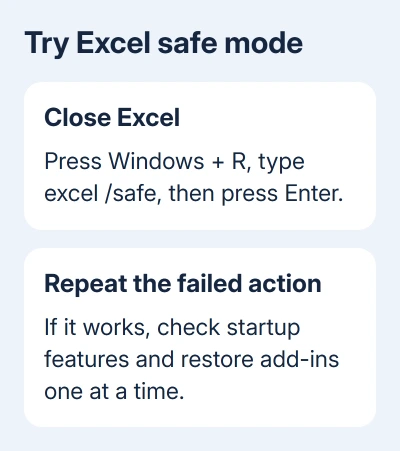
For COM add-ins, open normal Excel and choose File > Options > Add-ins. At the bottom, choose COM Add-ins in Manage, then select Go. Record the checked items, clear them, and close and restart Excel.
Test again. If that clears the error, turn one add-in back on at a time, restarting and repeating the operation after each change. Leave the one that brings the error back disabled and ask its supplier for an update.
Excel add-ins have a separate Excel Add-ins choice in the same Manage list. Check that group too if the COM group doesn't explain the difference. Involve your IT team when add-in controls are locked.
4. Install the available Office updates
In Excel, open File > Account > Update Options > Update Now. Install the offered Office updates, close the apps when requested, and reopen the saved workbook for another attempt.
If Update Options is missing or controlled by your organization, ask the administrator how that Office installation receives updates. A Microsoft Store installation can have a different update route from a standard desktop installation.
Use Windows Update for pending system updates too. On Windows 11, open Settings > Windows Update. On Windows 10, use Settings > Update & Security > Windows Update. Restart when an installed update asks for it.
Retest before changing another setting. If Excel still shows the error after updating, check the printer driver next, especially when the error appears during layout or printing work.
5. Try a different default printer
Excel uses the default printer's settings to lay out a workbook. A printer-driver problem can therefore affect work on screen, even when you aren't sending a print job.
Close Excel and note your current default printer. On Windows 11, open Settings > Bluetooth & devices > Printers & scanners. On Windows 10, open Settings > Devices > Printers & scanners.
If Windows chooses the printer automatically, disable Let Windows manage my default printer. If Microsoft XPS Document Writer is installed, make it the default.
Reopen Excel and repeat the operation.
If that works, update or reinstall the original printer's driver through its manufacturer or your IT team. Restore your normal default printer after the comparison. Skip this test if the suggested printer isn't installed.
6. Check 32-bit Excel before buying more RAM
Open File > Account > About Excel and read whether Excel is 32-bit or 64-bit. A 64-bit Windows installation can still have 32-bit Office, so the Windows system type alone doesn't answer this.
Large workbooks can reach the memory available to 32-bit Excel while the PC still has RAM free. How much memory it can use depends on the Office version and your setup; one fixed memory limit doesn't apply to every installation.
I'd check the add-ins before switching Office editions. Moving to 64-bit Office can help a large workbook, but older add-ins and custom code may need changes. Ask IT to check those add-ins and custom code before reinstalling Office.
If small files keep failing, open Help > Contact Support in Excel where available, or use Microsoft Support's Microsoft 365 help page.
Include your Excel version, whether it's 32-bit or 64-bit, what action failed, and the results of the safe-mode and printer checks.
The Short Version
Close unused work, compare one workbook with a blank file, and reduce oversized operations. Then check safe mode, add-ins, updates, and the default printer. Consider 64-bit Excel when large files remain the problem after those checks.
Checked November 11, 2026.